
Windows 10 & 11 · Updated for 2026
How to Download & Use Tachiyomi PC (Windows 10/11) – 2026 Guide
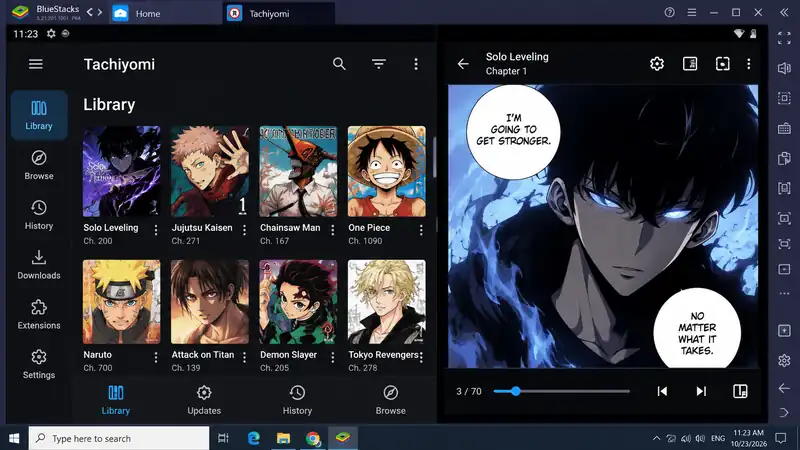
Reading manga on your computer gives you a convenient way to explore your favorite series, manage chapters, and enjoy a more flexible reading setup. This guide covers how to run Tachiyomi on Windows 10 and 11 using an Android emulator, install the APK, and explore alternatives to the discontinued app.
- Windows 10 / 11
- Emulator method
- Suwayomi & Mihon
- 14 FAQs
Introduction
Introduction
Reading manga on a computer gives you a bigger screen, more comfortable navigation, and a better way to manage your favorite series while working or relaxing. If you want to enjoy your manga library on a Windows computer, Tachiyomi PC may seem like the perfect solution. However, there is one important detail to understand before downloading anything that the original Tachiyomi app was designed for Android, and its development ended in January 2024.
This guide explains how to run Tachiyomi on Windows 10 and Windows 11 using an Android emulator, what you need before installation, and which alternatives are worth considering. You will also learn how to use the app, troubleshoot common problems, and avoid misleading downloads.
Quick answer
Can You Download Tachiyomi PC on Windows 10/11?
There is no verified official native Windows version of the original Tachiyomi application. The app was built for Android, so Windows users need a compatible Android emulator to run its APK file, or they can choose a separate desktop-compatible alternative. An Android emulator creates an Android environment inside your computer. It allows certain Android apps to run on Windows without requiring an Android phone.
Before choosing this method, remember that Tachiyomi is discontinued. Its original developers announced the end of active development on January 13, 2024, and confirmed that official support and extensions would no longer be maintained. If you want to use the original app, an emulator may be an option, but you must find a trustworthy APK. If you prefer software that continues to receive updates, consider an independent alternative instead.
Why PC
Why Use Tachiyomi on a PC?
Using Tachiyomi PC can make manga browsing and library management more convenient. Before choosing this setup, it helps to understand its main benefits and the limitations of the discontinued app.
Benefits of Reading Manga on a Bigger Screen
A computer screen gives you more space to view manga panels and read dialogue. You can also use a mouse to navigate pages and switch between applications without constantly reaching for your phone.
For example, you can keep your manga reader open beside a browser or note-taking application. This setup can be useful when you want to organize your reading list or research a series while reading.
What to Know Before Installing
Running an Android application on Windows is not the same as installing ordinary Windows software. You need an emulator, a compatible APK, and enough system resources to run both applications smoothly.
You should also understand that installing Tachiyomi does not guarantee that its old extensions or online sources will continue working. Some services may have changed since development ended.
Before you start
What You Need to Run Tachiyomi on Windows
Before installing Tachiyomi PC through an emulator, make sure your system supports the software you plan to use. A few basic requirements can help you avoid installation errors and compatibility problems.
Windows 10 and Windows 11 Compatibility
Both Windows 10 and Windows 11 can run compatible Android emulators, provided your computer meets the emulator’s current requirements. However, compatibility depends on the emulator version, processor architecture, available memory, and virtualization settings.
Windows 11 previously included Windows Subsystem for Android, but Microsoft ended support for it on March 5, 2025. Therefore, you should not rely on that discontinued feature as your main installation method in 2026.
Basic Hardware and Software Requirements
Before installing Tachiyomi PC, check that your computer has the following:
- A supported 64-bit Windows installation, if required by your chosen emulator.
- Enough RAM and free storage for Windows, the emulator, and the manga chapters you save.
- A compatible processor and graphics setup.
- Virtualization support, if your emulator requires it.
- A trustworthy copy of the Tachiyomi APK.
- A reliable internet connection for installation and online content.
There is no single hardware requirement that applies to every emulator. Check the official documentation of the software you choose rather than relying on requirements copied from another website.
Pick your method
Which Method Should You Choose?
Choosing the right method for Tachiyomi PC depends on whether you prefer an Android app or a browser-based manga reader. There are two main approaches, and the right choice depends on what you want to achieve.
| Method | Best for | Main limitation |
|---|---|---|
| Android emulator | Running a compatible Android APK on Windows | Requires additional software and a trustworthy APK |
| Suwayomi-Server | A desktop-compatible manga library and reading setup | Requires initial configuration and compatible sources |
| Mihon through an emulator | Using a maintained Android reader on a computer | Still depends on an Android environment |
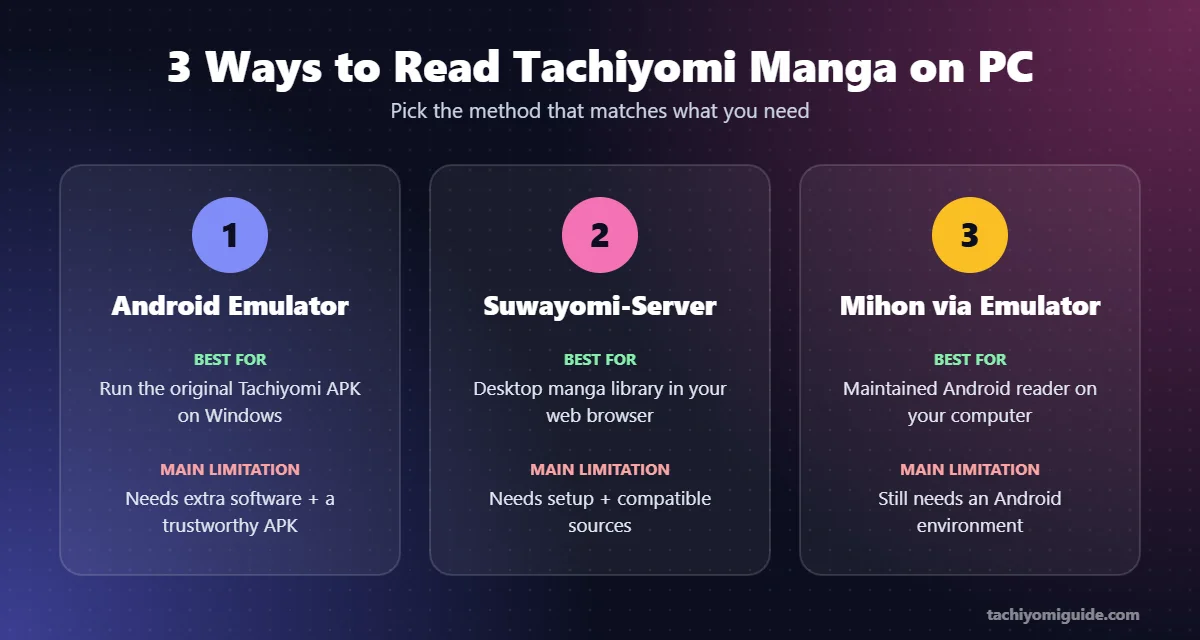
Suwayomi-Server is an independent project compatible with extensions built for Mihon and Tachiyomi. It supports Windows and provides a browser-based interface. Choose an emulator if you specifically need the original Android application. Choose a desktop alternative if you want a setup designed to work with a computer.
Step by step
How to Download and Install Tachiyomi PC
You can run the original Tachiyomi Android app on Windows using a compatible Android emulator. Follow these steps to install the app and get started.
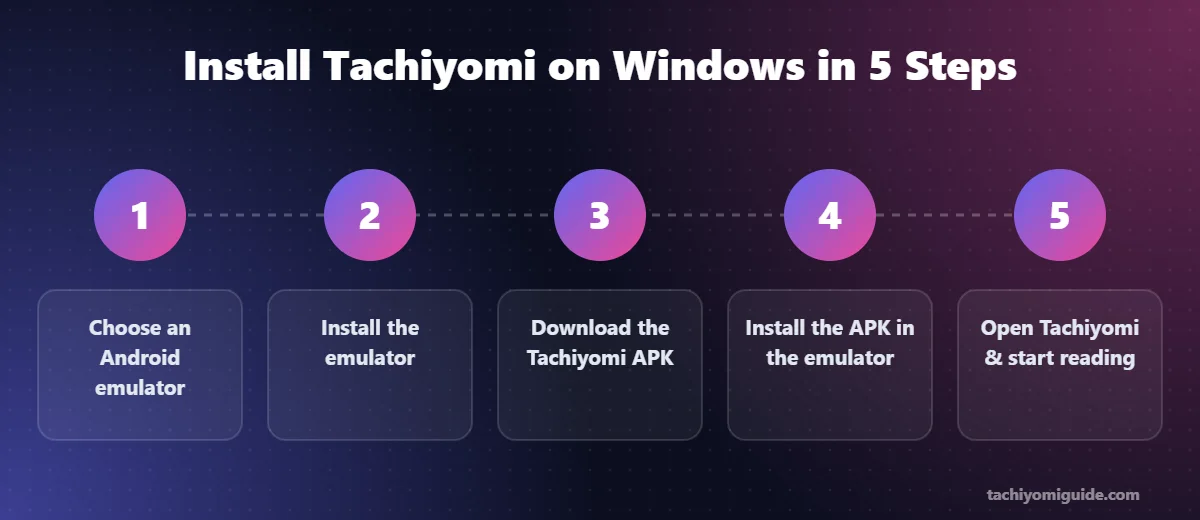
Choose an Android Emulator
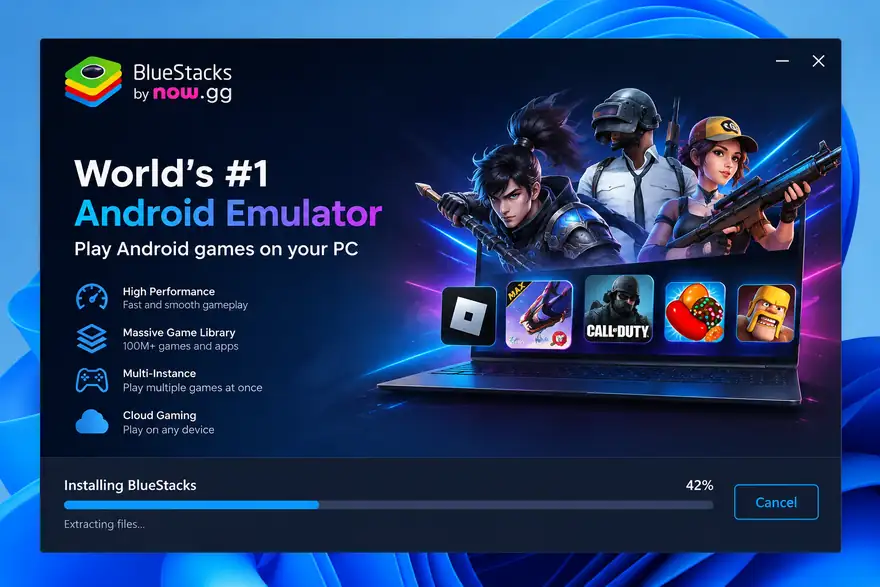
Choose a compatible emulator, such as BlueStacks or LDPlayer, to run Android apps on your Windows computer.
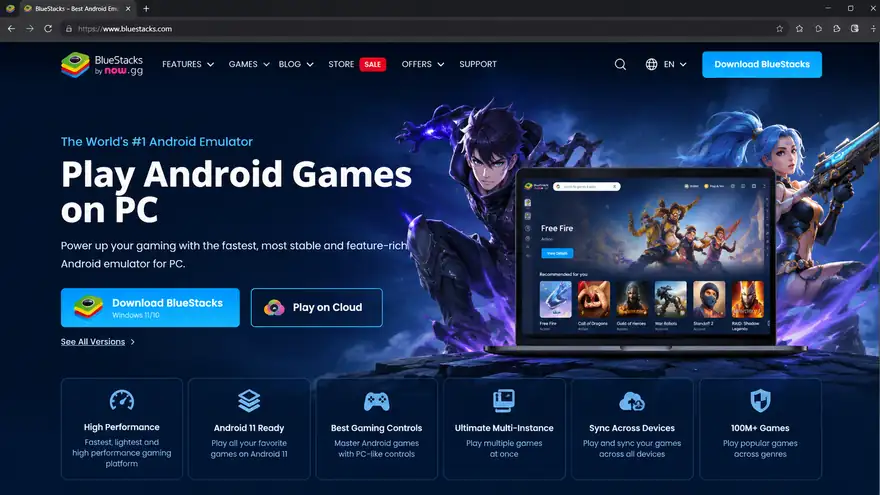
Download and Install the Emulator
Visit the emulator’s official website, download its Windows installer, and follow the on-screen instructions to complete the installation.
Download the Tachiyomi APK
Get the original Tachiyomi APK from a verifiable release archive, such as the Tachiyomi GitHub repository. The original project is discontinued, so verify the file’s source before installing it.
Install Tachiyomi in the Emulator
Open your emulator and select its Install APK option. Choose the downloaded Tachiyomi APK and wait for the installation to finish.
Open Tachiyomi and Start Reading
Launch Tachiyomi from the emulator’s home screen. Explore the available features and sources to see which ones still work with the discontinued app.
Requirements
System Requirements for Tachiyomi PC
Before installing a Tachiyomi PC through an emulator, make sure your system supports the software. The exact requirements depend on the emulator you choose, but the following table provides general guidance.
| Component | Basic Setup | Recommended Setup |
|---|---|---|
| Operating System | Compatible Windows 10 or Windows 11 | Updated, supported Windows version |
| Processor (CPU) | Compatible dual-core processor | Modern multi-core processor |
| RAM | 4 GB, depending on the emulator | 8 GB or more |
| Storage | Enough free space for the emulator and APK | Additional space for apps and downloaded chapters |
| Graphics | Compatible graphics hardware | Updated graphics drivers |
| Virtualization | As required by the emulator | Enabled if recommended by the emulator |
| Internet | Required for downloads and online content | Stable connection for smoother browsing |
Note: These are general guidelines, not verified minimum requirements for every emulator. Check the official documentation for your chosen emulator before installing it.
Emulators
Which Emulator Should You Choose?
The right emulator for Tachiyomi PC depends on your hardware, available memory, and preferred performance.
| Emulator | Best For | Performance | Resource Use |
|---|---|---|---|
| BlueStacks | Modern PCs | Feature-rich Android app support | Can use more system resources |
| LDPlayer | General Android app use | Offers configurable performance settings | Varies by configuration |
| NoxPlayer | Users who prefer flexible controls | Supports keyboard and mouse mapping | Depends on system settings |
| MEmu Play | Testing different Android environments | Provides multiple configuration options | Depends on the selected setup |
Tip: Check each emulator’s official system requirements before installing it. Performance varies by computer, emulator version, and Android configuration, so no single option is best for every PC.
macOS
How to Use Tachiyomi on Mac
Tachiyomi does not have a verified official macOS version, but you may be able to run its Android app through a compatible cloud-based Android service. This option lets you access a virtual Android device through your browser instead of installing an emulator directly on your Mac.
Steps to Run Tachiyomi on Mac Using a Cloud Emulator
- Choose a cloud Android service: Visit a provider’s official website and check whether it currently offers a suitable virtual Android environment.
- Open the virtual device: Create an account if required, then launch the Android environment through your browser.
- Obtain the Tachiyomi APK: Use a verifiable source for the original APK, keeping in mind that the project is discontinued.
- Install the APK: Follow the provider’s instructions to upload or install the file in the virtual Android environment.
- Launch the app: Open Tachiyomi and check whether its available features work.
Cloud services may have different installation rules, availability, and fees, so verify their current capabilities before choosing one. Never assume that a service supports Tachiyomi unless you have confirmed it.
Using the app
How to Use Tachiyomi on PC
After installing Tachiyomi PC through an emulator, you can browse manga, open chapters, and adjust reading settings. Here are the basic steps to get started.
Find and Open Manga
Open the app and browse its available sources to find a manga title. Select a series to view its chapters and choose one to start reading.
Navigate Chapters with a Mouse or Keyboard
Use your mouse to open chapters and move through the pages. Depending on your emulator and settings, you may also be able to use keyboard controls.
Manage Downloads and Offline Reading
If the source supports downloads, save chapters to read them later without an internet connection. Offline reading depends on the chapters being downloaded successfully.
Customize Reading Settings
Open the reader settings to adjust available options, such as reading direction, page layout, theme, and brightness. The options may vary by version.
Manage Reading Progress
Tachiyomi can track your reading progress within the app. However, automatic syncing between your PC and phone is not guaranteed and depends on the setup you use.
Features
Tachiyomi PC Features and Limitations
The original application offered several useful reading features, but running it on Windows does not guarantee that all of them will work.
| Feature | What to expect |
|---|---|
| Mouse controls | Depends on the emulator and reader interface |
| Offline reading | Requires successfully downloaded chapters |
| Themes | Depends on the installed app version |
| Full-screen reading | May be available through the emulator or reader |
| Extensions | Old or incompatible extensions may fail |
| Reading progress | Local progress may work, but automatic syncing is not guaranteed |
The most important limitation is the project’s discontinued status. A feature that worked in an older release may now fail because an external source has changed or a service is no longer available.
Comparison
Tachiyomi APK vs. Tachiyomi PC: Feature Comparison
| Feature | Tachiyomi APK (Android) | Tachiyomi on PC (via Emulator) |
|---|---|---|
| Availability | Original Android application distributed as an APK | No verified official native Windows version; requires a compatible Android emulator |
| Installation | Install the APK on a compatible Android device | Install an emulator first, then install the APK inside it |
| Controls | Touchscreen gestures, taps, and swipes | Mouse, keyboard, and emulator controls |
| Screen | Designed for phones and tablets | Uses your computer’s display |
| Performance | Depends on the phone or tablet | Depends on PC hardware and emulator settings |
| Portability | Easy to carry and use while travelling | Requires access to a desktop or laptop |
| Storage | Uses the device’s available storage | Uses storage allocated to the emulator and its Android environment |
| Battery usage | Drains the mobile device’s battery | Uses computer power instead of phone battery |
| Best suited for | Reading manga on mobile devices | Readers who prefer using an Android app on a computer |
Note: The original Tachiyomi project was discontinued in January 2024. Its features and sources may no longer work reliably on either Android or an emulator.
Pro tips
Bonus Tips for a Better Tachiyomi PC Experience
A few simple adjustments can improve your Tachiyomi PC reading experience and help your emulator run smoothly.
- Enable virtualization: If your emulator recommends it, enable CPU virtualization in your PC’s BIOS or UEFI settings.
- Adjust emulator resources: Allocate enough RAM and CPU cores based on your computer’s capacity and the emulator’s recommendations.
- Choose a comfortable resolution: Try 1280 × 720 or 1600 × 900, then adjust the display settings to suit your screen.
- Create a desktop shortcut: Keep the emulator easy to access without searching through your Start menu.
- Update graphics drivers: Use your computer or graphics manufacturer’s official website to check for compatible driver updates.
- Learn useful shortcuts: Use supported keyboard shortcuts to navigate chapters and control the reader more efficiently.
- Back up your library: Export your settings or library data when the app supports it, and keep backups in a safe location.
- Close unnecessary applications: Free up system resources before launching the emulator, especially on computers with limited RAM.
Tip: Restart the emulator after changing its resource settings so the new configuration can take effect. Avoid assigning more RAM or CPU cores than your computer can spare.
Troubleshooting
Tachiyomi PC Not Working? Common Fixes
APK Won’t Install or App Won’t Open
Check that the APK comes from a verifiable source and matches the emulator’s supported Android environment. If it still fails, review the emulator’s error message and compatibility documentation.
Avoid downloading several different APK files from unknown websites in an attempt to fix the problem.
Emulator Is Slow or Crashes
For Tachiyomi PC performance issues, close unnecessary applications and check the emulator’s recommended memory settings. Make sure your computer has enough free storage and that the emulator supports your Windows version.
If performance remains poor, try a supported configuration recommended by the emulator developer rather than increasing every setting.
Manga Sources or Downloads Fail
A failed source does not necessarily mean the entire application is broken. The external website may have changed, an extension may be incompatible, or the source may no longer be available.
Check whether the source is still supported and review any relevant project documentation. Since the original Tachiyomi project is no longer maintained, some problems may not have a reliable fix.
Safety
Is Tachiyomi Safe to Use on a PC?
The safety of your Tachiyomi PC setup depends on the APK, emulator, extensions, and websites you use. Download emulators from their official websites and verify the source of any APK before installing it. Avoid files that request unexpected permissions or claim to be an official Tachiyomi Windows installer.
Privacy is also important when using third-party sources. Avoid entering passwords or personal information on unfamiliar websites, and keep your Windows security software enabled. If you prefer a more actively maintained Android reader, you can explore Mihon. It is a separate Android application, not an official Windows version of Tachiyomi, so check its current documentation for release and compatibility details.
Alternatives
Best Tachiyomi Alternatives for Windows
Since the original Tachiyomi project was discontinued in January 2024, Windows users can explore other tools for reading and managing manga. The best choice depends on whether you prefer online sources, an Android-based reader, or a local manga collection.
Suwayomi-Server
Suwayomi-Server is an open-source manga reader server that supports Windows and provides a browser-based interface. It supports compatible Tachiyomi and Mihon extensions, making it a useful option for readers who want a desktop-focused setup. Visit the official Suwayomi releases page for installation files and instructions.
Mihon Through an Android Emulator
Mihon is a separate Android manga reader with library management and customizable reading settings. You can run it on Windows through a compatible Android emulator, but it is not a native PC application. Check the official Mihon repository for current releases and requirements.
Hakuneko, Komga, and YACReader
These tools serve different manga-reading needs. Hakuneko focuses on obtaining manga from supported online sources, while Komga helps manage and read digital manga libraries, and YACReader organizes and reads local comic collections. Check each project’s current documentation to confirm its availability and features before choosing one.
FAQ
Frequently Asked Questions
1. Is Tachiyomi available for PC?
The original Tachiyomi app was designed for Android and does not have an official native Windows version. However, you can explore desktop alternatives such as Suwayomi and Houdoku, or use an Android emulator to run a compatible manga reader on your PC.
2. How can I use Tachiyomi on Windows 11?
You can use a compatible Android emulator to run an Android manga reader on Windows 11. Another option is to install a desktop manga reader, such as Suwayomi or Houdoku. Your choice depends on whether you prefer the original Android experience or a native desktop application.
3. What is the best Tachiyomi alternative for PC?
Suwayomi, Houdoku, HakuNeko, and Free Manga Downloader are options to investigate. Suwayomi is designed for desktop use, while HakuNeko and Free Manga Downloader focus on manga downloading. Compare their current features, supported sources, and operating system requirements before choosing one.
4. What is Suwayomi, and is it similar to Tachiyomi?
Suwayomi is a desktop-oriented manga reading project inspired by Tachiyomi. It is one of the alternatives discussed by users looking for manga reading on Windows and Linux. However, its installation process and features may differ from those of the original Android application.
5. Can I use HakuNeko or Free Manga Downloader instead of Tachiyomi?
Yes, you can investigate HakuNeko and Free Manga Downloader if your main goal is downloading manga on a computer. They are alternatives mentioned in discussions about desktop manga tools, but their features may differ from Tachiyomi’s library and reading experience.
6. Can I sync Tachiyomi with my PC?
Automatic syncing between Tachiyomi and a PC is not guaranteed. One option is to back up your Tachiyomi library on Android and transfer the backup to a compatible application, such as a supported Tachidesk or Suwayomi setup. You can also investigate MalSync and supported MyAnimeList or AniList integrations for tracking reading progress.
7. Can I transfer my Tachiyomi backup to my computer?
Yes, you can create a backup in a compatible Tachiyomi-based Android app and transfer the backup file to your computer. However, the backup may not work directly in every desktop application. Check whether your chosen alternative supports importing that backup before relying on this method.
8. Can I mirror Tachiyomi from my Android phone to my PC?
Yes, you can mirror your Android phone’s screen to a Windows computer using compatible screen-mirroring software. This lets you view your manga on a larger screen while the application continues running on your phone.
9. Can I use Vysor to read Tachiyomi on my computer?
Vysor is a screen-mirroring tool that can display an Android phone on a computer. You can explore it if you want to use Tachiyomi through your phone rather than install a separate desktop manga reader. Availability and control features may depend on your device and Vysor’s current version.
10. What is MalSync, and can it help sync manga progress?
MalSync is a browser extension associated with tracking anime and manga progress across supported services. Depending on its current integrations, it may help keep reading progress organized between supported websites and tracking platforms. It is not the same as running the original Tachiyomi application on Windows.
11. Does Tachiyomi work on Windows 10 and Windows 11?
The original Tachiyomi application does not run natively on Windows 10 or Windows 11. You can instead explore desktop alternatives, use a compatible Android emulator, or mirror an Android phone to your computer.
12. Can I use Tachiyomi on Linux as well as Windows?
The original Tachiyomi app was built for Android, but desktop alternatives may support Linux and Windows. Suwayomi is one project worth investigating if you want a manga-reading solution that works beyond Android. Check its official documentation for current operating system support and installation requirements.
13. Can I download manga chapters on a PC using a Tachiyomi alternative?
Some desktop manga applications support downloading chapters, while others focus on reading or library management. HakuNeko and Free Manga Downloader are examples to investigate for downloading features. Always check current functionality and respect the source’s terms and applicable copyright laws.
14. Is Tachiyomi better than a desktop manga reader?
It depends on your needs. Tachiyomi provides an Android-based manga reading experience, while desktop alternatives may offer easier computer access and different library features. If you already use Tachiyomi on your phone, backup compatibility and reading-progress syncing may be important factors when choosing a PC alternative.
Final verdict
Final Verdict
The best way to use Tachiyomi PC depends on whether you need the original Android application or simply want to read manga on a computer. An emulator may work with a compatible, trustworthy APK, but the discontinued project comes with limitations. For a desktop-focused setup, Suwayomi-Server is worth considering, while Mihon is an option for users who prefer a maintained Android reader. Always verify your downloads and choose the method that fits your needs.