
Mihon · Keiyoushi store · Updated for 2026
How to Add Extensions to Tachiyomi (Full Guide)
Seeing an empty extensions list in Tachiyomi? Install Mihon and add one trusted store link to unlock 1,400+ working manga sources in more than 15 languages. This 2026 guide covers every step, common error fixes, and the best extensions to install first.
- 1,400+ extensions
- 15+ languages
- Mihon v0.21.2
- 12 FAQs
Keiyoushi extension store
Mihon → More → Settings → Browse → Extension store → Add
- Works with
- Mihon 0.20+ and its forks
- Extensions
- 1,400+ sources · 15+ languages
- Link must end in
- index.pb (not index.min.json)
Introduction
Introduction
You open Tachiyomi to catch up on your favorite series and tap the Extensions tab. Instead of your usual sources, you find an empty list with no MangaDex and no updates. If that sounds familiar, you’re not alone, because since Tachiyomi’s development stopped in January 2024, thousands of readers have faced the same problem.
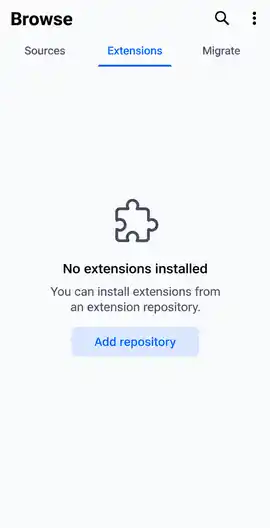
The good news is that the fix takes less than two minutes. Tachiyomi now lives on as Mihon, and a single store link brings back more than 1,400 working extensions. In this guide, you’ll learn how to add extensions to Tachiyomi the way that works in 2026, along with quick fixes for common errors and the best sources to install first.
The basics
What Are Tachiyomi Extensions?
Tachiyomi extensions are small add-on APKs that connect Mihon, or the old Tachiyomi app, to a manga website so the app can show that site’s series and chapters. The app hosts no manga itself, which is why a fresh install shows an empty Browse tab until you add at least one extension. Each extension covers one source, such as MangaDex or Webtoons.com, and gets its own updates whenever that website changes.
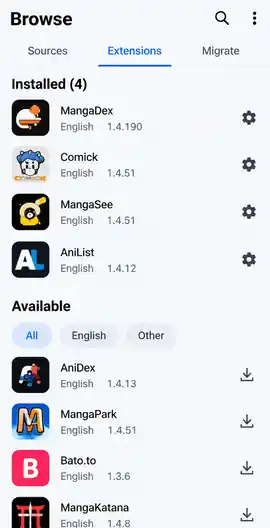
| Feature | Without extensions | With extensions |
|---|---|---|
| Manga to read | Only local files you add yourself | 1,400+ sources from the Keiyoushi store |
| Languages | None | 15+ languages, from English and Spanish to Indonesian |
| Offline reading | Local files only | Download any chapter and read it without internet |
| New chapters | Nothing to track | New releases show up in the Updates tab automatically |
Before you start
Before You Start: Tachiyomi Is Now Mihon
Tachiyomi was one of the most popular free manga readers on Android for years. Still, its development stopped on January 13, 2024, after Kakao Entertainment sent threats to the developer and others involved in the project. The official extensions were removed at the same time, which is why so many users opened the app and found nothing in the Extensions tab. Mihon is the actively maintained successor, and its latest version is v0.21.2, released in October 2026. Because Mihon looks and works almost exactly like Tachiyomi, your library, reader, and settings will feel familiar from the first minute. So when people search for how to add extensions to Tachiyomi today, the steps they really need are the Mihon steps, since the old app can no longer use the extensions that are still being updated. The next part explains why the old app fails.
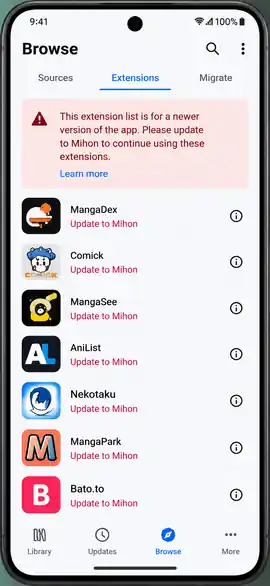
Why Old Tachiyomi Shows “Outdated App”
If you paste the old repo link that ends in index.min.json into Tachiyomi, the list loads only two entries called “Outdated App” and “Update to Mihon 0.20.1+”. This happens because the Keiyoushi repo moved to a new format, and all 1,420 of its extensions are now built on extension library 1.6. The old Tachiyomi app was never updated to support that library, so it can’t run any of them, leaving Mihon or one of its forks as the only working option.
Step by step
How to Install Tachiyomi Extensions in 2026 (Step-by-Step)
Installing Tachiyomi extensions takes just a few minutes once you have the right app and the right store link. Follow the five steps below in order, starting with installing Mihon and ending with a quick check that your first extension loads chapters properly.
Step 1: Install Mihon (or a Fork)
The first step in learning how to add extensions to Tachiyomi in 2026 is installing Mihon, because every working extension now depends on it. If Mihon is already on your phone, you can skip to Step 2.

- If you still use the old Tachiyomi app, create a backup inside it first so you can bring your library over to Mihon later.
- Download the Mihon APK only from mihon.app or from the releases page on Mihon’s official GitHub, picking the file the release notes recommend.
- Avoid any website offering a “new Tachiyomi” download, because the original Tachiyomi developer said anything new using that name has no relation to the original team.
- Open the downloaded APK, allow installs from your browser when Android asks, and tap Install.
Step 2: First-Time Setup
When Mihon opens for the first time, a short setup screen walks you through the basics.
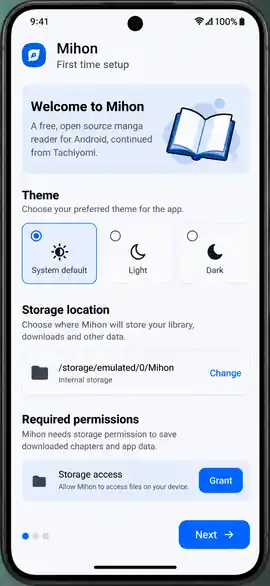
- Pick the theme you like and tap Next.
- Create a new storage folder instead of choosing Downloads or Documents, because Android restricts those folders.
- Grant the permissions the app asks for, because the steps for how to add extensions to Tachiyomi depend on Mihon being allowed to install files.
- Restore your old .tachibk backup now, while Mihon can still read it, and tap Get Started.
Step 3: Add the Extension Store (Repo)
Mihon doesn’t come with any extensions, so you need to add a store before anything else. Since Mihon v0.20, the old “extension repo” setting is called “Extension store”, which is why older guides send you to a menu name that no longer exists.
One-Tap Method
- Open Keiyoushi’s Getting Started page in the browser on the same phone where Mihon is installed.
- Tap the “Add store” button, and the page will send you straight to the Mihon app.
- Let Mihon add the Keiyoushi repo for you, and if nothing happens, update the app first, because this button needs Mihon 0.21.2 or newer.
Manual Method: Paste the Repo URL
If the button doesn’t work for you, the manual method takes less than a minute, and it’s the part of how to add extensions to Tachiyomi that most people get wrong.
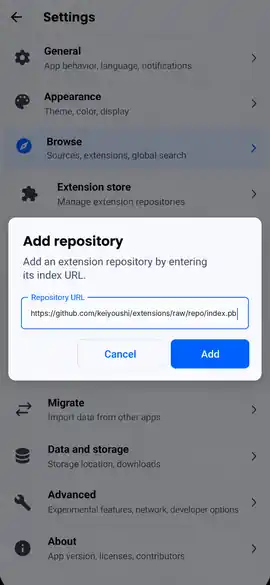
- Open Mihon and go to More → Settings → Browse → Extension store.
- Tap the Add button at the bottom of the screen.
- Paste this Mihon repo URL:
https://github.com/keiyoushi/extensions/raw/repo/index.pb, making sure it ends in index.pb, not index.min.json. - Tap Add, then restart Mihon so the extensions list refreshes with the full catalog.
Step 4: Install an Extension (Example: MangaDex)
With the store added, installing a source is the easy part of how to add extensions to Tachiyomi, and MangaDex is a good first choice because it has a huge library in many languages.

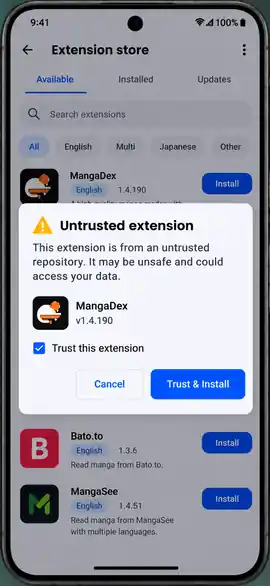
- Open Browse → Extensions and use the language filter so only English, or whichever language you read, shows in the list.
- Find MangaDex in the list and tap the Install button next to it.
- Allow Mihon to install unknown apps when Android asks, because every extension is a small APK that Mihon installs for you.
- If the extension shows an “untrusted” label, tap it and choose Trust so Mihon can load it.
- Go to the Sources tab, where MangaDex now appears and is ready to browse.
Step 5: Check That It Works
To confirm that you followed how to add extensions to Tachiyomi correctly, run this quick check.


- Open Browse → Sources, tap MangaDex, and pick a series from the Popular or Latest list.
- Open a chapter, because a chapter that loads fully means the extension works.
- Try Global Search from the Sources tab to see results from every extension you have installed.
Migrating
Switching From Old Tachiyomi Extensions
If you’re moving from Tachiyomi to Mihon, there’s one extra part of how to add extensions to Tachiyomi to handle first, because your old extensions can quietly break the new setup.

- Uninstall all old extensions first, because Keiyoushi says extensions left over from the old repo won’t receive updates from the new store.
- Restart Mihon, add the Keiyoushi store, and reinstall the sources you need.
- Open Browse → Migrate to see which extensions your library is still missing.
- Remove any extension labeled “orphaned”, since that tag means it’s no longer in any store.
Make this switch soon, because Mihon v0.21 is the last version that can restore .tachibk backups and run old Tachiyomi (1.4) extensions, and the next major version drops both.
Troubleshooting
Fix Extension Errors
Even when you follow how to add extensions to Tachiyomi step by step, a permission, a setting or the source website can still get in the way.
Extension Won’t Install or Stays “Pending”
When Tachiyomi extensions are not installing or stay stuck on “Pending”, first open your phone’s settings and check that Mihon still has the “Install unknown apps” permission. If it does, go to Settings → Advanced in Mihon and switch the extension installer to Legacy, or to Shizuku if you already use that app. Updating Mihon also helps here, since several install bugs were fixed between v0.20 and v0.21.
Extension Shows “Untrusted”
An untrusted extension won’t load until you tap it and choose Trust. Since v0.21, Mihon also installs and updates each extension only from the store it came from, which stops tampered copies from replacing the real one.
Source Errors: 403, 429, 1006, Cloudflare
Some errors come from the website an extension reads from, and the error code tells you what went wrong.
| Error | What it means | How to fix it |
|---|---|---|
| 403 | Cloudflare protection or a block | Open the source in WebView |
| 429 | Too many requests | Pause downloads and wait a few hours |
| 1006 | Temporary IP ban | Wait until it lifts |
| 404 | The chapter or page was moved or deleted | Refresh the series, update the extension, or migrate to another source |
| 500 / 502 / 503 | The source website’s server is down | Wait a few hours or read the series on another extension |
| Unable to resolve host | Network or ISP block | Switch networks, use a VPN, or turn on DNS over HTTPS in Settings → Advanced |
If a source still fails, the site may be down, so try the same series on another extension.
“Failed to Get Extension List”
The “failed to get extension list” or “failed to fetch available extensions” message means the app could not read your extension store. Most of the time, the store link is old or your network is blocking GitHub, where the store is hosted.
- Check that your store link ends in index.pb, because the old index.min.json link and repos like Tachiyomi Extensions Revived no longer serve working extensions.
- Remove the store in Settings → Browse → Extension store, add it again, and restart the app.
- Switch from mobile data to Wi-Fi, or turn on DNS over HTTPS, if your ISP blocks GitHub.
- Update Mihon, since older versions can’t read the current store format.
Cloudflare Keeps Blocking a Source (User Agent Fix)
When a source keeps failing with a Cloudflare error even after you open it in WebView, the app’s user agent is often too old for the site. Updating it makes Mihon look like your current browser.
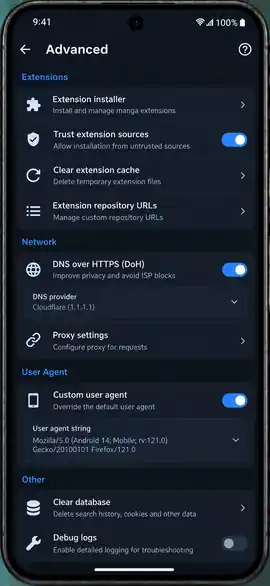
- Open your phone’s browser and search “what is my user agent”, then copy the full text it shows.
- In Mihon, go to Settings → Advanced → Default user agent string and paste it.
- Tap Clear cookies on the same screen, then restart Mihon and open the source again.
App Crashes or Loads Slowly
Crashes and freezing usually come from a full chapter cache, too many library updates running at once, or very low free storage.
- Clear the chapter cache from Mihon’s settings, which removes temporary images but keeps your downloads.
- Delete downloaded chapters from series you have finished.
- Uninstall extensions you no longer use, since each one adds work to library updates.
- Limit automatic library updates to Wi-Fi and to the categories you read most.
Install an Extension Manually (APK)
When one extension refuses to install from the store, this backup method of how to add extensions to Tachiyomi still works.
- Open Keiyoushi’s extensions listing page in your phone’s browser.
- Download the APK of the extension you want.
- Open the file and install it like any Android app.
- Open Mihon, choose Trust if the extension shows as untrusted, and find it under Sources.
Manually installed extensions don’t update on their own, so you’ll need to download each new version yourself.
Top picks
Best Extensions That Still Work in 2026
Once you know how to add extensions to Tachiyomi, the best Tachiyomi extensions in 2026 are the ones that still load chapters, and every source below is confirmed in the live Keiyoushi index.
| Extension | What it’s good for |
|---|---|
| MANGA Plus by SHUEISHA | Official free chapters of Shueisha titles, such as Weekly Shōnen Jump series |
| Webtoons.com | Official Korean and global webtoons in a vertical scroll format |
| MangaDex | A huge fan-translated library in many languages |
| Weeb Central | The site that replaced MangaSee and MangaLife |
| MangaFire | A large mix of manga, manhwa and manhua |
| Manganato | A long-running site with a big manga catalog |
| Asura Scans | A scanlation group that mainly translates Korean manhwa |
MANGA Plus and Webtoons.com are official platforms, so reading there supports the creators directly. The rest are fan-run or scanlation sources, which means their speed and image quality depend on the site and can change at any time.
Adult Content: Content Preferences
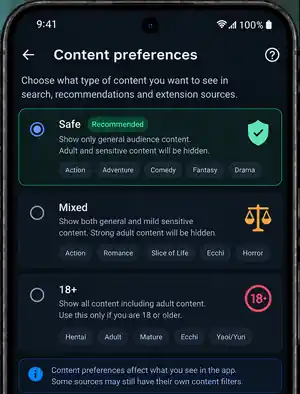
Mihon v0.21 replaced the old NSFW toggle with content preferences that have three levels, called Safe, Mixed, and 18+. The level you pick decides which extensions appear in your list, with Safe being the strictest and 18+ showing everything. Mihon also added an option to keep using extensions you already installed even if they don’t match your new preference.
Top Extensions Offering Large Manga Libraries
Beyond MangaDex, MangaFire and Weeb Central in the table above, these Tachiyomi extensions are worth adding when you want a bigger backlog. They are grouped by what they carry most, so you can pick based on whether you read manga, manhwa or completed classics.
Mangago & MangaBuddy: Deep English Backlogs
Mangago and MangaBuddy are large English aggregators that collect chapters from many translation groups in one place. They are handy for older or niche series that have dropped off newer sites, though Mangago includes a lot of mature titles.
MangaHere & MangaTown: Completed Series
MangaHere and MangaTown have run for years, so their catalogs lean toward finished series with every chapter already uploaded. That makes them a good backup source when you want to binge a completed title from start to end.
Toonily & Flame Comics: Manhwa and Webtoons
Toonily focuses on Korean manhwa in a vertical scroll format, while Flame Comics is a scanlation group known for action and fantasy manhwa. Toonily carries many mature titles, so set your content preference to Safe or Mixed if you want to filter them out.
To find which extension has the most chapters for a series, search the title with Global Search in the Sources tab. Every installed source shows its results side by side, so you can compare chapter counts before adding it to your library.
By language
Extensions by Language and Region
The Keiyoushi store covers more than 15 languages, with English leading at about 400 extensions and Japanese, Portuguese and Spanish each passing 100. Use the language filter in Browse → Extensions to show only the languages you read, then start with the picks below.
| Language | Extensions (approx.) | Good picks to start with |
|---|---|---|
| English | 407 | Weeb Central, Asura Scans, Mangago, Flame Comics |
| Japanese (raw) | 138 | Rawkuma, for untranslated chapters on release day |
| Multi-language | 135 | MangaDex, MANGA Plus by SHUEISHA, Webtoons.com |
| Portuguese | 115 | Manga Livre.to, Remangas |
| Spanish | 105 | InManga, Olympus Scanlation, LeerCapitulo, MangaTV |
| Indonesian | 86 | Komiku, Kiryuu, Shinigami, West Manga |
| Vietnamese | 82 | TruyenQQ, CuuTruyen |
| Chinese | 58 | ManHuaGui, Baozi Manhua, mainly for manhua |
| French | 52 | Japscan, Sushi-Scan, Scan-Manga, Mangas Origines |
| Russian | 31 | MangaLib |
| Italian | 17 | Mangaworld |
| Korean | 9 | Naver Comic, Naver Webtoon |
Counts come from the live Keiyoushi index as of October 2026 and change as sources open or shut down. Multi-language extensions such as MangaDex appear under several languages, so turn on every language you read to see all their translations.
Avoid extensions marked “(unoriginal)” when an original version of the same source exists, because these point to copycat sites that often carry more ads and lower image quality.
Reading style
How to Pick the Right Extensions for Your Reading Style
The right Tachiyomi extension depends on three things: what you read, which language you read it in, and how fast you want new chapters. Start with the match for your main reading habit below, then add one backup source.
| If you want… | Start with |
|---|---|
| To support creators with official releases | MANGA Plus by SHUEISHA, Webtoons.com |
| The biggest library across many languages | MangaDex |
| Fast English chapters of popular manhwa | Asura Scans, Flame Comics |
| To binge completed series | MangaHere, MangaTown |
| Raw Japanese chapters on release day | Rawkuma |
| Mature manhwa (18+ content preference) | Toonily |
Two or three sources are enough for most readers. If one source slows down or stops updating, open the series and use Migrate to move it to another source without losing your read progress.
Apps compared
Mihon vs TachiyomiSY vs Komikku vs Yōkai
All four apps below are still active in 2026, so the choice comes down to the features you want and whether the Keiyoushi store supports the app.
| App | What it’s for | Works with Keiyoushi |
|---|---|---|
| Mihon (v0.21.2) | The main app and the direct successor to Tachiyomi | Yes |
| TachiyomiSY (v1.13.2) | A fork with extra library and reader features | Yes |
| Komikku (v1.14.1) | A fork with extra features on top of the Mihon base | Yes |
| Yōkai (v1.10.2) | A separate fork with its own design | Not listed |
If you’re new, start with Mihon, since this guide is written for it.
Safety
Are Tachiyomi Extensions Safe?
Mihon warns that third-party extensions get full access to the app and may contain malware, which makes the store you choose more important than any single extension. That’s why anyone learning how to add extensions to Tachiyomi should stick to well-known stores like Keiyoushi, whose source code is public on GitHub and maintained by volunteers. Mihon v0.21 adds one more layer of protection by checking that an extension comes from its original store before it installs an update, so a fake copy can’t replace a real extension without you noticing.
Smart Tips for Using Extensions Safely
Three habits keep Tachiyomi extensions safe and your phone clean over the long term: add only stores you trust, manage downloads before they fill your storage, and favor sources that pay creators. Each tip below works in Mihon and its forks.
Use Trusted Repos Only
A repo (extension store) is the list your app installs extensions from, while MangaDex or Toonily are sources inside that list. The store matters more than any single extension, because every extension it serves gets full access to the app.
- Add one well-known store, such as Keiyoushi, instead of stacking several unknown ones.
- Never paste a repo link from a comment, Telegram group or pop-up ad you can’t trace back to its maintainers.
- Don’t install the same extension from two stores, because the copies conflict and stop updating.
- Remove any store you no longer use from Settings → Browse → Extension store.
- Skip “modded” or “premium” extension APKs from download sites, since these are the most common way malware spreads.
Manage Storage & Offline Downloads
Downloaded chapters are saved as image files, so a few long series can take several gigabytes. These Mihon settings let you read offline without running out of space.
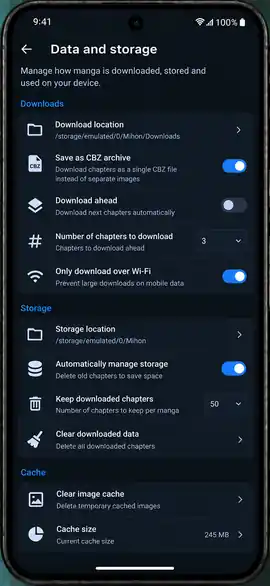
- Choose a dedicated storage folder in Settings → Data and storage, ideally on an SD card if your phone has one.
- Turn on “Save as CBZ archive” in download settings so each chapter is stored as one compact file.
- Enable automatic deletion of chapters after you mark them as read.
- Use “Downloaded only” mode from the More tab to read on flights or commutes without an internet connection.
- Limit automatic downloads to the series you follow most, rather than your whole library.
Follow Legal & Ethical Practices
Most extensions read from fan-run sites, so the safest and fairest choice is to use official sources whenever a series is available on one.
- Read through official extensions like MANGA Plus by SHUEISHA and Webtoons.com, which pay publishers and creators.
- Buy the volumes or subscribe to the official app for the series you enjoy most.
- Drop a fan source once a series gets an official English release, as most scanlation groups ask readers to do.
- Check the copyright laws in your country, because rules on reading unlicensed manga differ from place to place.
iPhone & iPad
Can You Add Extensions on iPhone?
Mihon is an Android-only app, so the steps for how to add extensions to Tachiyomi don’t work on an iPhone or iPad running iOS. Keiyoushi’s own page shows an “Unsupported operating system” message when you open it on a device that isn’t Android. iPhone users who search for this usually end up asking about Tachimanga, a separate iOS manga reader with its own setup.
Alternatives
Alternative Manga Reader Apps
If Tachiyomi keeps crashing or shows an empty extensions list, these alternative manga reader apps still get updates in 2026. Mihon is the pick for Android, while Paperback and Aidoku are the main options for iPhone and iPad.
Mihon (Android)
Mihon is the official successor to Tachiyomi, so your library, backups and reading habits carry over with almost no changes. It is the only app the current Keiyoushi extension store is built for. Read our full Mihon guide.
- Direct replacement for the discontinued Tachiyomi app
- Works with 1,400+ extensions from the Keiyoushi store
- Restores old Tachiyomi .tachibk backups
- Free and open source
Want extra features on top of Mihon? See the Mihon vs TachiyomiSY vs Komikku vs Yōkai comparison above.
Paperback (iOS)
Paperback is a manga reader built for iPhone and iPad, and it is the closest thing iOS users have to the Tachiyomi experience. Like Tachiyomi, it reads from sources you add through repositories rather than hosting manga itself. See how to set it up on iOS.
- Designed for iPhone and iPad screens
- Adds sources through repositories, similar to Tachiyomi extensions
- Library, tracking and offline downloads
- Clean, native iOS interface
Aidoku (iOS)
Aidoku is a free, open-source manga reader for iOS that is still in active development. It is a good fit for readers who want a Tachiyomi-style app on iPhone without a paid subscription.
- Free and open source
- Source-based reading, like Tachiyomi extensions
- Supports tracking and downloads
- Actively developed on GitHub
Neither iOS app can install Mihon or Tachiyomi extensions, since those are Android APK files. Each app uses its own source system, so check the app’s official site for current install steps.
FAQ
FAQs
1. Why was Tachiyomi discontinued?
Development stopped after Kakao Entertainment threatened the lead developer and others linked to the project. The team explained that Tachiyomi was a hobby with no money behind it, so they shut it down instead of fighting and took the core GitHub repositories offline.
2. What is the Mihon repo URL?
The link that guides on how to add extensions to Tachiyomi now points to https://github.com/keiyoushi/extensions/raw/repo/index.pb. Mihon itself doesn’t host, provide or recommend any repo, so this link comes from Keiyoushi, a volunteer group that maintains the extensions in much the same way as the old Tachiyomi extension repo did.
3. Is there a repo other than Keiyoushi?
Other stores exist, and people on Reddit share them often, but Mihon doesn’t check or vouch for any of them. If you want to try one, you can add it through the same Extension store screen, as long as the link comes from a source you already trust.
4. Why isn’t MangaDex showing in my extension list?
This is a common snag in how to add extensions to Tachiyomi, and the usual cause is a leftover MangaDex extension from Tachiyomi that blocks the store version, so uninstall it and refresh the list. If the list only shows “Outdated App”, you’ve added the old index.min.json link instead of the new one.
5. Can I still use the old Tachiyomi app in 2026?
The old app still opens, and some people on Reddit still read with it, but it gets no updates and can’t run any current Keiyoushi extension, so there’s no longer a working answer to how to add extensions to Tachiyomi on that app. Sources will keep breaking over time, which makes Mihon the safer choice.
6. How do I update or uninstall extensions?
If you’re wondering how to update Tachiyomi extensions in Mihon, open Browse → Extensions, where an Update button appears next to any extension with a new version, and Mihon checks for these every time the app starts fresh. To uninstall one, tap the extension and choose Uninstall, or remove it from your phone’s app settings.
7. How do I know which extensions are dead?
Extensions marked “orphaned” are no longer in any store, so remove those first. For an extension that’s still listed but keeps failing, open the source in WebView, and if the website won’t load there either, the site is most likely down or closed for good.
8. Can you read light novels with these extensions?
No, because Mihon is built to show manga, manhwa, and comics as images, and the Keiyoushi store is made for those image-based sources. Light novels are plain text, so they need a separate novel reader app built for text.
9. How do I make my own extension?
Building an extension goes a step beyond how to add extensions to Tachiyomi, since each one is a small Android app written in Kotlin. Start with Keiyoushi’s extensions-source repository on GitHub, which holds the code for every extension in the store and explains how to contribute a new one.
10. How do I get my Tachiyomi extensions back?
Install Mihon, add the Keiyoushi store link that ends in index.pb, and reinstall your sources from Browse → Extensions. Your saved series come back when you restore your old .tachibk backup in Mihon.
11. What are the best Tachiyomi extensions right now?
MangaDex, MANGA Plus by SHUEISHA, Webtoons.com, Weeb Central and MangaFire are the most reliable picks in 2026. The best choice for you depends on your language and whether you read manga or manhwa.
12. What does “Obsolete” mean on an extension?
Older Tachiyomi versions labeled an extension “Obsolete” when it was removed from the store, which Mihon now calls “orphaned”. Uninstall it and look for the same source, or a replacement, in the Keiyoushi store.
Final thoughts
Final Thoughts
Tachiyomi may no longer be updated, but the reading experience it built is still very much alive through Mihon. With the right setup in place, your library, reading progress and favorite sources can feel just like they did before the shutdown.
The key now is keeping that setup healthy. Test one source before adding more, update your extensions whenever Mihon shows a new version, and move a series to another source as soon as one stops loading. Whenever a title is available officially, reading it is the best way to support the creators who make it.