
Tachiyomi APK guide · Updated October 2026
How to Install Tachiyomi on PC (Windows & Mac) in 2026
Tested with Mihon v0.21.2 and Suwayomi v2.4.2366 (October 2026).
If you want to install Tachiyomi on PC, you should know one thing before you download anything: the original app was shut down in January 2024. The good news is that its open-source successor, Mihon, runs on a computer through an Android emulator like BlueStacks, and a desktop app called Suwayomi runs the same manga extensions with no emulator at all. Every step below follows the official Mihon and Suwayomi instructions for Windows 11 and macOS, from picking a method to moving your phone library over. By the end, you will know the safest way to install Tachiyomi on PC and start reading within minutes.
- Android guide
- Updated Oct 2026
- 5 FAQs
In this guide
BlueStacks and Suwayomi methods
- What Is Tachiyomi, and Does It Still Work in 2026?
- What You Need Before You Install Tachiyomi on PC
- Which Method Should You Choose?
- Method 1: Install Tachiyomi on PC With an Android Emulator
- Method 2: Install Tachiyomi on PC Without an Emulator (Suwayomi)
- Add Manga Sources (Extensions)
- Add Manga to Your Library
Overview
What Is Tachiyomi, and Does It Still Work in 2026?
Tachiyomi was a free, open-source manga reader for Android, and it no longer gets updates. On January 13, 2024, its developers announced that “Tachiyomi will no longer be actively developed,” and they also ended support for the official extensions.
The team gave two reasons. The first was threats from Kakao Entertainment Corp against the developers, and the second was that the project was an unpaid hobby that was no longer worth the time and effort. Afterward, they archived the core GitHub repositories and closed the official social accounts.
An old copy of the app may still open on your phone, but nobody fixes its bugs anymore. That is why most readers have moved to Mihon, a free manga reader that carries the Tachiyomi experience forward under the Apache 2.0 license. So when you install Tachiyomi on PC today, you are really installing Mihon or a tool that runs its extensions.
Install guide
What You Need Before You Install Tachiyomi on PC
You need a 64-bit Windows 10 or Windows 11 computer, or a Mac running macOS 12 or newer, plus enough memory for the method you pick. Check these points before you install Tachiyomi on PC with any method:
- Mihon needs Android 8.0 or higher, so your emulator must run at least that version.
- Google recommends 16 GB of RAM and 16 GB of free disk space for the Android Studio Emulator.
- The Suwayomi bundle already includes Java, so you don’t have to install it separately.
Skip any old guide that tells you to use Windows Subsystem for Android (WSA). Microsoft says that starting March 5, 2025, WSA and the Amazon Appstore are no longer available in the Microsoft Store.
Compare
Which Method Should You Choose?
Pick Suwayomi if you want the lightest setup, and pick an emulator if you want the exact Mihon app from your phone. Both emulator routes let you install Tachiyomi on PC as the Mihon app, while Suwayomi gives you a desktop version.
| Method | Works on | Needs an emulator? | Best for |
|---|---|---|---|
| BlueStacks + Mihon | Windows (BlueStacks 5), Apple Silicon Mac (BlueStacks Air) | Yes | Readers who want the phone app on a big screen |
| Android Studio Emulator + Mihon | Windows 10/11, macOS 12+ | Yes | Users with 16 GB of RAM who like Google’s tool |
| Suwayomi (Tachidesk) | Windows, Intel Mac, Apple Silicon Mac, Linux | No | Anyone who wants a light Tachiyomi alternative for PC |
Install guide
Method 1: Install Tachiyomi on PC With an Android Emulator
An Android emulator is a program that runs a full Android phone inside a window on your computer. Because Mihon only works on Android, an emulator is the closest way to install Tachiyomi on PC with the same buttons and settings you already know from your phone.
Step 1: Download and Install BlueStacks on Windows
Running Tachiyomi on BlueStacks is the most popular route, and it is also the simplest way to get Tachiyomi for Windows because the installer does most of the work for you. The whole setup takes a few clicks:
- Open bluestacks.com in your browser and click the Download button.
- Run the installer file you just downloaded and follow the prompts on the screen.
- Wait for the installation to finish, then open BlueStacks from your desktop.
BlueStacks 5 now offers an Android 13 (beta) option, which is well above the Android 8.0 that Mihon needs. That means the app runs on it without any version problems.
Step 1 (Mac): Install BlueStacks Air on Apple Silicon
Mac users with an M1 chip or newer can use BlueStacks Air, a free version that BlueStacks describes as “built for Apple Silicon Mac.” Download it from the Mac page on bluestacks.com, run the installer, and open the app once it finishes.
The BlueStacks site does not mention support for Intel Macs, so if your Mac has an Intel chip, Method 2 is the better way to get Tachiyomi for Mac.
Other Option: Android Studio Emulator
The Android Studio Emulator is Google’s own emulator, and it is a good way to install Tachiyomi on PC if you already own a powerful computer. Google recommends 16 GB of RAM and 16 GB of disk space for it. Once your virtual phone is running, install Mihon by dragging the APK file onto the emulator window or by running the adb install command.
Step 2: Download and Install the Mihon APK
An APK file is the installer for an Android app, much like an .exe file on Windows. Mihon is not on Google Play because its extension system conflicts with Google’s content policy, so you download the APK yourself and install it by hand, which people call sideloading. This is the step where you actually install Tachiyomi on PC in the form of its successor:
- Open Chrome inside BlueStacks and go to mihon.app/download.
- Download the latest stable version, which is v0.21.2 from October 13, 2026.
- Open the downloaded file and tap Install when Android asks for permission.
Only download Mihon from mihon.app or its GitHub page, because the original Tachiyomi team warned that new apps using its name have no link to them.
Step 3: Open Mihon for the First Time
Click the Mihon icon on the BlueStacks home screen to launch it. The app opens to an empty library because it ships with no manga and no sources, so your next job is to add extensions, which I explain step by step in the section below.
Install guide
Method 2: Install Tachiyomi on PC Without an Emulator (Suwayomi)
Suwayomi-Server is a free, open-source manga reader that runs Mihon and Tachiyomi extensions directly on Windows, macOS and Linux. It used to be called Tachidesk, and it is the lightest way to install Tachiyomi on PC because you don’t run a whole virtual phone in the background.
Install Suwayomi on Windows
Suwayomi is the best way to install Tachiyomi on PC when a laptop is too slow for an emulator. The Windows download comes as a bundle with Java already inside, so you don’t need to set up anything else first:
- Go to the Suwayomi-Server Releases page on GitHub.
- Download the file whose name includes win64.
- Right-click the downloaded ZIP file and extract it to a folder you will remember.
- Open that folder and double-click the launcher script to start the server.
At the time of writing, the latest release is v2.4.2366 from September 30, 2026. This version added Syncyomi v2 sync support, many bug fixes and a faster startup.
Install Suwayomi on Mac (M1 and Intel)
Suwayomi works on both kinds of Mac, which makes it the most flexible way to run Tachiyomi for Mac users. The only thing you need to check is which chip your Mac has, because each chip has its own download:
- Download the macOS-arm64 bundle if your Mac has an M1 chip or newer, or the macOS-x64 bundle if it has an Intel chip.
- Unzip the file you downloaded.
- Double-click the launcher script inside the folder to start Suwayomi.
If you prefer the plain jar file over a bundle, you will need Java 21 or newer installed on your Mac before it will start.
Open the WebUI at localhost:4567
Once the server starts, open your browser and go to http://localhost:4567 to see the built-in Suwayomi-WebUI. This is where you browse, read and manage your whole manga library from any browser tab. If you want a different look, Suwayomi also works with other clients such as Suwayomi-VUI and Sorayomi.
Extensions
Add Manga Sources (Extensions)
Every method to install Tachiyomi on PC ends with an empty app, because neither Mihon nor Suwayomi comes with any manga sources. Extensions turn that empty app into a working manga reader.
Add an Extension Repository
An extension repository is an online list of extensions that the app can download from. You need to find a Tachiyomi extension repo yourself, and its link usually looks like https://raw.githubusercontent.com/user/reponame.
When you use Mihon on PC, you add the repo from the app’s extension settings inside the emulator. In Suwayomi, you can add it from the Extensions tab, from the server settings in the WebUI, or by editing the server.conf file in the data folder.
Since Mihon v0.21.0, extensions only install and update from the repo they came from. Keep that in mind if you switch repos, because an extension won’t move to a new repo by itself.
Install Extensions
After you add a repo, its list of extensions appears in the app. Tap Install next to the ones you want, and each installed extension then shows up in the Sources tab. Mihon also has content preferences called Safe, Mixed and 18+, and you can keep using extensions you installed earlier even when they don’t match your current setting.
Recommended Extensions
MangaDex is a common first extension because it is one of the best-known manga sites. The Local source is also worth setting up after you install Tachiyomi on PC, since it lets you read manga files you already keep on your computer. Remember that Mihon itself hosts no content, so what you can read depends on the sources you add.
Features
Add Manga to Your Library
Your library is the home screen where every series you follow lives, and filling it takes only a few clicks once your sources are ready on your computer.
Search and Add Manga
Open a source and browse its Popular or Latest lists, or search for a title by name. When you find a series you like, open it and press Add to library.
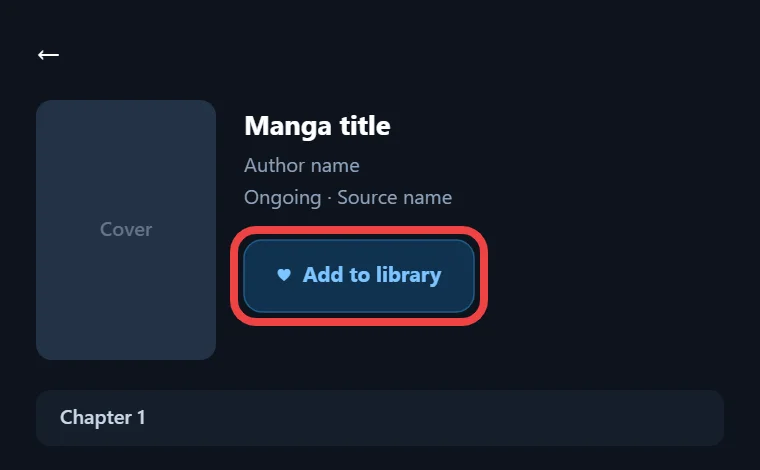
If a title is missing, use Global Search from the Browse section to search every source at once. Some sources list titles under their Japanese romanized names, so try another spelling if your first search finds nothing.
Start Reading Manga
Click any chapter to open the reader. Mihon lets you choose between several viewers and reading directions, so you can read right to left like a printed manga or scroll down like a webtoon. You can also switch between light and dark themes for late-night reading.
Features
Organize Your Library With Categories
Categories keep a big library tidy by grouping your series into shelves like Reading, Completed or Plan to Read, so you never have to scroll through hundreds of covers.
Creating and Naming Categories
Open the library settings and find the option to edit categories. Add a new category, give it a short name such as Reading or Weekly, and save it. You can create as many categories as your reading habits need.
Add Titles to Categories
Select a series in your library, choose the option to change its category, and tick the shelf you want. Mihon can also check for new chapters on a schedule, so your categories fill up with fresh updates on their own.
Mihon
Move Your Tachiyomi Library From Phone to PC
A backup file lets you carry your whole reading list over after you install Tachiyomi on PC, so you don’t have to add every series again by hand.
Create a Backup on Your Phone
On your phone, open Mihon and go to More, then Data and storage, then Create backup. Pick a place to save the file and copy it to your computer. While you are on that screen, turn on automatic backups so you always have a recent copy.
Restore the Backup on PC
Log in to your trackers and install the extensions your library uses before you restore anything. In Mihon, open More, then Data and storage, and restore the file, or in Suwayomi go to Settings, then Backup, then Restore Backup. A backup does not include extensions, downloaded chapters or custom covers. If you still have an old .tachibk backup from Tachiyomi, restore it on Mihon v0.21.2, because it is the last version that can read that format.
PC
Bonus Tip: Desktop Shortcut for Quick Access
Once you install Tachiyomi on PC, a desktop shortcut saves you from opening the emulator and hunting for the app every time you want to read. In BlueStacks, you can place a Mihon shortcut on your Windows desktop so it opens straight to your library. For Suwayomi, bookmark http://localhost:4567 or install the WebUI as a web app from your browser.
Fixes
Fix Common Tachiyomi on PC Problems
Most problems that show up after you install Tachiyomi on PC come from sources that block or slow down requests, not from the app itself. The fixes below come straight from the official Suwayomi troubleshooting guide on GitHub.
Extension Times Out
If an extension shows a timeout message, open the manga page and click Open in WebView. When the WebView loads, the extension itself is the problem, so check its known issues. When the WebView fails, stop Suwayomi, delete the bin and cache folders in its data folder, and restart it.
“Cloudflare Bypass Currently Disabled” Error
This message means the source uses Cloudflare bot protection. Install FlareSolverr or Byparr and keep it running whenever you read from that source. On Windows, leave the FlareSolverr console window open, and if Suwayomi still can’t reach it, make sure your firewall isn’t blocking port 8191.
HTTP Error 429 and Database Errors
Error 429 means a source or tracker is limiting how many requests you send, which often happens during big downloads. Download fewer chapters at once and wait a while between heavy actions. Database errors usually appear after you downgrade from a preview version or after a crash, and the fix is to upgrade again or reset Suwayomi and restore your latest backup.
Safety
Is Tachiyomi on PC Safe and Legal?
It is safe to install Tachiyomi on PC as long as you download Mihon from mihon.app and Suwayomi from GitHub, because both are open-source projects with public code. The original Tachiyomi developers warned that apps using their name have no connection to them, so avoid unknown download sites. Mihon hosts no manga itself, and what you read depends on the sources you add. If you can, support manga creators directly. This is general information, not legal advice.
FAQ
FAQs About Tachiyomi on PC
1. Can you still download Tachiyomi in 2026?
Old copies of Tachiyomi may still work, but the app has had no development or support since January 2024. If you want to install Tachiyomi on PC today, Mihon is the safer download because it still gets updates.
2. Does Windows Subsystem for Android still work?
You can no longer get it from Microsoft. The company removed Windows Subsystem for Android and the Amazon Appstore from the Microsoft Store on March 5, 2025, so use BlueStacks or Suwayomi on Windows 11 instead.
3. Can I use Tachiyomi on a Mac M1?
Yes, and you have two good choices on Apple Silicon. You can run Mihon inside BlueStacks Air, or you can download the macOS-arm64 bundle of Suwayomi, which runs the same extensions without an emulator.
4. Is there a Tachiyomi app for iPhone or iPad?
Mihon has no iOS or iPadOS version, and its team says any “Mihon for iOS” app is a scam. Tachimanga is a separate iOS manga reader that supports extension repositories and Komga servers.
5. Can I sync MyAnimeList or AniList on PC?
Yes, because both Mihon and Suwayomi support trackers. Mihon works with MyAnimeList, AniList, Kitsu and MangaUpdates, so your reading progress stays in sync with your tracker accounts while you read on your computer.
Conclusion
Conclusion
The best way to install Tachiyomi on PC in 2026 is to match the method to your computer. Suwayomi is the lightest choice for Windows and every Mac, while BlueStacks with Mihon gives you the full phone app on a bigger screen. Make a backup on your phone first, follow the steps for your method, and then restore your library. (see How to Update Tachiyomi and Move to Mihon) Once your extensions are in place, your manga library will be ready in minutes and you can get back to reading.