
Updated October 2026 · Mihon v0.21.2
How to Install Extensions in Tachiyomi (2025–2026 Guide)
Tachiyomi was one of the most loved manga readers on Android, but the project shut down on January 13, 2024, and that change broke the old way people added sources. This is why so many readers still search for how to install extensions in Tachiyomi and end up with an empty list or an “Outdated App” message. The same extensions still exist, because Mihon, the official successor, and the Keiyoushi extension store keep them alive. In this guide, I will show you how to install extensions in Tachiyomi through Mihon with two working methods, walk you through a real MangaPill example, and give you fixes for the errors people run into most often. Once you are on Mihon 0.20.1 or a supported fork like TachiyomiSY or Komikku, the whole process comes down to adding one store link and tapping the download button next to each source you want.
- Mihon 0.20.1+
- 1,420 extensions
- 481 English
- 6 FAQs
Keiyoushi store URL
Mihon → More → Settings → Browse → Extension store → Add
- Needs
- Mihon 0.20.1+, TachiyomiSY 1.13.2 or Komikku 1.14.1
- Android
- 8.0 or higher
- Latest Mihon
- v0.21.2
What changed
Why the Old Tachiyomi Extension Method No Longer Works
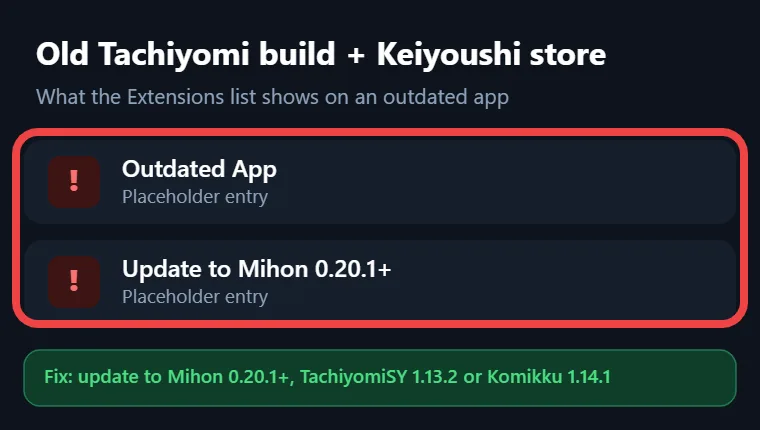
Most old guides on how to install extensions in Tachiyomi tell you to open the Browse tab and tap Install from a built-in list, but that list depended on the official repo, which went away when the project ended. Today, if you add the Keiyoushi repo to an old Tachiyomi build, you will only see two placeholder entries named “Outdated App” and “Update to Mihon 0.20.1+”, since the store now uses a newer format that old apps cannot read. Mihon also changed some menu words, and in version 0.20.0, “extension repo” became “extension store” and the “obsolete” label became “orphaned”, so older tutorials that still talk about repos can confuse you.
Checklist
Before You Start
Two quick checks will save you from most install problems.
Use a Supported App and Android Version
The first rule of how to install extensions in Tachiyomi today is to use an app that Keiyoushi supports, so make sure your version matches one of these rows:
| App | Minimum version |
|---|---|
| Mihon | 0.20.1 (latest is v0.21.2) |
| TachiyomiSY | 1.13.2 |
| Komikku | 1.14.1 |
Mihon also needs a phone or tablet running Android 8.0 or higher, so very old devices cannot run it at all. You can check your Android version in your phone’s About section and get the newest Mihon build from its GitHub releases page.
Remove Old Extensions First
Many people get how to install extensions in Tachiyomi wrong at this step, so uninstall any extensions left over from Tachiyomi first, because Keiyoushi says they will not get updates otherwise. You will not lose your library or extension settings, so you can reinstall the same sources a few minutes later.
Recommended
Method 1: Add the Keiyoushi Extension Store (Recommended)
If you only learn one way of how to install extensions in Tachiyomi, make it this one, because Mihon then shows every source in one list and keeps them updated.
One-Tap Setup With the “Add Store” Button
The easiest way to add the store is the “Add store” button on the Keiyoushi Getting Started page. Open that page on your Android phone and tap the button, and Mihon will open with the Keiyoushi store ready to add. This button only works with Mihon 0.21.2 or newer, so if you are still on an older 0.20 build, update Mihon first or use the manual steps below.
Add the Store URL Manually
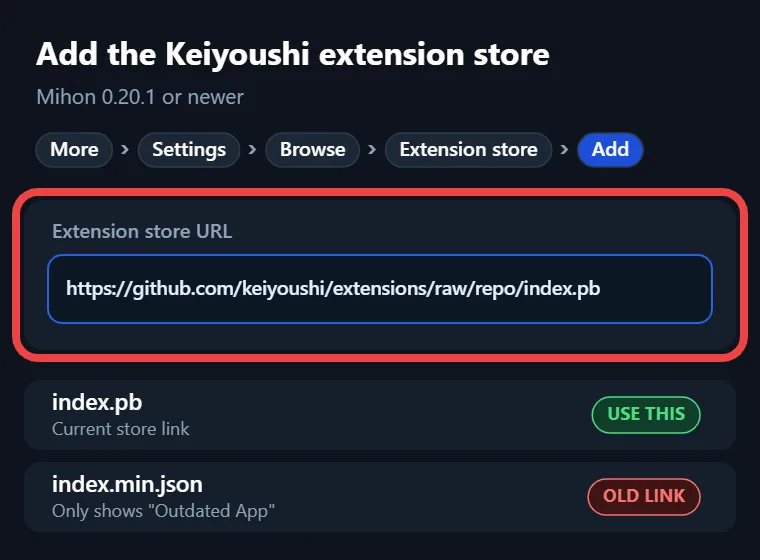
You can add an extension store in Mihon by hand on any version from 0.20.1 onward, and it takes a minute. Open Mihon and go to More, then Settings, then Browse, and tap Extension store. Select “Add” at the bottom of the screen and paste this extension store URL:
Save it, and Keiyoushi will appear in your list of stores. Copy the link exactly as written, since one missing letter will stop Mihon from loading the store. Older guides share a link ending in index.min.json, but that file now only shows the “Outdated App” placeholder, so use the index.pb link.
Restart and Reinstall Your Extensions
This last step is the part of how to install extensions in Tachiyomi that people often skip. Restart Mihon so it reloads the list, then install the sources you want from Extensions. If you are coming from an old setup, Browse → Migrate shows which extensions your library still needs.
APK method
Method 2: Install an Extension APK Manually Using Chrome
This second method of how to install extensions in Tachiyomi uses an APK file, which helps when you need one source.
Step 1: Open Chrome and Visit the Keiyoushi Extensions Page
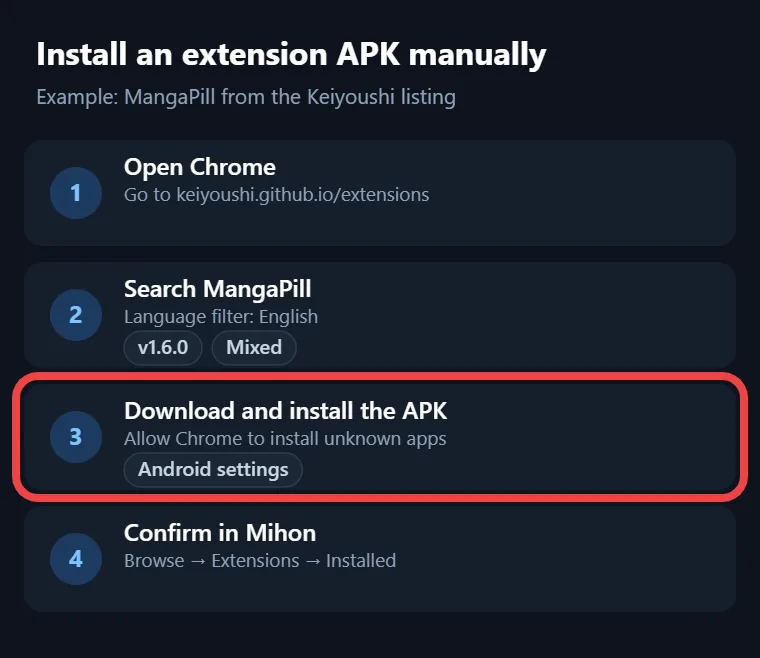
Open Google Chrome on your phone and go to keiyoushi.github.io/extensions, the official Keiyoushi listing page. Every extension in the store is listed there with its name, language, and version, so you know you are getting the real file and not a copy from a random site. Any browser works for how to install extensions in Tachiyomi by hand, but these steps use Chrome.
Step 2: Search for the MangaPill Extension
Use the search bar at the top of the page and type MangaPill. Set the language filter to English so the list only shows English sources, and the MangaPill extension should appear near the top of the results. At the time of writing, it is on version 1.6.0 and carries a Mixed content rating, which matters later for your content preferences.
Step 3: Download and Install the APK
Tap MangaPill and download the Tachiyomi extension APK to your phone. When the download finishes, open the file from Chrome or from your Downloads folder. Android will then ask you to allow Chrome to install unknown apps, and this permission lives in your Android system settings, not inside Mihon or Tachiyomi. Turn it on for Chrome, go back, and tap Install to finish. After the install is done, you can switch the permission off again for Chrome if you like to keep your phone locked down.
Step 4: Open Mihon and Confirm the Extension
Open Mihon, go to the Browse tab, and open Extensions, where MangaPill should appear in your installed list. Since version 0.21, Mihon also shows which store each extension comes from in the extensions list and details page, which helps you spot anything that came from an unknown place. If MangaPill does not show up, restart Mihon once, as it sometimes misses new ones.
Real example
Example: Reading Manga With the MangaPill Extension
Knowing how to install extensions in Tachiyomi is only half the job, so here is how MangaPill works in practice.
Find MangaPill in the Sources Tab
Go to the Browse tab and switch to the Sources tab, where every installed extension shows up as its own source. Tap MangaPill to open it, and you will see the Popular and Latest lists at the top, which are handy when you want to find something new to read without searching for a specific title.
Search and Read Your Favorite Manga
If you already know what you want, tap the search icon inside MangaPill and type the series name. You can also use Global Search from the Sources tab, which checks every installed source at once and groups the results by source. This is useful when a series is missing on one site, because you can see in a few seconds which other extension has it and start reading from there. Tap any chapter to open the reader, and Mihon remembers where you stopped.
Example Searches
Searching for Naruto or Bleach in MangaPill brings up the full series right away. Some sources use romanized Japanese titles, so if My Hero Academia shows nothing, try Boku no Hero Academia instead. You can also check the right title on MangaUpdates before you search in any source.
Add Series to Your Library
When you find a series you like, tap it to open its details page and press “Add to library”. The series then moves to your Library tab, where it stays ready for you, so you can open it later and pick up new chapters without searching for it again.
Download Manga for Offline Reading
Most people learn how to install extensions in Tachiyomi so they can read manga offline on a flight or anywhere with a weak signal. Open a series in your library, select the chapters you want, and tap the download icon, and Mihon saves them on your device so they open even with no internet at all. If you read on mobile data, turn on the “Load ahead only on Wi-Fi” reader option that came with Mihon 0.21, which stops the reader from loading extra pages ahead when you are away from Wi-Fi.
Missing sources?
Content Preferences: Why Some Extensions Are Hidden
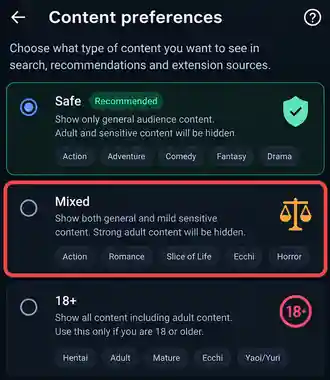
If you followed every step on how to install extensions in Tachiyomi and some sources still seem to be missing, your content preferences are the usual reason behind Tachiyomi extensions not showing. In Mihon 0.21, the old NSFW toggle was replaced with three choices called Safe, Mixed, and 18+, and the list only shows extensions that match your choice. There is also an option to keep using installed extensions that do not match, so changing it will not break your sources.
Top picks
Popular Extensions You Can Install Right Now
Once you know how to install extensions in Tachiyomi, the next question is which Mihon extensions to pick. For Tachiyomi extensions in 2026, the Keiyoushi store lists 1,420 extensions with 2,393 sources, and 481 are in English.
| Extension | Languages | Content rating |
|---|---|---|
| MangaDex | 61 | Mixed |
| MANGA Plus by SHUEISHA | 9 | Safe |
| Webtoons.com | 7 | Safe |
| MangaFire | 7 | Mixed |
| Asura Scans | 1 | Safe |
| Flame Comics | 1 | Safe |
| MangaPill | 1 | Mixed |
| Weeb Central | 1 | Mixed |
Comick no longer has an official extension, so be careful with the copies marked Unoriginal or Fanmade in the store.
Forks
Installing Extensions on Tachiyomi Forks
The steps for how to install extensions in Tachiyomi forks are the same as in Mihon, as long as the fork is recent enough. Keiyoushi officially supports TachiyomiSY 1.13.2 and Komikku 1.14.1, and both add the extension store from the same Settings menu and install sources from the Browse tab. Other forks such as TachiyomiJ2K, Yōkai, and Animetail may still work if they support the modern extension format, but the Keiyoushi team will not help you with them on Discord. Neko is a different case, because it is focused on MangaDex rather than many sources.
Safety
Is It Safe to Install Tachiyomi Extensions?
Only install from Keiyoushi
Any guide on how to install extensions in Tachiyomi should talk about safety, because extensions run inside your reader app. Mihon warns that third-party stores and extensions have full access to the app and may contain malware, so stick to Keiyoushi and avoid APK files shared on random sites and forums. Mihon 0.21 also makes extensions install and update only from the store they came from, which stops a tampered copy from replacing a real one.
Troubleshooting
Extensions Not Installing? Common Errors and Fixes
Even when you follow how to install extensions in Tachiyomi step by step, errors can still appear, so find yours below.
| Problem | Cause | Fix |
|---|---|---|
| Only “Outdated App” shows | App is too old for the store | Update to Mihon 0.20.1+ or a supported fork |
| Every extension says “Orphaned” | Old store link or old extensions | Remove all stores, add Keiyoushi again, then reinstall |
| Install fails with no clear reason | App missed the new extension | Restart the app, then use Split APK Installer to see the error |
| INSTALL_FAILED_UPDATE_INCOMPATIBLE | Same extension installed from another source | Uninstall it and install again |
| DISPLAY_NAME column is null | The APK file is corrupted | Download the APK again |
| Cloudflare error | The site is checking for bots | Solve the CAPTCHA in WebView, or clear cookies and WebView data in More → Settings → Advanced |
| HTTP 403 | Cloudflare or an IP ban | Open the source in WebView to check |
| HTTP 404 | Source is down or the series was removed | Try another source |
| HTTP 429 | Too many requests too fast | Wait, then read or download more slowly |
| HTTP 1020 | Blocked by the site’s firewall or region | Switch to a different source |
FAQ
FAQs
1. Why does my extension list only show “Outdated App”?
You are using an old Tachiyomi build that cannot read the new Keiyoushi format, and the Tachiyomi outdated app fix is simple: update to Mihon 0.20.1 or newer, or to TachiyomiSY 1.13.2 or Komikku 1.14.1, and the full list will appear after a refresh.
2. Why are all my extensions marked “Orphaned”?
Orphaned means Mihon cannot match the extension to any extension store you have added. If only one extension shows it, that source was probably removed or replaced, but if all of them do, remove your stores, add Keiyoushi again, and reinstall your extensions.
3. Why is my extension install stuck on “Pending”?
Restart the app first, since Mihon sometimes misses newly downloaded extensions. If you use a VPN, turn it off and try again, because some users report installs getting stuck while it is on, and switching the installer or using Split APK Installer can also help.
4. Will I lose my library if I reinstall extensions?
No, you will not lose anything at all. Keiyoushi confirms that uninstalling and reinstalling extensions does not remove your library entries or your extension settings, so your saved series stay in Mihon and connect to their source again once you install that extension back.
5. Where did the NSFW toggle go in Mihon?
Mihon 0.21 removed the NSFW toggle and replaced it with content preferences. You now pick Safe, Mixed, or 18+, and the extension list only shows sources that match your choice, while a separate option lets your already installed Mihon extensions stay active and working.
6. Can I install Tachiyomi extensions on iPhone?
No, because Mihon is an Android-only app, and Keiyoushi extensions come as APK files that only Android can install. This means iPhone and iPad users cannot run these extensions at all and need a different manga reader that is built for Apple’s iOS.
Conclusion
Conclusion
Tachiyomi may be gone, but its extensions are still easy to use once you know where they live now. Learning how to install extensions in Tachiyomi today means using Mihon or a supported fork, adding the Keiyoushi extension store, and installing sources from the Browse tab, with the manual APK method as a backup. Keep your app updated, and come back to the error table whenever a source stops working.