
Tachiyomi APK guide · Updated October 2026
Can’t Install Tachiyomi on Android? 9 Quick Fixes That Work
You tapped the file to install Tachiyomi, and your phone answered with “App not installed” or a scary Play Protect warning instead of a new manga app. These errors look worse than they are, because almost every one of them has a simple cause and an easy fix. There is one thing you should know first, since it changes how you solve the problem: the Tachiyomi team shut the project down in January 2024. That is why this guide shows you how to install Tachiyomi safely, and why every fix below also works for Mihon, the app that carries the project forward.
- Android guide
- Updated Oct 2026
- 4 FAQs
In this guide
Install errors and how to fix them
- Quick Answer: Tachiyomi Install Errors and Their Fixes
- Why Can’t I Install Tachiyomi in 2026?
- 9 Quick Fixes When You Can’t Install Tachiyomi on Android
- New in 2026: Android Developer Verification and Sideloading
- Before You Uninstall: Back Up and Move Your Library to Mihon
- After You Install: Set Up Sources and Extensions
- Can’t Use Android? Here’s the Truth About iPhone
Install guide
Quick Answer: Tachiyomi Install Errors and Their Fixes
This table matches each install error to its cause and fix. If you see the Tachiyomi app not installed message with no code at all, start with fixes 5, 7 and 8.
| Error message | What it means | Fix |
|---|---|---|
| App not installed | Signature conflict, broken file or block | Fixes 5, 7 and 8 |
| INSTALL_FAILED_UPDATE_INCOMPATIBLE | Different signature already installed | Fix 5 |
| INSTALL_FAILED_NO_MATCHING_ABIS | Wrong processor type | Fix 2 |
| INSTALL_FAILED_VERSION_DOWNGRADE | Older build over a newer one | Install the latest version |
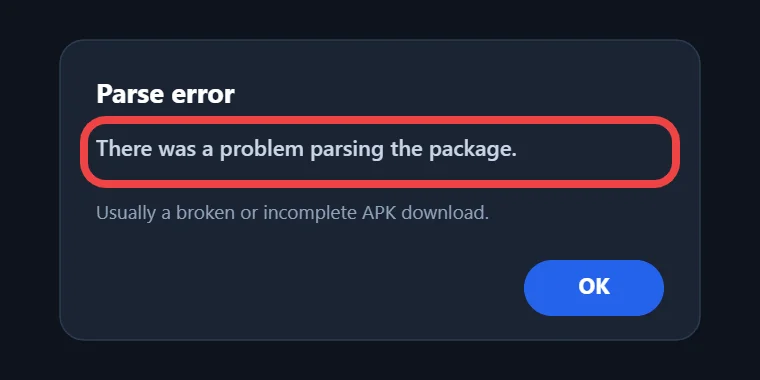
| There was a problem parsing the package | Broken download or wrong Android version | Fix 7 |
| DISPLAY_NAME column is null | Corrupted APK | Fix 7 |
| Play Protect blocked the app | Google flagged an outside app | Fix 8 |
Install guide
Why Can’t I Install Tachiyomi in 2026?
The biggest reason is that Tachiyomi is no longer a living app. Inorichi first released this open-source manga reader for Android in 2014, but in January 2024 Kakao Entertainment sent the developers a cease-and-desist letter. On 13 January 2024, the team announced that Tachiyomi “will no longer be actively developed” and ended support for both the app and its official extensions.
The core GitHub repositories were taken down or archived, so Tachiyomi 0.15.3 is the last stable version there will ever be. The developers also warned that any new app or website using the Tachiyomi name has no link to them. If you keep finding Tachiyomi not installing, a fake or outdated file from one of those sites is a likely cause. Mihon is the open-source Tachiyomi alternative that took over the work, and its team still releases updates.
Install guide
9 Quick Fixes When You Can’t Install Tachiyomi on Android
Work through these fixes in order, because the early ones take seconds and clear the simple problems before the advanced tools.
1) Download Only From Official Sources (Mihon Recommended)
The safest way to install Tachiyomi today is to skip random download sites and get Mihon from mihon.app or its GitHub releases page. A Tachiyomi APK from an unknown site can be old, broken or harmful, and any of those can stop the install.
Mihon offers three builds: Stable (v0.21.2) suits most people, the FOSS build uses only open-source code, and Mihon Nightly gets new features first but can carry bugs. You won’t find Mihon on Google Play, because its APK-based extensions clash with Google Play’s content policy.
2) Check Your Android Version and CPU Architecture
Mihon’s Stable build needs Android 8.0 or newer, so check your Android version in Settings under “About phone” first. On older versions, the installer will refuse the file every time.
The second hidden problem is your phone’s CPU architecture, which means the type of processor inside it. The INSTALL_FAILED_NO_MATCHING_ABIS error tells you the APK was built for a different chip. Download the universal APK from GitHub, which is usually the largest file in the release, or the version made for your processor.
3) Free Up Storage Space
Android needs room to unpack an app, so a nearly full phone can stop the install halfway. Open Settings, check your free storage and compare it with the APK size, remembering that the app needs more space once it saves your data. If space is tight, clear old downloads, large videos and unused apps, then try again.
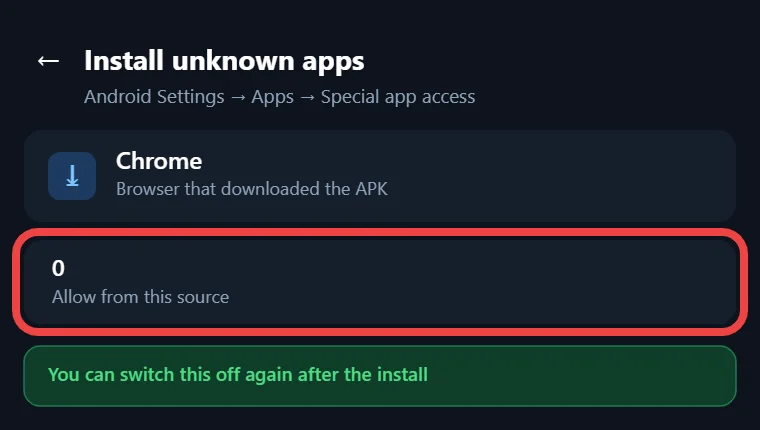
4) Allow Installs From Unknown Sources
Installing an app from outside Google Play is called sideloading, and Android blocks it until you give permission to the app that opens the file.
On Android 8.0 and newer:
- Open Settings and search for “Install unknown apps.”
- Pick the app that downloaded the file, such as Chrome.
- Turn on “Allow from this source,” then install Tachiyomi or Mihon again.
On Android 7.1 and older:
- Open Settings, then Security.
- Turn on “Unknown sources” and install the app.
- Turn it off again afterwards.
5) Remove Conflicting Builds (Signature Mismatch)
An old copy of the app can make Android refuse the new file, because the two copies were signed with different keys. A signature is a digital stamp that proves who built an app, and Android only updates an app when the stamps match. This signature conflict shows up as INSTALL_FAILED_UPDATE_INCOMPATIBLE or as “App not installed.”
- Open the old app and back up your library.
- Uninstall the old version.
- Install Tachiyomi or Mihon from the fresh file.
- Restore your backup in the new app.
Never skip the first step, because a lost library can’t be recovered.
6) Clear Package Installer Cache and Restart Your Phone
The package installer is the Android tool that puts apps on your phone, and a stuck cache can make it fail. Open Settings, go to Apps, show system apps, open Package installer, then tap Storage and Clear cache, though menu names differ a little by phone brand. Restart your phone afterwards and run the install again.
7) Re-download a Corrupted APK
A download that stopped early leaves you with a damaged file that Android can’t read. The “DISPLAY_NAME column is null” error points straight at a corrupted APK, and “There was a problem parsing the package” often means the same thing. Delete the old file, connect to stable Wi-Fi, download it again from the official page and open the new copy instead of the old one.
8) Handle Play Protect Warnings Safely
Google Play Protect is on by default and checks apps from outside Google Play, so it may warn you, ask to scan the file or block it. If the file came from mihon.app or GitHub, open the Play Store, tap your profile icon, choose Play Protect, open Settings and turn off “Scan apps with Play Protect.” Turn scanning back on right after the install, as Google recommends.
9) Use Split APK Installer (SAI) or ADB
Mihon’s troubleshooting guide recommends Split APK Installer (SAI) from GitHub, because it shows clear error messages and may succeed where the normal installer fails. It can also open a split APK, which is an app packed into several pieces. ADB (Android Debug Bridge) is a computer tool that installs apps over a USB cable, and advanced users can install Tachiyomi or Mihon with it.
Guide
New in 2026: Android Developer Verification and Sideloading
Google is changing how sideloading works, so a new warning in 2026 doesn’t always mean something broke. Under Android developer verification, certified Android 7+ phones and tablets in Brazil, Indonesia, Singapore and Thailand get new protections from 30 September 2026 for apps from participating stores. The rollout goes global in 2027, but direct sideloading is not part of the September deadline yet.
Power users can still get apps from unverified developers through Google’s “advanced flow”:
- Turn on developer mode and confirm nobody is pressuring you.
- Restart the phone and wait one day.
- Verify with your fingerprint, face or PIN.
- Allow unverified installs for 7 days or for good.
A warning still appears, and you tap “Install Anyway” to finish. ADB installs skip the one-day wait, which helps if you install Tachiyomi forks or Mihon later.
Install guide
Before You Uninstall: Back Up and Move Your Library to Mihon
Your library and reading progress live inside the app, so back them up before any uninstall. In Tachiyomi, create a backup from its settings and save the .tachibk file somewhere safe, such as a top-level folder or cloud storage.
Timing matters, because Mihon v0.21.2 is the last major version that can restore Tachiyomi backups and run Tachiyomi 1.4 extensions, so restore your .tachibk file on v0.21.2 first and update only after that. Downloaded chapters do not move during a migration, which means you will need to download your favorite series again in Mihon. Once you switch, Mihon saves its own automatic .tachibk backups in an “autobackup” folder inside your storage location.
Related guide: How to Update Tachiyomi and Move to Mihon
Install guide
After You Install: Set Up Sources and Extensions
Mihon opens empty because it ships with no built-in sources, so you add them through external repositories, manual extensions or the local source. First, create a top-level folder called “Mihon” and set it as your storage location, avoiding Documents and Downloads because Android restricts them. Since Android 11, scoped storage can make some tasks slower. For a Cloudflare error, open the source in WebView, and if that fails, clear cookies and WebView data under More, Settings, Advanced. Mihon recommends Android System WebView or Google Chrome as your WebView.
iPhone
Can’t Use Android? Here’s the Truth About iPhone
There is no Mihon app for iOS or iPadOS, and the Mihon team has no plans to make one. Any iPhone app that calls itself “Mihon for iOS” is a scam, so don’t install it or enter any details. If you only own an iPhone, you will need an Android phone or tablet to use this app.
Fixes
Still Stuck? What to Check Before Asking for Help
If every attempt to install Tachiyomi or Mihon fails, collect the details a helper will need before posting in a forum. Write down your phone model, your Android version, the exact APK version and the full error code or message. If the app installs but crashes, open More, Settings, Advanced and tap “Dump crash logs,” and share that file.
FAQ
FAQs
1. Why does it say “App not installed” when I try to install Tachiyomi?
This message usually hides one of four problems. An older copy with a different signature is still installed (fix 5), the APK is broken (fix 7), Play Protect blocked it (fix 8), or your phone is low on space (fix 3). Try those fixes in that order until the error clears.
2. I updated but now it won’t install (INSTALL_FAILED_VERSION_DOWNGRADE). What now?
This error means you are putting an older build over a newer one, and Android does not allow that by default. Download the latest version from the official page instead. If you need the older build, back up first, uninstall the newer app and install the older file.
3. Can Tachiyomi install on Android 14/13?
Tachiyomi has had no updates since January 2024, so nobody tests it on new Android releases. Mihon supports Android 8.0 and newer, which includes Android 13 and Android 14, so it suits a modern phone better. You can still try to install Tachiyomi 0.15.3, but nobody will support you if it fails.
4. Is it safe to install Tachiyomi APKs in 2026?
It is only safe when you know where the file came from. The Tachiyomi developers warned that new sites using the Tachiyomi name have no link to them, so treat those downloads with care. Get Mihon or its endorsed forks, such as TachiyomiJ2K, TachiyomiSY, TachiyomiAZ, Yōkai and Komikku, from their official pages instead.
Conclusion
Conclusion
The fastest way to install Tachiyomi without errors in 2026 is to get Mihon from mihon.app or GitHub, allow unknown sources and remove any old build that causes a signature conflict. If the normal installer still fails, Split APK Installer (SAI) can show you the real problem. Whatever you do, back up your library first and restore any .tachibk file on Mihon v0.21.2 before you update.