
Tachiyomi APK guide · Updated October 2026
How to Update Tachiyomi: Step-by-Step Guide 2026 (Move to Mihon Without Losing Your Library)
Many manga readers search for how to update Tachiyomi because the app keeps showing errors or the update button does nothing. The fix is different from what most guides tell you, and it starts with one simple fact. Tachiyomi stopped getting updates on January 13, 2024, so no newer Tachiyomi file is waiting for you anywhere. The real answer to how to update Tachiyomi in 2026 is to move your library into Mihon. Mihon is a free Android app that continues the Tachiyomi code and reads the same backup file. This guide shows you that move in seven clear steps, and then it explains how to keep Mihon and your extensions current. You will also find fixes for a library that stops refreshing and for common install errors. One date matters more than any other here, because Mihon v0.21.2 is the last version that can restore your old Tachiyomi backup.
- Android guide
- Updated Oct 2026
- 5 FAQs
In this guide
Move to Mihon without losing your library
Updated October 2026Updates
Can You Still Update Tachiyomi in 2026?
No, you cannot update the original Tachiyomi app anymore, because its developers stopped working on it in January 2024. On January 13, 2024, lead developer arkon posted a notice that said, “Tachiyomi will no longer be actively developed.” He pointed to threats from Kakao Entertainment Corp, a large webtoon company, against him and others linked to the project. The old GitHub repositories are now a read-only public archive.
Your current install will keep opening, because the notice also said, “Existing installations cannot be affected by us.” Nothing inside it will ever be fixed, though, so the Tachiyomi latest version you will ever have is the one already on your phone. That is why how to update Tachiyomi has a completely different answer today.
If you searched for a Tachiyomi update 2026 download, treat any site that offers one with suspicion. The original team warned that “anything new called Tachiyomi or claiming to be its successor have no relation to the original developers.” Anyone asking how to update Tachiyomi safely should look at Mihon instead.
Mihon
What Happened to Tachiyomi? Tachiyomi vs Mihon
Mihon is the app that picked up where Tachiyomi left off, and it is the closest thing to a true Tachiyomi alternative. It continues the codebase that started in 2015, so the menus and reading modes feel familiar from the first minute. Mihon is open source under the Apache License 2.0, and its GitHub page has around 24.6k stars.
Mihon reads the same .tachibk backup that Tachiyomi creates, which is the main reason how to update Tachiyomi today means moving to Mihon. Your library, categories and reading history come across in a single restore.
| Tachiyomi | Mihon | |
|---|---|---|
| Development | Stopped on January 13, 2024 | Active |
| Latest version | No updates since January 2024 | v0.21.2, released October 13, 2026 |
| Backup format | .tachibk | Reads .tachibk up to v0.21.2 |
| Extensions | Official ones no longer supported | Added from repos you choose |
| Google Play Store | No | No, APK only |
Mihon is not on the Google Play Store because APK extensions clash with the store’s content policy. You install it from its own website instead.
Updates
How to Update Tachiyomi to Mihon in 7 Steps
Moving from Tachiyomi to Mihon comes down to one backup, one install and one restore. If you only remember one part of how to update Tachiyomi, remember that order. Keep Tachiyomi on your phone until the final step so nothing gets lost along the way.
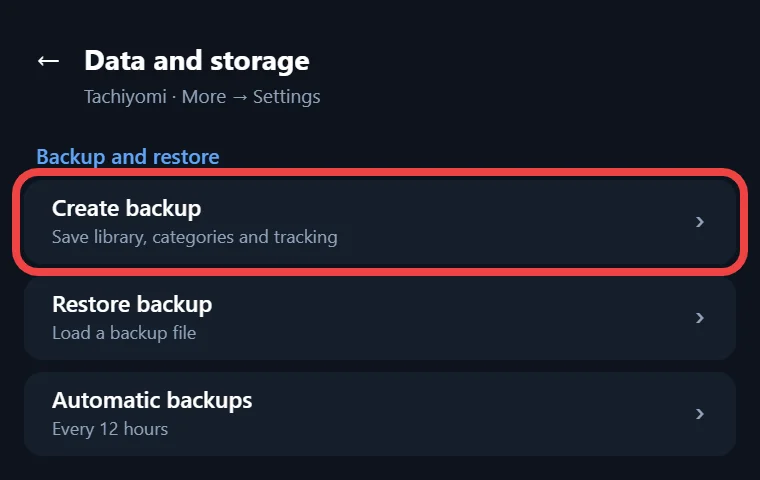
1. Create a Backup in Tachiyomi
Your backup is the file that carries your whole library into Mihon, so every method for how to update Tachiyomi starts here. Open Tachiyomi and go to More, then Settings, then Data and storage, or Backup and restore on older builds. Tap Create backup and save the file somewhere you can find it again. The file ends in .tachibk, and that tachibk backup is what you will restore later. Downloaded chapters are not inside it, so note where your downloads folder lives.
2. Download Mihon v0.21.2 From the Official Site
Download Mihon only from mihon.app/download, which links to the official APK files on GitHub. An APK is the install file for an Android app that does not come from the Play Store. Stable is the right pick for most people, and right now that is Mihon v0.21.2. Mihon Nightly is a preview build that “may contain unfinished features or stability issues.” The Mihon FOSS build is the same version, built only from open-source code. If GitHub shows several files and you feel unsure, grab the plain mihon-v0.21.2.apk.
3. Install the Mihon APK
Open the Mihon APK you downloaded and tap Install. Android will ask you to allow Install unknown apps for your browser or file manager, because the file comes from outside the Play Store. Turn that setting on and go back to the installer. The Mihon Android requirements are short, since the app runs on Android 8.0 or higher. If your phone shows an App not installed error here, jump to the install errors section further down.
4. Choose Your Storage Folder
When Mihon opens for the first time, it asks where to keep its files. Create a folder called Mihon at the top level of your storage and select it. Avoid Documents or Downloads, because Android restricts those system folders and Mihon may show an Invalid location error later. This folder will also hold your automatic backups and downloads.
5. Add Extension Repos and Reinstall Extensions
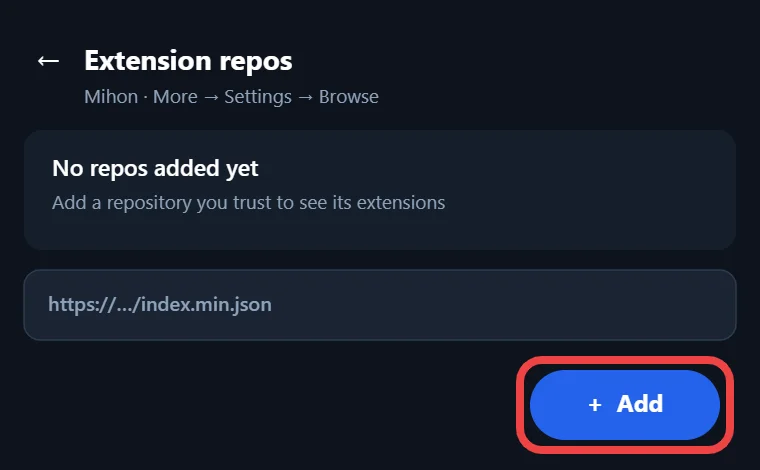
Extensions are small add-ons that let Mihon load manga from different sources, and your backup does not save them. Open the Extension repos setting under More, then Settings, then Browse, and add a repository you trust. A repository, or repo, is a list of extensions the app can install from. Mihon provides no extension repos of its own, and it warns that extensions get full access to the app and “may contain malware.” Once the repo is in place, reinstall the extensions you used in Tachiyomi.
6. Log Into Trackers and Restore Your Backup
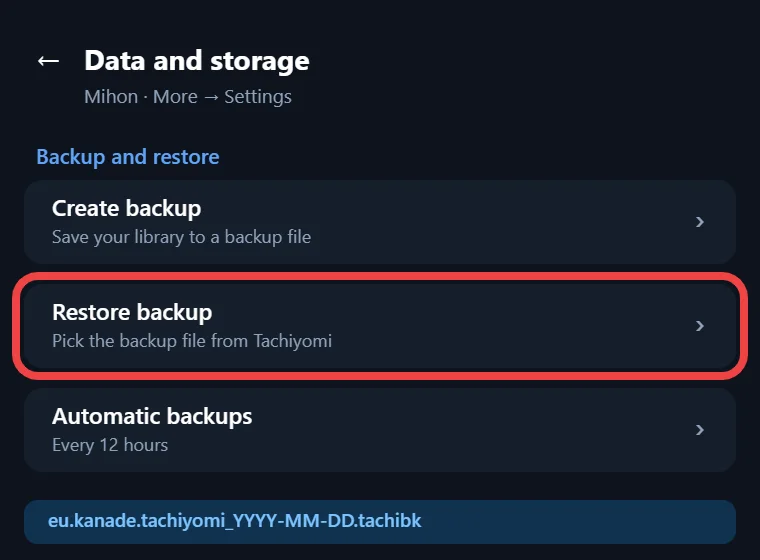
Before you restore, sign in to the trackers you used, such as MyAnimeList, AniList or Kitsu, so your reading progress syncs properly afterwards. Next, go to More, then Data and storage, tap Restore backup, and choose the .tachibk file from step 1. Mihon then shows a Restore screen that lists any trackers or extensions still missing, which makes the gaps easy to spot. Fix those, start the restore, and your old titles and categories will fill the library. This restore is the moment where all the work on how to update Tachiyomi finally pays off.
7. Move Downloaded Chapters (Optional)
You can skip this step if you read online, but if you saved chapters for offline reading, you can bring them across too. Copy your old downloads into the downloads folder inside your new Mihon folder with any file manager. Then open More, go to Settings, then Advanced, and tap Reindex downloads so Mihon can find them. When your library and downloads look right, you can uninstall Tachiyomi and use Mihon from now on.
Mihon
What a Tachiyomi Backup Saves (and What It Doesn’t)
A backup saves your reading data and settings, but it leaves out the actual files on your phone. Knowing the difference is a key part of how to update Tachiyomi, because it lets you update without losing data.
| Saved in the backup | Not saved in the backup |
|---|---|
| Library entries and chapters | Extensions |
| Reading history and tracking | Downloaded chapters |
| Categories | Custom covers |
| App settings and source settings | Tracker logins, unless you turn them on |
| Extension repos |
Tracker logins only come along if you switch on Include sensitive settings, which is off by default. Turn on automatic backups under More, then Data and storage, and Mihon will keep them in the autobackup folder. That habit makes any future Tachiyomi backup and restore far less stressful.
Mihon
Why You Must Restore on Mihon v0.21.2 First
Restore your old backup on Mihon v0.21.2 before you install any later Mihon update, because the next version will not read it. The official release note says v0.21.2 is the last version that can restore Tachiyomi .tachibk backups and run Tachiyomi 1.4 extensions. The version after it drops both.
If you jump ahead to a newer release and only then try to restore your file, the restore may fail. The safe order is to install v0.21.2, restore your backup, check that everything is there, and only then accept the next update. Anyone still asking how to update Tachiyomi months from now should follow this order exactly. An old backup can only come across during this version window.
Updates
How to Update Mihon After Switching
Once you finish moving from Tachiyomi, keeping Mihon current takes little effort, because the app checks for new versions on its own. This check runs every time you open the app from a fully closed state. It arrived in v0.20.2 in August 2026 and covers both the app and your extensions. When a Mihon update is ready, a prompt appears, and you tap it to install the new version.
You can also check by hand under More, then About, or install the newer Mihon APK from the official site over the old one. Because both files carry the same signature, Android keeps your library in place.
Make a backup before every big Mihon update. Version 0.21.0 merged leftover duplicate entries during the update, and Mihon warned that this change cannot be undone. That release also added an option to skip an app update. This helps if you want to stay on v0.21.2 until your old Tachiyomi backup is restored.
Updates
How to Update Tachiyomi Extensions
To update Tachiyomi extensions in Mihon, open Browse, then Extensions, and tap Update or Update all on the list of pending updates. Extensions are the part of how to update Tachiyomi that people forget most often. Even so, Mihon checks for their updates every time it starts from scratch.
All of your extensions come from the extension repos you added under More, then Settings, then Browse, then Extension repos. Stick to repositories you trust, since an extension can see everything inside the app.
If tapping through install prompts feels slow, Shizuku can handle them for you. Shizuku is a separate Android tool that lets apps install packages directly through system features. Set it up with its own guide, then open More, Settings, Advanced, and change Installer to Shizuku so updates go through without asking each time.
Mihon v0.20.0 added support for the newer tachiyomix 1.6 extensions, while v0.21.2 is the last release that runs the older Tachiyomi 1.4 kind. Expect your extension list to shift over time because of this.
Updates
How to Update TachiyomiSY, J2K, Yōkai and Komikku
You update a Tachiyomi fork the same way you update Mihon by hand. You install the newer APK from the fork’s official GitHub release over the old one. That is how to update Tachiyomi forks, which are alternative versions of Mihon with their own extra features. Mihon lists five of them as endorsed.
| App | Latest version | Released | Known for |
|---|---|---|---|
| Yōkai | v1.10.2 | Sep 23, 2026 | J2K-style design, tablet double pages, SFW filter |
| TachiyomiJ2K | v1.8.1 | Aug 15, 2026 | Redesigned look and dynamic categories |
| Komikku | v1.14.1 | Jul 17, 2026 | SY and Mihon features, fast browsing, hidden categories |
| TachiyomiSY | v1.13.2 | Jul 13, 2026 | Extra features, MAL and AniDB recommendations, autoscroll |
| TachiyomiAZ | Not checked | Old Tachiyomi look, reads legacy .json backups |
For a TachiyomiSY update, open its GitHub releases page, grab the newest APK, and install it on top of the current one. Switching between forks, or from a fork to Mihon, uses the same backup and restore steps shown earlier. Fork-only settings, such as saved searches in TachiyomiSY, will not carry over to Mihon, so write them down before you move.
Fixes
Tachiyomi Library Not Updating? 7 Working Fixes
When people complain about Tachiyomi not updating, they usually mean that new chapters stop appearing in the library. That is a different problem from how to update Tachiyomi itself. These seven fixes follow the causes in Mihon’s troubleshooting pages.
1. Check Your Library Update Settings
Start with the simplest cause, which is a setting that stops the library from refreshing. Open More, then Settings, and look through the library update options to confirm that automatic updates are switched on. Menu names can shift between versions, so read each option carefully instead of guessing. If everything looks right there, the problem most likely sits with your connection or the source itself.
2. Check Your Internet Connection and DNS
A weak or blocked connection stops Mihon from reaching sources, and it shows up as errors like Unable to resolve host or Connection failed. Try switching between Wi-Fi and mobile data first. If that does not help, open More, Settings, Advanced, and change or turn off the DNS over HTTPS option, then restart the app. Restarting your router can also clear a block on the network side.
3. Open the Source in WebView
Many sources use Cloudflare, a protection service that checks whether a visitor is a real person. When you see Failed to bypass Cloudflare, open that source in WebView, which is the built-in browser inside Mihon, and solve the check there. If the error keeps coming back, change the user agent under Advanced settings and restart the app. Some sites use very strong protection, so a few may stay blocked for a while.
4. Wait Out Rate Limits
An HTTP 429 or 1006 error means the source has put a temporary ban on your connection, usually after you downloaded or read too quickly. The fix is to pause your downloads and wait a few hours before you try again. Once the wait is over, refresh the library again and the new chapters should load normally.
5. Migrate Series From a Dead Source
An HTTP 404 error usually means the source is down or the series was removed. In that case, the better move is to shift the series to a working source. Open the series, tap the three-dot menu, and choose Migrate, or go to Browse and open the Migrate tab. Pick the new match and choose which data to carry over, and make a backup first because downloads do not move.
6. Clear Cookies and WebView Data
Old cookies can confuse sources and trigger certificate errors. Go to More, then Settings, then Advanced, and clear your cookies and WebView data. While you are there, check that the date and time on your phone are correct, because a wrong clock causes certificate errors as well. Restart the app afterwards so that it starts fresh.
7. Switch to Mihon (the Real Fix)
If you still use the original app, none of these fixes will last, because with Tachiyomi discontinued since 2024, its bugs will never be patched. Sources change their sites all the time, and only an app that still gets updates can keep up. Moving your library into Mihon is the final answer to how to update Tachiyomi, and it is the one fix that keeps working.
Install guide
Tachiyomi Update Failed? Install Errors and Fixes
Most install problems come from a wrong file, a damaged download, or an older copy signed differently. A failed install is also the most common snag in how to update Tachiyomi. Here are the errors people hit most often when they report that a Tachiyomi update failed.
| Error message | What it means | Fix |
|---|---|---|
| App not installed | Android blocked the install without details | Install the APK with Split APK Installer (SAI) for a clearer error |
| INSTALL_FAILED_UPDATE_INCOMPATIBLE | The installed copy has a different signature | Back up, uninstall the old copy, install again, then restore |
| INSTALL_FAILED_NO_MATCHING_ABIS | The APK does not match your phone’s processor | Download the universal APK, the largest file on GitHub |
| DISPLAY_NAME column is null | The APK file is damaged | Download the file again |
| Invalid location | The storage folder is blocked | Pick a top-level Mihon folder away from system folders |
| Old .json backup will not restore | It uses a legacy format | Open it in TachiyomiAZ first and convert it |
The signature error needs extra care, because uninstalling an app removes its data, so always create a backup before you uninstall anything. For errors that are not in this table, Mihon’s troubleshooting pages also cover storage and network problems.
Updates
Is It Safe to Update Tachiyomi? Use Official Sources Only
Knowing how to update Tachiyomi safely comes down to one rule, which is to use official sources only. Download Mihon from mihon.app or its official GitHub releases, and get forks from the GitHub pages linked on Mihon’s site. Ignore sites that offer a “Tachiyomi 2026 APK” or a “mod APK.” The original developers said anything new using the Tachiyomi name has no link to them. There is no iPhone version either, and Mihon calls any Mihon for iOS app a scam. Add only extension repos you trust.
This guide is for educational purposes only. Mihon provides no manga content, so please respect the copyright laws in your country.
FAQ
FAQs
1. Can I still download Tachiyomi in 2026?
Old copies still float around online, but the original project has been archived since January 2024 and gets no fixes. Install Mihon from mihon.app instead, because moving there is how to update Tachiyomi to a working app today.
2. Will I lose my manga when I switch to Mihon?
Your library, reading history, categories and tracking come across when you restore your .tachibk backup in Mihon. Extensions, downloaded chapters and custom covers do not, so reinstall your extensions and copy your downloads across by hand.
3. Is Mihon on the Play Store or iPhone?
Mihon is on neither of them, because APK extensions conflict with the Google Play content policy and no iOS version exists. You install it as an APK on Android 8.0 or higher from the official Mihon website.
4. Why are there no extensions in Mihon?
Mihon ships without extensions because the project does not provide or link to any repositories or content. You add a repository you trust under the Extension repos setting, keeping in mind that extensions get full access to the app.
5. Which Android version does Mihon need?
Mihon needs Android 8.0 or higher, according to its official download page. If your phone runs an older version, the Mihon APK will not install. Check your Android version in your phone’s settings before you start the move.
Final Thoughts
Final Thoughts
Learning how to update Tachiyomi in 2026 really means learning how to move to Mihon, because the original app will never receive another fix. Create your backup, install Mihon v0.21.2 from the official site, add your extensions, and restore before you accept any newer version. After that, Mihon keeps itself current with a prompt each time it starts. Bookmark this page as your reference for how to update Tachiyomi. Keep automatic backups turned on so your library stays safe through every future update.