
Tachiyomi install guide · Updated October 2026
How to Install Tachiyomi APK on Android (Step-by-Step 2026 Guide)
This guide explains how to install Tachiyomi APK on your Android phone step by step, from allowing unknown apps to fixing install errors. If you do not have the file yet, get it from our Tachiyomi APK download page first, because the app has never been available on the Google Play Store. The whole process takes about five minutes once you know which file to pick and which settings to change on your phone. Before you start, you should know that Tachiyomi stopped development in January 2024 and that its final release is version 0.15.3. That last Tachiyomi APK still installs and opens on most phones, but it will never get another update, which is why this guide also shows you how to move to Mihon, the app that carries the project forward.
- Android guide
- Updated Oct 2026
- 5 FAQs
In this guide
Step-by-step Android guide 2026
Updated October 2026Overview
Is Tachiyomi Still Working in 2026?
Yes, the Tachiyomi APK still installs and runs in 2026, but it is a finished project that nobody maintains anymore. The team behind this open-source manga reader, which inorichi started in 2015, shut it down in January 2024 after legal pressure from Kakao Entertainment, a Korean webtoon publisher. They also archived the GitHub repository and removed the official extension repository.
In practice, the app opens, your library loads, and you can still read local files and chapters you already downloaded. What slowly stops working is everything that depends on updates, because the app gets no security fixes and many extensions break as websites change. For a manga reader app you open every day, that gap matters, and Mihon fills it.
Install guide
What You Need Before Installing
A few quick checks before you download the Tachiyomi APK will save you from most install errors later.
- Android version: this guide follows Android 8 and newer, which use the settings menus shown in the steps below.
- Free storage: keep enough space for the app itself plus the chapters you plan to save for offline reading.
- CPU type: find out whether your phone uses a 64-bit or a 32-bit processor, because that decides which Tachiyomi APK file you download.
- Backup: if you already use Tachiyomi or one of its forks, create a backup first so your library stays safe during the install.
Download
1. Getting the Right Tachiyomi APK File
Where you download Tachiyomi APK files from matters more than any other step, because dozens of copycat sites use the Tachiyomi name to push modified files. Sticking to GitHub keeps you on the original file that the developers published themselves.
Download from the Official GitHub Release
GitHub is the only place where the original Tachiyomi APK still lives, so that is where every safe download starts.
- Open your phone’s browser and go to the tachiyomiorg/tachiyomi releases page on GitHub.
- Find the release labeled v0.15.3, which is the Tachiyomi latest version and the last one the team will ever publish.
- Tap Assets under that release to expand the list of files.
- Tap the Tachiyomi APK file that matches your phone and wait for the download to finish.
Which APK File Should You Choose?
The asset list shows several files because each Tachiyomi APK build targets a different kind of processor. Pick arm64-v8a if your phone came out in the last few years, since most modern phones use it. Choose armeabi-v7a for older 32-bit phones and x86 for emulators and some tablets. When you are unsure, the universal APK works on every device, at the cost of a bigger file.
How to Avoid Fake Tachiyomi APK Sites
Any site that hides the download behind several ad buttons, asks you to install a second app first, or offers a version newer than 0.15.3 is not giving you the real file. Close that page and go back to GitHub.
Install guide
2. How to Install Tachiyomi APK on Android
Android blocks apps from outside the Play Store by default, so you need one extra permission before you can install Tachiyomi on Android. After that, the install takes a couple of taps.
Allow “Install Unknown Apps”
On Android 8 and newer, this permission works one app at a time, so you only allow the browser or file manager that opens the Tachiyomi APK.
- Open Settings and tap Apps.
- Find the app you downloaded with, such as Chrome or your Files app.
- Tap Install unknown apps and switch on Allow from this source.
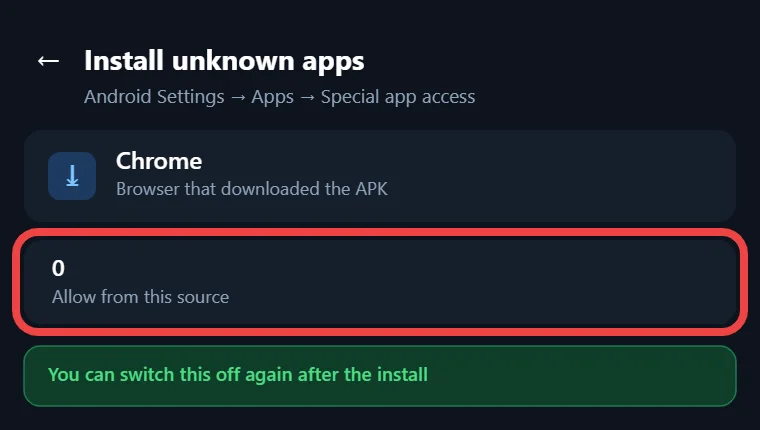
Menu names vary slightly between brands, and phones on Android 7 or older use a single Unknown sources switch under Security instead.
Install the APK and Handle Play Protect
- Open your Downloads folder and tap the Tachiyomi APK you saved.
- Tap Install and wait a few seconds.
- If Google Play Protect shows a warning, tap More details and then Install anyway, since the file comes from GitHub.
As of 2026, Google developer verification also affects sideloaded apps, since certified phones in Brazil, Indonesia, Singapore and Thailand now only install apps from verified developers, with a global rollout planned for 2027. Google has said experienced users will get an advanced option for unverified apps, so check your settings if the install is refused.
Guide
3. Launching Tachiyomi for the First Time
When you open the app for the first time, a short welcome screen walks you through the Tachiyomi Android setup over a few pages. You can change every choice later in Settings, so there is no pressure to get each one perfect on your first try.
The setup covers the look of the app, the folder where downloads go, and the permissions the app needs to keep working in the background. Go through each page slowly, because the next three sections explain what every option does and which choice suits most readers.
Features
4. Choosing a Theme and Default Reader
The first page lets you pick a theme, and most people who read at night go for dark mode or the pure black AMOLED option because it is easier on the eyes. After that, set your default reading mode. Paged mode flips one page at a time like a printed book, while webtoon mode scrolls down one long strip, which suits Korean and Chinese comics.
Download
5. Setting a Dedicated Download Folder
Since Android 11, scoped storage stops apps from saving files anywhere they like, so Tachiyomi asks you to pick one download folder. Create a new folder named Tachiyomi in your phone’s main storage and select it, which keeps your chapters, backups and local manga together in one place.
If your phone has an SD card, you can create the folder there instead to save internal space. Try not to choose the general Downloads folder, because other apps fill it with files and your chapters get lost among them.
Guide
6. Granting Necessary Permissions
Only two permissions really matter for daily use, and both help the app keep working in the background. On Android 13 and newer, allow notifications so Tachiyomi can tell you when new chapters arrive or when a download finishes.
Next, turn off battery optimization for the app. Android puts background apps to sleep to save power, which can stop library updates halfway, so tap the option on the setup screen or go to Settings, then Apps, then Tachiyomi, then Battery, and choose Unrestricted.
Every other permission is optional, and the app runs fine without it. You can still grant any of them later from your phone’s settings if you change your mind.
Guide
7. Exploring the Tachiyomi Interface
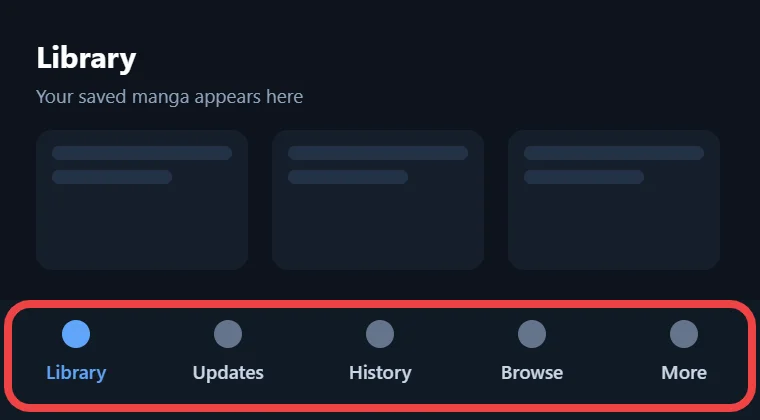
Once setup ends, you land on the main screen, where the bottom bar holds five tabs that cover everything the app does.
- Library holds the manga you have added, and you can sort it into categories such as Reading or Completed.
- Updates lists new chapters from the series in your library.
- History shows what you read recently, so you can pick up right where you stopped.
- Browse is where you find sources, extensions and the migration tool.
- More opens your downloads, backups and the main Settings menu.
Most of the setup work happens inside Browse and Settings, so spend a minute tapping through both before you move on.
Extensions
8. Managing Extensions and Repositories
A fresh install shows an empty Browse tab, which surprises a lot of new users. Tachiyomi extensions are small add-ons that connect the app to manga sources, and since version 0.15 you have to add them yourself.
Browse and Configure Extensions
Open Browse and switch to the Extensions tab to see what is installed, what has an update, and what is ready to install. Tap any installed extension to change its settings, such as the language it shows or whether it appears when you use global search.
How to Add an Extension Repository (v0.15+)
Older versions came with a built-in extension list, but version 0.15 dropped it, and the official list went offline when the project ended. Now you add a Tachiyomi extension repo by hand.
- Go to More, then Settings, then Browse.
- Tap Extension repos and then Add.
- Paste the extension repository URL and tap OK.
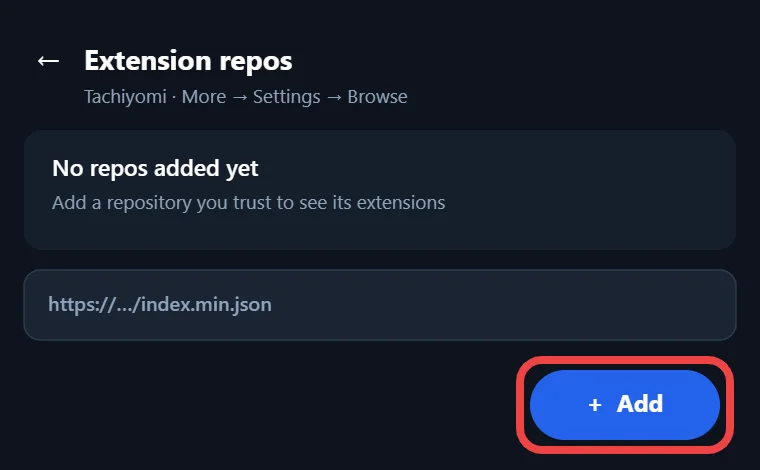
Once the repo is saved, its extensions show up in the Extensions tab after a quick refresh.
Where to Find Extension Repo URLs
We do not share repo links in this guide, because many extensions pull chapters from unlicensed sites and that can break copyright law where you live. Look for repos that offer legal sources such as MangaDex, and use the Local source to read manga files you already own.
Install guide
9. Installing and Trusting Extensions
After you add a repo, the Extensions tab fills up with sources you can install in a few taps.
- Open Browse, then Extensions, and tap Install next to the source you want.
- When Android asks for permission, allow Tachiyomi to install apps and confirm the install.
- Tap Trust when Tachiyomi flags the new extension, because the app blocks untrusted extensions until you approve them.
- Switch to the Sources tab, open the source, and add a series to your library.
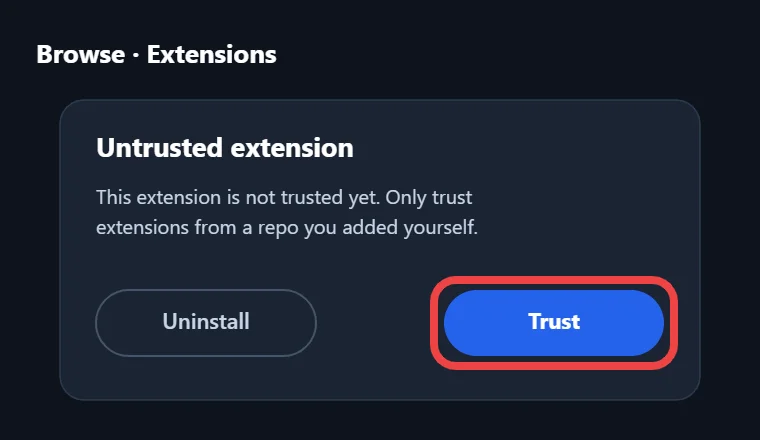
Updates for each extension show up in the same tab, and keeping them current fixes most loading problems.
Install guide
10. Tachiyomi Not Installing? Quick Fixes
When a Tachiyomi APK refuses to install, the cause is almost always one of the problems below, and each one has a quick fix.
- App not installed error: this usually means the file is broken, so delete it and download the Tachiyomi APK again from GitHub.
- Wrong APK type: if a fresh download still fails, your phone probably needs a different file, so try the universal APK instead.
- Low storage: free up some space on your phone and then run the install again.
- Signature conflict: an older or modified copy on your phone is blocking the new one, so back up your library, uninstall the old app and install again.
- “There was a problem parsing the package”: the file did not download completely, or your Android version is too old for this release.
- Play Protect blocks the file: tap More details and then Install anyway, or read the developer verification note in step 2.
- Android 14 refuses an old build: very old Tachiyomi files target outdated Android versions, which Android 14 blocks, so use v0.15.3 instead.
- Cloudflare or WebView errors inside a source: update Android System WebView from the Play Store, then open that source in WebView once.
Related guide: Can’t Install Tachiyomi? 9 Quick Fixes
Guide
11. Is Tachiyomi Available on the Play Store?
No, Tachiyomi has never been on the Google Play Store, and that will not change now that the project has ended. Google Play rules do not allow apps that load content from third-party sources the way Tachiyomi extensions do, so the developers always shared the app through their own site and GitHub. Any Tachiyomi Play Store listing you come across was uploaded by someone else, so skip it and get the Tachiyomi APK from GitHub instead.
Safety
12. Is Tachiyomi Safe and Legal to Use?
A Tachiyomi APK downloaded from GitHub is safe, because the app is open-source software under the Apache 2.0 license and anyone can read its code. The real risk comes from fake download sites that may hide adware inside a modified file. Keep in mind that the app gets no security fixes anymore, which is one more reason to move to Mihon.
Whether it is legal depends on what you read with it. The app is only a reader, but many extensions pull chapters from sites that do not hold the rights, and publishers send DMCA notices against them. To stay on the right side of the law, read on licensed services like MANGA Plus, use MangaDex, or open manga files you bought.
Mihon
13. Tachiyomi vs Mihon: Should You Switch?
For most readers Mihon is the better choice, because it is the same app under active development. Former Tachiyomi contributors built it, so the screens, settings and extension system feel familiar from the very first tap.
| Feature | Tachiyomi | Mihon |
|---|---|---|
| Status | Discontinued in January 2024 | Actively developed |
| Latest version | 0.15.3 (final) | Regular new releases |
| Security fixes | None | Yes |
| Extensions | Added through repos, many no longer load | Added through repos |
| Where to get it | tachiyomiorg on GitHub | mihonapp on GitHub |
Mihon updates itself inside the app, and you can also track new releases with Obtainium. If you want extra features, forks such as TachiyomiSY, Komikku and Yōkai, which replaced TachiyomiJ2K, build on the same base. Neko is a good Tachiyomi alternative for readers who only use MangaDex.
Related guide: Best Tachiyomi Alternatives 2026
How to Move Your Tachiyomi Library to Mihon
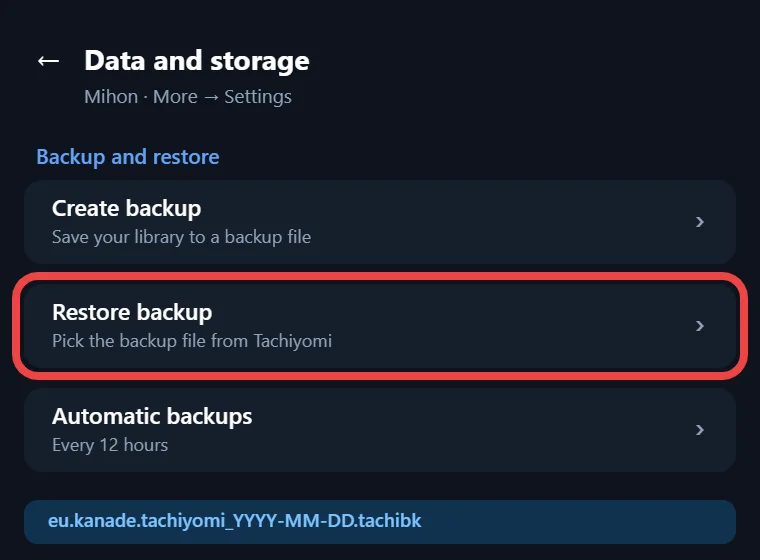
Moving over keeps your library, categories and reading progress, and the backup and restore tools do all the work.
- In Tachiyomi, open More, then Settings, then Data and storage, and tap Create backup.
- Save the backup file in your Tachiyomi folder.
- Download the Mihon APK from the mihonapp releases page on GitHub and install it the same way you installed Tachiyomi.
- Open Mihon, go to the same Data and storage menu, and tap Restore backup.
- Select your file, wait for the restore to finish, and add your extensions again.
FAQ
Frequently Asked Questions
1. Why is my Browse tab empty after installing Tachiyomi?
Since version 0.15, Tachiyomi comes with no extensions, so Browse stays empty until you add an extension repo. Go to More, then Settings, then Browse, add a repo URL, and install your sources from there.
2. Is Tachiyomi dead, or can I still use it?
Development ended in January 2024, which makes 0.15.3 the Tachiyomi latest version and the last one. The app still works for reading, but it gets no fixes, which is why most readers have moved to Mihon.
3. Will I lose my library if I switch to Mihon?
No, as long as you create a backup in Tachiyomi before you switch. Mihon restores that backup file with your library, categories and reading progress, so the only thing you need to do again is add your extensions.
4. Why does Play Protect warn me about Tachiyomi?
Google Play Protect warns about most apps from outside the Play Store, because they skip Google’s own review. That warning is normal for a Tachiyomi APK from GitHub, so tap More details and then Install anyway.
5. Can I install Tachiyomi on iPhone?
No, Tachiyomi only runs on Android, and there has never been an iOS version. iPhone users usually turn to Paperback or Aidoku, while Suwayomi gives computer users a reader that works in a similar way. (see Tachiyomi for iOS)
Conclusion
Conclusion
Getting the Tachiyomi APK running comes down to five steps: download v0.15.3 from GitHub, allow unknown apps, install the file, finish the setup and add an extension repo. Since the app no longer changes, create a backup as soon as your library is ready, because that one file lets you move to Mihon whenever you want. Pick legal sources, keep your extensions updated, and enjoy every chapter you add to your library.