
How to Add Sources to Tachiyomi
Tachiyomi was the Android manga reader that let people pull chapters from hundreds of websites, but the original app stopped getting updates in January 2024, and many readers now open it to find an empty source list. This guide explains how to add sources to Tachiyomi the way it works today, which means using Mihon, the official successor, together with the Keiyoushi extension store. Every step below was checked against Mihon v0.21.2, the newest release as of October 2026, so the menu names and links match what you will see on your phone. You will also learn how to add sources to Tachiyomi forks like TachiyomiSY and Komikku, how the Local source reads your own files, and how to fix the errors that stop sources from showing up.
What Happened to Tachiyomi Sources?
The Tachiyomi team shut the project down on January 13, 2024, and the last version it released was v0.15.3. The shutdown also ended the official extension list, so an old Tachiyomi install has nothing to load. Readers who try to fix this by adding the Keiyoushi store to the old app today see only two placeholder entries named “Outdated App” and “Update to Mihon 0.20.1+”, and neither of them opens any manga. That second message points to the real answer, because Mihon picked up where Tachiyomi stopped and is now the app the Keiyoushi store is built for. Mihon does not ship any sources of its own, since it follows a bring-your-own-content model, and that is why a separate store is needed. Keiyoushi fills that gap as a volunteer-run extension store for Mihon and its variants, and it hosts the same kind of Tachiyomi extensions that users once installed from the old list. So anyone who searches how to add sources to Tachiyomi today is really asking how to add Keiyoushi to Mihon.
Extensions vs Sources vs Extension Store
Three terms come up often in any guide on how to add sources to Tachiyomi, so learn them first:
- Extension: This is a small APK file that installs on your phone just like a normal app.
- Source: This is the website an extension reads manga from, and one extension can hold several of them, which is why Keiyoushi lists 1,426 extensions that together give you 2,421 sources.
- Extension store: This is the link that tells Mihon where to find all of those extensions, and older guides call it an extension repo.
Mihon v0.20.0 changed the name from “extension repo” to “extension store” and changed “obsolete” to “orphaned”, although some release notes still use the word repo, so you may see both terms.
Which Apps Can Still Add Sources?
Not every app built on Tachiyomi code can use the current Keiyoushi extensions, and picking the wrong app is the most common reason people get stuck on how to add sources to Tachiyomi. Keiyoushi officially supports only three apps and asks users to keep them on the latest version.
| App | Latest version | Works with Keiyoushi |
|---|---|---|
| Mihon | v0.21.2 | Yes, 0.20.1 and newer |
| TachiyomiSY | 1.13.2 | Yes, 1.13.2 and newer |
| Komikku | v1.14.1 | Yes, 1.14.1 and newer |
| Tachiyomi | v0.15.3 (ended) | No |
| Yokai, TachiyomiJ2K, Neko | — | Not supported |
The reason older forks fail comes down to the extension format. All 1,426 Keiyoushi extensions now use extension library 1.6, also called tachiyomix 1.6, and an app has to support that format to load them. A Keiyoushi maintainer explained in GitHub issue #17633 that Yokai had not added tachiyomix 1.6, which is why its users saw extensions vanish.
Before You Start
A few minutes of preparation before you learn how to add sources to Tachiyomi will save you from missing updates and lost reading history. Check these points first:
- Mihon runs only on Android and needs Android 8.0 or newer, so iPhone and desktop users cannot follow these steps.
- Keiyoushi asks you to uninstall all existing extensions before adding its store, because extensions left from another store will not receive updates.
- Make a backup of your library first, and if you still have an old Tachiyomi .tachibk backup, restore it on Mihon v0.21.x, since the next major version will stop reading that format.
How to Add Sources to Tachiyomi (Mihon) Step by Step
The six steps below show how to add sources to Tachiyomi through Mihon, from the first install to reading your first chapter. They follow the same order as the official Mihon and Keiyoushi guides, and Keiyoushi supports the same store in TachiyomiSY and Komikku, so readers of those forks can follow along with only small menu differences.
Step 1: Install Mihon
The first part of how to add sources to Tachiyomi is installing Mihon, because the old Tachiyomi APK cannot load any working source. Follow these steps:
- Open the official Mihon GitHub releases page in the browser on your Android phone.
- Download the latest APK, which is v0.21.2 at the time of writing, and open the file.
- Let your browser install unknown apps if Android asks, which is fine for this one file.
- Finish the install, and keep any old Tachiyomi app until you no longer need it, since Mihon installs as a separate app.
Skip copies of Mihon on random APK sites, since nobody can check what was changed inside them.
Step 2: Set Up the App
When you open Mihon for the first time, a short setup screen asks you to pick a few basic options before you reach the library. Here is what to do on it:
- Choose a storage location, because Mihon creates its folder there and later uses it for downloads, backups and the Local source.
- Give Mihon permission to use that folder so it can save your files there.
- Allow notifications if you want alerts whenever new chapters arrive.
- Pick a theme now or later in Settings, since none of these options affect which sources you can add.
Step 3: Check the Browse Section
Before you go further with how to add sources to Tachiyomi, tap Browse at the bottom to see where your sources will appear. You will find three tabs there:
- Sources: This tab is empty except for Local source, which reads manga files already on your phone.
- Extensions: This tab lists the extensions you can install once you add a store.
- Migrate: This tab helps you move a series from one source to another.
Seeing only Local source now is normal, because Mihon has no online sources until you add a store.
Step 4: Add the Keiyoushi Extension Store
This step is the heart of how to add sources to Tachiyomi in 2026, because the extension store is what fills the empty lists you just saw. The quickest way is the one-tap button:
- Open the Getting Started page of the Keiyoushi website in your phone’s browser.
- Tap Add store, which opens Mihon through a mihon://extension-store link.
- Make sure you have the latest Mihon, currently 0.21.2, because the page says the button needs it.
On a computer the page shows a warning instead, because Mihon is an Android-only app.
When the button does nothing on your phone, you can add extension store Mihon links by hand:
- Open More from the bottom bar of Mihon, then tap Settings.
- Go to Browse, and then open the Extension store screen.
- Tap Add at the bottom and paste this Keiyoushi repo URL: https://github.com/keiyoushi/extensions/raw/repo/index.pb
- If that GitHub link will not load for you, use the official jsDelivr mirror instead: https://cdn.jsdelivr.net/gh/keiyoushi/extensions@repo/index.pb
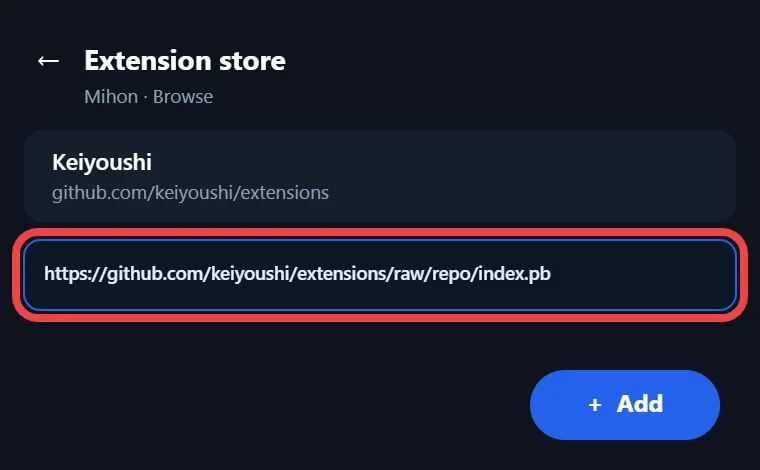
Both links point to the same Keiyoushi extensions, so pick whichever loads faster on your network, and paste it with no extra spaces at the end.
Step 5: Install Extensions and Restart
After the store is added, follow this order so every extension loads correctly:
- Restart Mihon so it reloads the extension list, then open Browse and switch to the Extensions tab at the top of the screen.
- Tap the download button next to an extension, such as MangaDex or MANGA Plus by SHUEISHA, and remember that one extension can add more than one source.
- Allow Install unknown apps for Mihon when Android asks, which on Android 8.0 and newer covers Mihon alone rather than the whole phone.
- Open the Migrate tab if you used other extensions before, since Keiyoushi recommends it for spotting the extensions you are still missing.
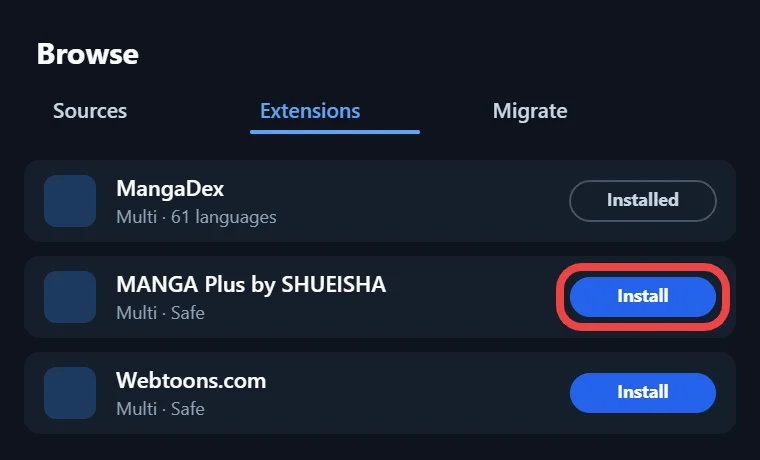
With those installed, the hard part of how to add sources to Tachiyomi is done, and nothing from your old library gets left behind.
Step 6: Confirm Your Sources Work
The last part of how to add sources to Tachiyomi is checking the Sources tab, where each extension now shows as one or more sources. Run through these checks:
- Open a source and look through its Popular or Latest lists, or search inside it for a series.
- Tap the search icon on the Sources tab to run a Global search across all installed and enabled sources.
- Open a series you like and tap Add to library to save it.
If a title does not show up, try its Japanese romanized name, such as Boku no Hero Academia instead of My Hero Academia, and check MangaUpdates for other titles it may use.
Other Ways to Add Sources
The Keiyoushi store covers most readers, but to add sources, Mihon also offers two other good ways. One is for people who already have an extension file, and the other is for manga you keep on your own phone.
Manually Install an Extension APK
Mihon can install an extension from an APK file you download yourself, which some people do for extensions that are not in any store. This route carries real risk, because Mihon warns that third-party repositories and extensions get full access to the app and may contain malware. Since Mihon v0.21.0, extensions also install and update only from the store they came from, so a hand-installed APK will not get updates through Keiyoushi. Older files bring another problem, because v0.21.x is the last major version that supports Tachiyomi 1.4 extensions, and the next release will stop loading them. Older guides on how to add sources to Tachiyomi push this method without that warning. For most readers, adding the store in Step 4 is the safer choice.
Add Your Own Manga With Local Source
Not every answer to how to add sources to Tachiyomi needs an extension, because the Local source reads manga files you already own. Set it up like this:
- Inside the storage folder you picked during setup, Mihon keeps a folder named local, and each series goes into its own folder there, such as /Mihon/local/Series title/.
- Each chapter can be a folder of images like .jpg or .png files, or a single archive in ZIP, CBZ, RAR, CBR or EPUB format, although folders and ZIP or CBZ files load fastest.
- Mihon treats every folder or archive as one chapter, so a whole-volume EPUB shows as one chapter, and folders inside an archive are ignored.
- Put a cover.jpg in the series folder to set its cover, and add a .nomedia file to the local folder to keep pages out of your gallery.
After adding new chapters, pull down on the chapter list to refresh it.
Sources Not Showing? Fix These Common Errors
Most cases of Tachiyomi sources not showing come from an old link, an unsupported app or a website blocking the request, and each one has a clear fix. Even readers who follow every step of how to add sources to Tachiyomi can hit these, so the fixes below come from real Keiyoushi GitHub issues and its official troubleshooting guide.
“Legacy Store URL Is Not Valid”
This error appears when someone pastes the old Tachiyomi extension repo link, which ends in index.min.json, into a current version of Mihon. In GitHub issue #18956, a user on Mihon 0.20.4 and Android 9 kept getting this message on every network, and a Keiyoushi maintainer solved it by sharing the index.pb link. Remove the old entry from the Extension store screen and add the index.pb URL from Step 4. Some older guides on how to add sources to Tachiyomi still share that link.
“Outdated App” or Orphaned Extensions
An extension list that only says “Outdated App”, or one where every extension is marked obsolete or orphaned, means your app cannot read Keiyoushi’s current extensions. Keiyoushi supports only Mihon, TachiyomiSY and Komikku, so old Tachiyomi, Yokai and TachiyomiJ2K all fall outside that list. To fix it:
- Back up your library in the app you use now.
- Install the latest Mihon and restore that backup inside it.
- Add the Keiyoushi store again using Step 4.
After that, the steps above on how to add sources to Tachiyomi will work.
Installed Source Missing From Browse
An installed extension can still stay out of Browse, and one of these three fixes usually brings it back into the list:
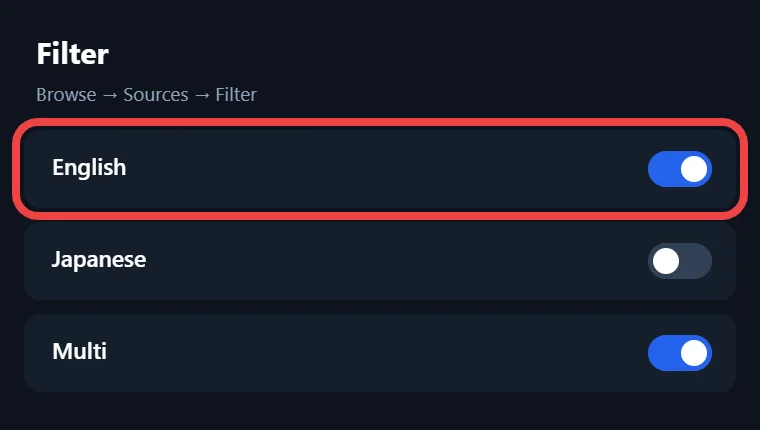
- Hidden language: Open the Filter option and turn on the language of that source, such as English or Japanese.
- Content preferences: Mihon v0.21.0 replaced the old NSFW toggle with Safe, Mixed and 18+, so a source rated above your setting may stay out of view.
- Known bug: Restart Mihon, since Keiyoushi lists a bug where the app does not notice newly installed extensions right away.
Signature Mismatch and Corrupted APK Errors
Two install errors show up often, and both have simple fixes:
- INSTALL_FAILED_UPDATE_INCOMPATIBLE: This note about signatures not matching means the same extension is already installed from a different store, so uninstall it fully and install it again from Keiyoushi without losing library entries or extension settings.
- DISPLAY_NAME column is null: This error means the APK file is corrupted, so delete the broken file and download a fresh copy.
When the message is unclear, Keiyoushi suggests installing the APK with Split APK Installer, also called SAI, which shows clearer errors and can sometimes finish an install that failed.
Cloudflare and HTTP Errors
Even after you learn how to add sources to Tachiyomi, Cloudflare can block a source, since some sites raise it on purpose to stop apps like Mihon. Try these fixes in order:
- Open the source in WebView with the WebView icon on the source or series page, solve the CAPTCHA, then close it.
- Go to Settings, then Advanced, and clear cookies and WebView data if WebView keeps reloading.
- Change the default user agent string there, then restart Mihon.
- Update WebView, meaning Android System WebView on Android 10 and newer, or Google Chrome on Android 7 to 9.
The HTTP error code tells you the rest:
- 403: This points to Cloudflare or a ban from the site.
- 404: This means the series or site is gone.
- 429: This means too many requests came too quickly.
- 5xx: This means the site’s server has a problem.
- 1020: This means a firewall rule, sometimes a country block.
How Many Sources Can You Add?
As of October 2026, Keiyoushi shows these numbers:
- It lists 1,426 extensions and 2,421 sources across 20 language groups.
- English readers get 407 extensions that carry 487 English sources.
- By content rating, 561 extensions are marked Safe, 478 Mixed and 387 18+.
Popular names include MangaDex, MANGA Plus by SHUEISHA, Webtoons.com, Tapas, Comikey, Asura Scans, Weeb Central, Flame Comics, MangaFire, Mangago, Manganato, Mangakakalot, Toonily and Kagane. There is no official Comick extension, only copies labeled “Comick (Unoriginal)” and “ComicK Fanmade”, while Mihon v0.21.0 added Comick as a tracker. That range of manga sources is why learning how to add sources to Tachiyomi through Mihon is worth a few minutes of setup.
Related Guides
- Tachiyomi: The Ultimate Free Manga Reader App for Android in 2026
- How to Install Tachiyomi on PC (Windows & Mac) in 2026
FAQs
Can I still add sources to the original Tachiyomi app?
No, the original app can no longer load working sources. In Keiyoushi GitHub issue #18070, a maintainer replied that Tachiyomi is dead and unsupported, and that only the latest Mihon, TachiyomiSY and Komikku are compatible. Adding the store to Tachiyomi only shows the “Outdated App” placeholder, so move to Mihon instead.
Why does Mihon say my store URL is invalid?
Mihon shows this when the link uses the old index.min.json format, which current versions treat as a legacy store URL. Replace it with the index.pb link from GitHub, or with the jsDelivr mirror if GitHub does not load on your connection.
Why don’t my extensions come back after I removed and re-added the store?
In GitHub issue #17691, a Yokai user removed and re-added the store, but the extensions never returned. Keiyoushi’s answer was to use a supported app, naming Mihon 0.20.1, Komikku 1.14.1 and TachiyomiSY 1.13.2, because re-adding the store cannot help an app that lacks support for the current extension format.
Why did Asura Scans disappear or show as obsolete?
A reader on Yokai 1.9.7.5 reported this in issue #17633, and the reply explained that Yokai had not implemented tachiyomix 1.6, the format current extensions need. The Asura Scans extension is still in the Keiyoushi store, so installing it on Mihon brings it back.
Which apps work with Keiyoushi extensions?
Keiyoushi lists only Mihon, TachiyomiSY and Komikku as supported, and any other fork is used at your own risk. That is why any current guide on how to add sources to Tachiyomi points to Mihon first. If problems continue on a supported app, Keiyoushi asks users to bring them to its Discord support channel.
Final Words
Tachiyomi itself can no longer pull in working manga, but its sources are still within reach through Mihon and the Keiyoushi extension store. Install Mihon from GitHub, add the index.pb store link, restart, and install the extensions you need, then use the Local source for files you already own. Now you know how to add sources to Tachiyomi in a way that still works in 2026, and the error fixes above will cover most problems along the way, from an invalid store link to a Cloudflare block on your favorite site. Keep this page saved, since Keiyoushi links and Mihon versions change over time.