
Updated for Mihon v0.21.3 · November 2026
Mihon App Guide 2026: Features, Settings and How to Use It
Mihon is the free, open-source manga reader that took over from Tachiyomi, and a few minutes with its screens and settings will make daily reading much easier. This guide covers the parts most people skip after installing it, including reader modes, categories, downloads, trackers and the common questions about Kindle, iPhone and PC. If you still need to install the app or move an old library across, follow our Tachiyomi to Mihon update guide first and come back here afterwards. Every menu name below was checked against the official documentation and the release notes on GitHub, so what you read should match what you see. The current stable release at the time of writing is v0.21.3, which came out on October 25, 2026.
- 5 main tabs
- 6 setup steps
- 8 trackers
- 4 FAQs
Mihon App at a Glance
Quick facts from this guide, then jump to any section.
- Latest stable
- v0.21.3, October 25, 2026
- Needs
- Android 8.0 or higher
- Price
- Free and open source, not on Google Play
- The main screens
- Add your first manga
- Best reader settings
- Categories
- Downloads and storage
- AniList and MAL tracking
- Kindle, iPhone or PC
Mihon app basics
What Is Mihon and Why It Replaced Tachiyomi
Tachiyomi stopped development in January 2024 after Kakao Entertainment sent its developers a cease and desist letter, and version 0.15.3 became its final build. Several of the same contributors then continued the project under a new name, which is the Mihon you can download today from its official site and GitHub page.
The app runs only on Android and needs Android 8.0 or higher, so older phones that ran Tachiyomi may not qualify. It hosts zero content of its own, which means you bring your own sources through extensions or files saved on your phone. That design is also why you will never find it on the Google Play Store, because APK-based extensions clash with Google’s content policy.
One release detail matters if you still have old files. Version v0.21.3 is the last major version that can restore Tachiyomi .tachibk backups and run extensions built for Tachiyomi, so restore any old backup on this version before updating again.
Mihon app tour
The Main Screens of the Mihon App
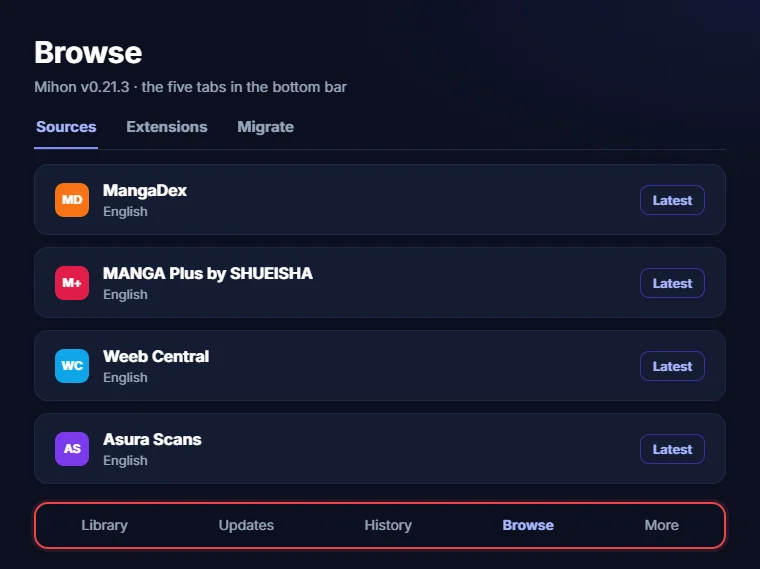
The bottom bar of the Mihon app has five tabs, and knowing what each one does saves a lot of tapping around later. Library is your home screen, where every series you follow appears as a cover in a grid or list. Updates shows new chapters that arrived since your last library refresh, sorted by date so the newest ones sit at the top.
History keeps a list of chapters you opened recently, which helps when you read several series and lose track of where you stopped. Browse is where your content comes from, and it holds three tabs called Sources, Extensions and Migrate. The Extensions tab lists everything you can install from the repos you added, while Migrate lets you move a series from a dead source to a working one without losing read progress.
More is the last tab, and it acts as the control room for the whole app. From here you reach the Download queue, Categories, Statistics, Backup and restore, and the full Settings menu. Most of the tips in the sections below start from this tab, so it is worth opening it once and scrolling through every option.
How to use Mihon
How to Use Mihon to Add and Read Your First Manga
Think of this part as a short Mihon setup guide for your first session, assuming the app is already installed and you have picked a storage folder. Before anything appears under Browse, you need at least one extension, and extensions come from repos that you add yourself.
- Add an extension repo by following our Mihon extension repo list, which explains where the repo URL goes.
- Open Browse, switch to the Extensions tab and install the source you want, such as MangaDex.
- Go back to the Sources tab and tap the source you just installed.
- Use the Popular or Latest listings, or tap the search icon and type the series name.
- Tap the series cover to open its details page, then press Add to library.
- Open any chapter from the list and the reader starts on the first page.
Your Mihon sources list only shows extensions you have installed, so an empty Sources tab almost always means the extension step was skipped. To look for one title across every installed source at once, open Browse and use the search icon on the Sources tab, which runs a Global Search.
If a search returns nothing, try the Japanese romanized title, because many sources list Boku no Hero Academia instead of My Hero Academia. Spelling also varies between sources, so a second attempt with a shorter title often finds the series.
Mihon reader setup
Best Reader Settings for Manga and Webtoons
The Mihon manga reader opens every series in Paged (right to left) mode by default, which suits Japanese manga but feels wrong for Korean webtoons. You can change the default under Settings, then Reader, then Default reading mode, and the choices are Paged right to left, Paged left to right, Paged vertical, Long strip and Long strip with gaps. Pick Long strip if most of your library is manhwa, because pages then scroll from top to bottom like a web page.
You can also set a different mode for one series without touching the default for everything else. Open a chapter, tap the middle of the screen, press the gear icon and change Viewer for this series to the mode that fits.
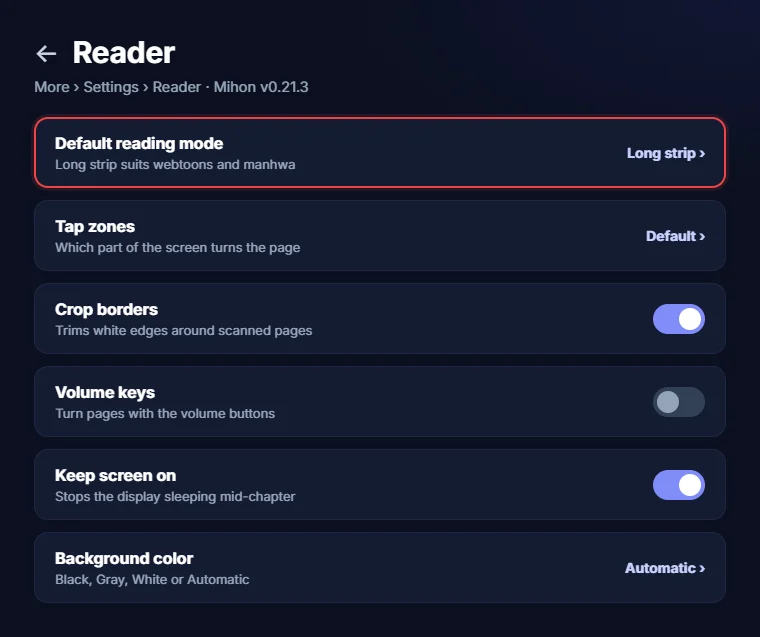
A few other settings make a clear difference once you know they exist:
- Tap zones: pick Default, L shaped, Kindle-ish, Edge or Right and Left to control which part of the screen turns the page.
- Crop borders: trims the white edges around scanned pages so the art fills more of the screen.
- Volume keys: turns pages with your phone’s volume buttons, which is handy when you read one-handed.
- Keep screen on: stops the display from sleeping halfway through a long chapter.
- Background color: choose Black, Gray, White or Automatic depending on the page colors.
- Skip duplicate chapters: jumps past chapters the app detects as duplicates from multiple scanlation groups.
- Side padding: adds space on both sides of Long strip pages, which helps on wide tablet screens.
Dual-page spreads are not available yet, and the official FAQ says the team may add that view later.
Library
Organize Your Library With Categories
A library with fifty covers becomes hard to scan, so categories are the first thing worth setting up after your first few series. Open More, then Categories, and create names that match how you read, such as Reading, Plan to Read, Completed or Weekly.
To place a series in a category, long press its cover in the Library tab, tap the Set categories button and tick one or more boxes. You can long press several covers in a row before tapping that button, which moves a whole batch in one step.
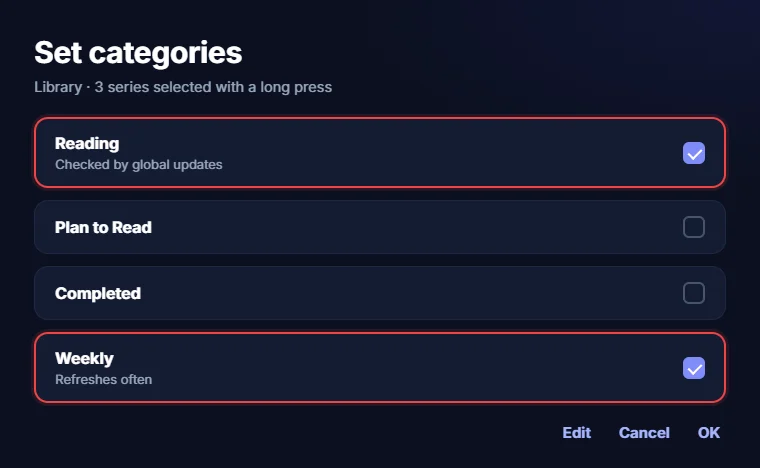
Categories also control which series get checked for new chapters and which ones download automatically. Under Settings, then Library, the global update options let you include only chosen categories, so a Weekly category can refresh often while a Completed category stays quiet. The same idea works for automatic downloads if you turn on Download new chapters in the Downloads settings and limit it to your Reading category.
Mihon app downloads
Downloads, Storage and Background Updates
Downloaded chapters let you read on a plane or in a dead zone, and the app saves each one as a .cbz file inside downloads, then the source name, then the series name. You can follow progress and cancel or reorder items from More, then Download queue, where long pressing the handle on an item lets you drag it up or down.
The app downloads from up to five different sources at the same time, but it never downloads several chapters from one source in parallel. That limit is on purpose, since too many requests can get your IP banned by the site behind the extension.
You must choose one storage location, either internal storage or an SD card, and the official docs say internal storage performs better. If manga pages start showing up in your phone gallery, place an empty file named .nomedia inside your downloads folder.
Library updates sometimes stop running in the background on phones with aggressive battery savers, such as Xiaomi devices running MIUI. Open Settings, then Advanced, and tap Disable battery optimization, then check the Don’t Kill My App website for steps specific to your phone brand.
Mihon app tracking
Track Your Reading on AniList and MyAnimeList
Tracking sends your reading progress to an online list automatically, so you never need to update AniList or MyAnimeList by hand again. Mihon currently supports MangaBaka, MyAnimeList, AniList, Kitsu, MangaUpdates, Shikimori, Bangumi and Hikka.
Start by opening Settings, then Tracking, and tapping the service you use to log in through your browser. Kitsu is the odd one out here, because it asks for your email address in the username field. After logging in, open any series, tap the Tracking button and choose Add tracking for your service, then pick the matching entry from the results.
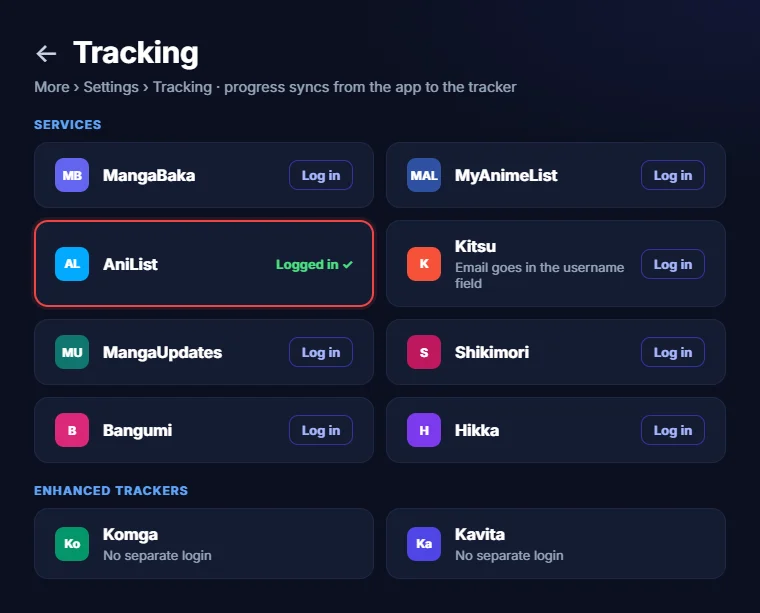
Tracking only works in one direction, from the app to the tracker, so changes you make on the AniList website will not come back. Progress updates after you finish the last page of a chapter or mark it as read, and anything you read offline syncs once you reconnect.
If a series refuses to match on MyAnimeList, look it up on the MAL website and search inside the app with id: followed by the number from its URL. AniList, Bangumi, Kitsu and MangaBaka also support private tracking, which hides an entry from your public profile.
Self-hosted servers like Komga, Kavita and Suwayomi work as enhanced trackers that need no separate login. Remember that a normal backup leaves out tracker login tokens unless you tick Include sensitive settings, which our Tachiyomi backup guide explains in more detail.
Other devices
Can You Use Mihon on Kindle, iPhone or PC?
People who ask can you use Mihon for Kindle usually own one of two very different devices. A Kindle e-reader such as the Paperwhite runs Amazon’s own system and cannot install Android apps at all. A Fire tablet runs Fire OS, which is built on Android, so sideloading the APK can work on newer models. Check that your Fire OS version is based on Android 8.0 or newer before you try (verify this in your tablet settings). Android e-ink tablets like BOOX also run the app, and the Monochrome theme and the E-ink flash setting were made with those screens in mind.
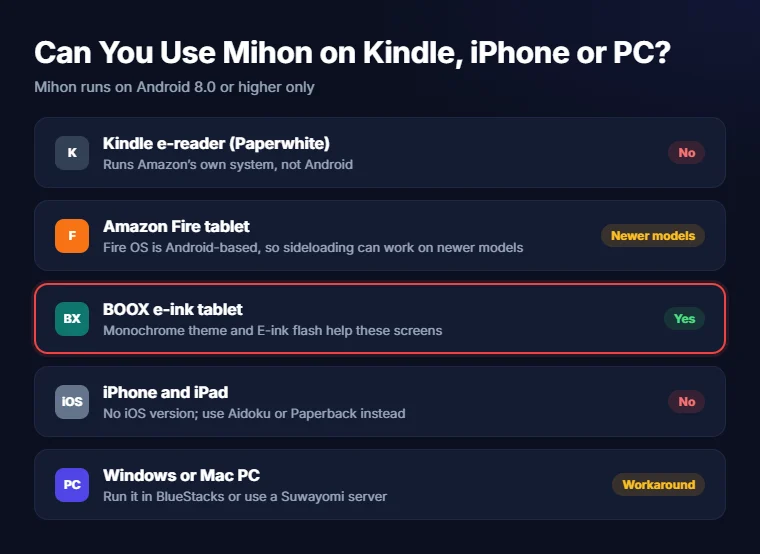
There is no iOS or iPadOS version, and the developers say any app calling itself the iPhone version is a scam. Our Tachiyomi iOS guide covers real iPhone readers such as Aidoku and Paperback.
On a computer, the usual routes are an Android emulator like BlueStacks or a Suwayomi server, both explained in our Tachiyomi PC guide.
FAQ
FAQs
Can Mihon sync my library between two phones?
No, the app has no built-in sync, and a GitHub request asking for it was closed as not planned. The official workaround is turning on automatic backups and using FolderSync to copy the autobackup folder to Google Drive, then restoring that file on your second phone.
Why isn’t Mihon on the Google Play Store?
The developers keep it off the store because APK-based extensions conflict with Google Play’s content policy. They also want to avoid Google removing the app over content that third-party sources can show, so official downloads stay on GitHub and the project website.
Why does my library update skip some series?
Smart updates skip series that have unread chapters, were never started, are marked Completed, or are not expected to get a new chapter yet. The hourglass on each series shows how many days the app predicts between chapters, and you can refresh one title manually anytime.
Can I read light novels or stream anime in the app?
Neither works, because the reader handles images rather than text and was never designed for video. Anime fans usually move to Aniyomi, which our best Tachiyomi alternatives post compares with other forks.
Final word
Final Thoughts
Mihon rewards a little setup, so pick a reading mode, build a few categories and connect one tracker before your library grows large. After that, the daily routine is simply opening Updates, reading new chapters and letting progress sync on its own. Keep a fresh backup before every major update, especially now that v0.21.3 is the last version that restores Tachiyomi files. If something stops working later, our Tachiyomi troubleshooting guide is the best place to start looking for a fix.