
Tachiyomi Troubleshooting: Fix Tachiyomi Issues in 2026
Tachiyomi stopped development on January 13, 2024, so an empty extension list, a Cloudflare loop or a library that will not update is usually not your phone’s fault. Most Tachiyomi troubleshooting now ends with moving your library to Mihon, an actively updated fork built on the old code. Every fix in this Tachiyomi troubleshooting guide comes from Mihon’s documentation and release notes and was matched against Mihon v0.21.3, released on October 25, 2026, so you can fix Tachiyomi issues without guessing. It covers:
- “Outdated App” and other extension errors
- “App not installed” and install error codes
- Cloudflare, connection, and SSL errors
- HTTP error codes such as 403 and 429
- Storage, download, library and backup problems
- Crashes and crash logs
Why Tachiyomi Stopped Working
The Tachiyomi team posted a message on GitHub on January 13, 2024, saying the app “will no longer be actively developed” and that its core repositories would be taken down. Today the old tachiyomi.org address redirects to that GitHub page, and the official extensions repository sits there as an archived project, so nobody ships fixes for the app or its sources anymore. The same post says that any app “called Tachiyomi or claiming to be its successor” has no link to the original developers, so every fork is a separate project with its own team.
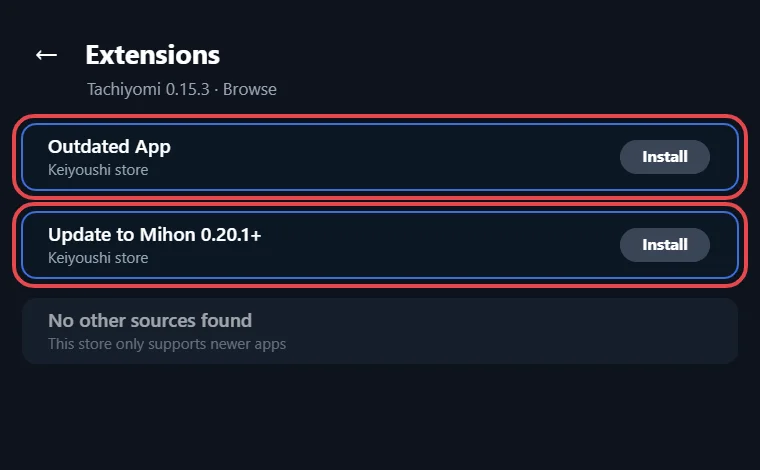
Websites change their layouts and protection all the time, and an extension only keeps working when someone updates it. Keiyoushi, the extension store that Mihon users add today, supports Mihon 0.20.1+, TachiyomiSY 1.13.2+, and Komikku 1.14.1+, while an old Tachiyomi 0.15.3 build that adds the store only sees “Outdated App” and “Update to Mihon 0.20.1+” placeholders. That placeholder is the real answer behind most “Tachiyomi not working” searches, so Tachiyomi troubleshooting in 2026 starts with the app you run and not with your settings.
Quick Tachiyomi Troubleshooting Checks That Fix Most Problems
Run through the diagnosis list from Mihon’s docs before you change any deep setting, because a pending update or a stale cookie causes more errors than a real bug does:
- Install pending updates in Browse → Extensions, then tap More → About → Check for updates.
- Pull down on the broken series to refresh it, and open other series from the same source to see whether the whole source fails.
- Update Android System WebView, then open the source in WebView and wait for any CAPTCHA or Cloudflare page to finish.
- Switch between Wi-Fi, mobile data, and a VPN so your IP address changes, and load the site in a normal browser.
- Clear the cache and cookies under More → Settings → Advanced, and delete a stuck download queue before you retry.
- Force close the app and open it again.
When only your phone sees the error, the site has probably flagged your IP, so download less from that source and keep fewer of its series in your library. When every user sees the same error, the fault sits with the extension, the app or the website, and the last section of this Tachiyomi troubleshooting guide applies.
Tachiyomi Extensions Not Working or Showing “Outdated App”
Most reports of Tachiyomi extensions not working come from the old app being blocked by the new store, so the lasting fix is to install a supported app and add Keiyoushi again:
- In Mihon, open More → Settings → Browse → Extension store → Add.
- Paste https://github.com/keiyoushi/extensions/raw/repo/index.pb, or tap the one-tap “Add store” button on the Keiyoushi site with Mihon 0.21.2 or newer.
- Uninstall extensions you got from old repos, because since Mihon v0.21.0 an extension only installs and updates from the store it came from.
- Restart the app and reinstall those extensions from Keiyoushi.
- Open Browse → Migrate to spot any source that is still missing.
Our guide on how to install extensions shows every screen of that process. Keiyoushi lists 1,420 extensions covering 2,393 sources, 481 of them English, and an extension removed from a store shows as “orphaned”, the label that replaced “obsolete” in Mihon v0.20.0. Mihon v0.21.0 also replaced the NSFW switch with content preferences called Safe, Mixed and 18+, and that setting can hide extensions you expect to see, although you can keep installed ones that do not match. Extensions that fail to load now show the reason on screen and can still be updated, which makes this part of Tachiyomi troubleshooting far easier than it was in the old app. Mihon’s docs warn that third-party extensions get full access to the app, so avoid unknown repos and start with our list of English manga extensions instead.
Move to Mihon Without Losing Your Library
Mihon is not on Google Play and needs Android 8.0 or newer, so the switch takes these steps:
- Create a backup inside Tachiyomi.
- Install Mihon v0.21.3 from its GitHub releases page.
- Log in to your trackers and install the extensions your library used.
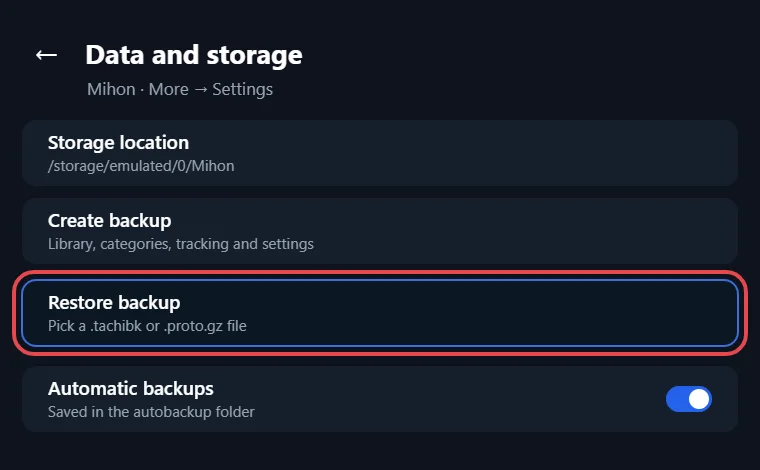
- Open More → Data and storage and restore the .tachibk or .proto.gz file, then check the restore screen for anything still missing.
- Update Mihon only after your library appears.
Timing is the part of Tachiyomi troubleshooting most people miss, because v0.21.3 is the last major version that can restore Tachiyomi backups and run Tachiyomi 1.4 extensions, and the next release drops both. Old downloads in a Tachiyomi v0.14x folder show up once you pick that folder as the storage location, but fork-only settings such as TachiyomiSY saved searches will not carry over. Our Tachiyomi after the extension update guide covers the rest of the switch.
“Tachiyomi App Not Installed” and Other Install Errors
The “Tachiyomi app not installed” message hides the real reason, so the first step in this kind of Tachiyomi troubleshooting is to see the actual error code. Mihon’s docs suggest installing Split APK Installer from GitHub and opening the APK through it, since it prints the code and often installs the file as well. Your browser or file manager also needs “Install unknown apps” turned on, because Android blocks every APK until you allow it.
Mihon’s docs list three codes that explain most failed installs:
- INSTALL_FAILED_UPDATE_INCOMPATIBLE means an app or extension with the same package name but a different signature is already on your phone, so back up, uninstall the old copy, and install again.
- DISPLAY_NAME column is null means the APK file is corrupted, and downloading it again fixes it.
- INSTALL_FAILED_NO_MATCHING_ABIS means the build does not match your phone’s CPU, so grab the universal APK, which is the largest file on GitHub.
Extensions that still refuse to install may need a different installer under More → Settings → Advanced. PackageInstaller is the default; Legacy works as a fallback and is already the default on Xiaomi phones with MIUI, and Shizuku suits users who already run it. Our can’t install Tachiyomi fixes page covers more cases.
Tachiyomi Cloudflare Error and WebView Loops
A Tachiyomi Cloudflare error appears when a source puts an anti-bot check in front of its pages, and the app needs a real browser session to get past it. These steps clear most loops:
- Open Browse, tap the source and press the WebView icon at the top, or use Overflow → WebView from inside a series.
- Complete any CAPTCHA and close the page with the X in the top-left corner.
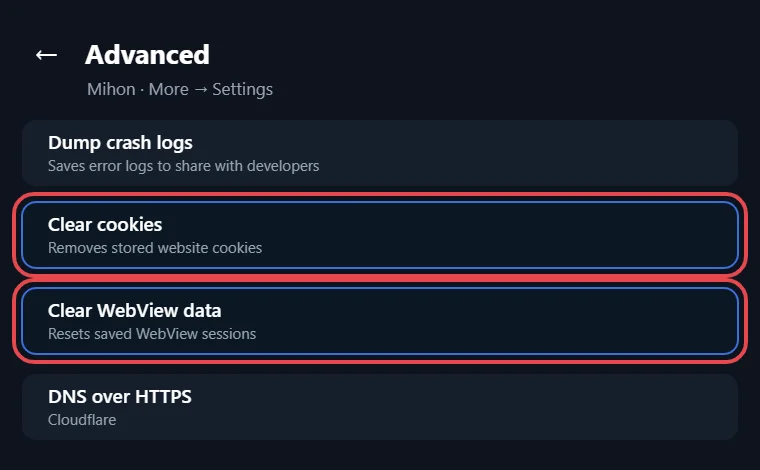
- Tap Clear cookies and Clear WebView data under More → Settings → Advanced when the check keeps reloading.
- Set your WebView provider to Android System WebView or Google Chrome in Developer Options on Android 7 and newer, because Firefox and other non-standard WebViews can crash Mihon.
- Change the default user agent in Advanced only as a last step, then restart the app.
Older guides tell you to paste your browser’s user agent into the app, but since v0.20.3 Mihon already sends a Chrome 149 user agent with matching client hints, which is why that step comes last in Tachiyomi troubleshooting now.
The message “Failed to bypass Cloudflare” means the source uses strong protection that no setting can beat. Since v0.21.0, these sources fail faster instead of hanging, and v0.21.2 reduced the slowdowns caused by many challenges at once, but the only real choices are to wait or migrate the series to another source.
Connection and SSL Errors
Messages like “Unable to resolve host”, “Connection failed”, “timeout” or “connection reset” mean the app cannot reach the site because your ISP or router blocks it, the site is down, your signal is weak, or the app lost internet access. Try these fixes in order:
- Switch between Wi-Fi and mobile data, or turn on a VPN.
- Turn on DNS over HTTPS under More → Settings → Advanced, or pick another provider or turn it off if it was already on, and restart the app after each change.
- Reboot your router, but leave router settings alone unless you understand them.
The built-in DNS over HTTPS option is a cleaner choice than changing Private DNS for your whole phone, which some older Tachiyomi troubleshooting posts still suggest.
An SSL message such as “CertPathValidatorException” or “Chain validation failed” means the site’s certificate did not pass a check. Test the site with an online SSL checker, set the correct date and time on your phone, clear the cache and cookies, change networks and reboot the phone. Mihon v0.21.3 also updated OkHttp so it blocks compromised eMudhra certificates on phones without Google Play Services.
HTTP Error Codes in Tachiyomi Troubleshooting
A number in the error message tells you who is at fault, which saves a lot of Tachiyomi troubleshooting guesswork, and this table built from Mihon’s common issues page shows what each code means and the fix that matches it:
| Code | What it means | What to do |
|---|---|---|
| 400 / 401 | Bad request or failed login | Unlink and relink the tracker, then test the page in WebView |
| 403 | Cloudflare, source down, series removed or IP ban | Follow the Cloudflare steps and confirm in WebView |
| 404 | Source down or series removed | Check in WebView and migrate the series |
| 429 | Too many requests, so a short IP ban | Stop reading and downloading for a few hours |
| 500, 502, 520, 521 | The source’s server has a problem | Check in WebView and wait |
| 1006 | Temporary IP ban | Wait before trying again |
| 1020 | Site firewall rule, sometimes blocking foreign IPs | Wait or switch to another source |
Storage, Download and “Invalid Location” Problems
Mihon’s docs advise a top-level folder named “Mihon” outside Documents and Downloads, because Android restricts those system folders, and on Android 11 and newer scoped storage makes deleting chapters and loading Local source a little slower. Each storage error has its own fix:
- “Invalid location”: re-select the folder under More → Data and storage → Storage location, and on Android 9 or older grant storage permission too.
- “Cannot access SD card”: a file path is longer than the 255 characters Android allows, so move the folder to the root of the card or shorten its name, then reset the location.
- “Attempt to invoke virtual method ‘com.hippo.unifile…'”: check for full storage, missing SD card access or a damaged drive.
- Downloads missing after moving files: tap More → Settings → Advanced → Reindex downloads, and rename the folder of any renamed source or series to match.
- Manga pages in your gallery: add an empty .nomedia file to the downloads folder.
You cannot use internal storage and an SD card at the same time, and internal storage is faster, so keep the folder there when you can. Mihon also downloads one chapter at a time per source to avoid IP bans, so in Tachiyomi, troubleshooting a slow queue from one site is normal.
Library Updates, Missing Covers and Background Sync
A global update that skips series is usually smart update at work, since it ignores entries with unread chapters, entries you have not started, completed series and series not expected to get a chapter yet. You can update those by hand or move them into an excluded category. Updates that never run in the background need battery optimization turned off in Settings → Advanced, plus the extra steps for your phone brand on dontkillmyapp.com.
In Tachiyomi troubleshooting, blank covers usually mean an incomplete download, and Advanced → Refresh library covers fetches them again. Chapters that suddenly show as unread were moved to new URLs by the source, so the app treats them as new. A Downloaded filter that will not switch off means “Downloaded only” in the More tab is still on. Bulk update warnings deserve attention too, because too many requests can trigger a ban, so split your library into categories and download in small batches.
Backup and Restore Problems
Automatic backups under More → Data and storage save files in the “autobackup” folder inside your storage location, and they make every other fix less risky. A backup holds your library, chapters, tracking, history, categories, app settings, extension stores and source settings, while tracker logins are only kept when you enable “Include sensitive settings”. Extensions, downloaded chapters, and custom covers are never inside the file, so restored series cannot load until you reinstall their sources.
In Tachiyomi troubleshooting, a restore goes cleanly only when the extensions and trackers it needs are already in place, so install and log in to those before you pick the file. Very large libraries used to run out of memory during a restore, and v0.21.3 fixed that by making backups faster and much lighter. An earlier fix in v0.20.2 also stopped restores from dropping entries when a backup contained duplicate chapters.
App Crashes and How to Get Crash Logs
Recent builds already fix several crashes, so for a crash the first Tachiyomi troubleshooting step is to update the app before anything else. Mihon v0.21.1 fixed a launch crash on some Samsung phones running Android 9 to 11 and stopped the whole app from closing when a WebView page crashed, and v0.21.2 fixed the app freezing on the updating screen or crashing at launch after an update from v0.20.x. An app that still closes needs logs, so open More → Settings → Advanced and tap Dump crash logs, or record full device logs with a Logcat Reader app for deeper Mihon troubleshooting. Since v0.21.3, “Redact sensitive headers” is on by default, so your login tokens stay hidden when you share those logs.
When the Problem Isn’t on Your Side
An error that every user hits sits in the extension, the app or the website, and no Tachiyomi troubleshooting step on your phone will change it. Search the open and closed issues on Mihon’s GitHub, because a fix may already be merged but not yet released. Extension bugs belong in the Keiyoushi extensions-source repository instead, where each report uses a template that asks for the details developers need. For anything else, ask in the Mihon Discord with your app version, source, series and chapter, and when the site itself is down, the only option is to wait.
Related Guides
FAQs
Can I still use Tachiyomi 0.15.3 in 2026?
You can still open it and read chapters you already downloaded, but it gets no updates and the Keiyoushi store only shows “Outdated App” placeholders inside it. Our old versions page keeps the release history, yet Mihon is the practical choice for reading online.
Is there a Tachiyomi or Mihon app for iPhone?
Mihon only runs on Android, and its docs say no iOS or iPadOS version is planned, so any app sold as “Mihon for iOS” is a scam. Our Tachiyomi iOS guide lists the options iPhone readers really have.
Why is Mihon not on the Google Play Store?
Mihon runs extensions as separate APK files, and that conflicts with Google’s content policy, so the developers publish it only on GitHub. Download it from the official releases page and skip copies on other app stores, since only the GitHub page comes straight from the developers.
Does Mihon sync my library between two phones?
Mihon has no built-in sync, so its docs suggest syncing the “autobackup” folder to cloud storage with a tool such as FolderSync and then restoring the newest backup on the second phone whenever you switch devices, which also keeps a fresh backup ready for later Tachiyomi troubleshooting.
Why are my screenshots blocked in Mihon?
Screenshots fail when the Secure Screen option is turned on, which is a common Tachiyomi troubleshooting question with a quick answer: go to More → Settings → Security and privacy and switch that option off.
Which forks work with Keiyoushi extensions?
Keiyoushi officially supports Mihon, TachiyomiSY and Komikku, while forks such as TachiyomiJ2K and Yokai may load the same extensions without getting any support, which can make Tachiyomi troubleshooting harder later. Read our TachiyomiJ2K guide before you rely on one of those forks for daily reading.
Final Thoughts
Most errors you meet today trace back to an app that stopped getting updates in 2024, so the strongest fix is to restore your library in Mihon v0.21.3 before the next release drops support for old backups. After that, Tachiyomi troubleshooting usually means a quick WebView visit, a cookie clear or a source migration rather than a full reinstall of the app. Keep automatic backups turned on so the next problem costs you nothing, and check our best Tachiyomi alternatives list if you want a different reader.