
Backup guide · Updated October 2026
Tachiyomi Backup Guide 2026: How to Backup & Migrate Tachiyomi, Mihon and Manga Rock
Your whole manga library, every chapter you have read and every tracker link fits inside one Tachiyomi backup file, and that file is the only thing standing between you and starting from zero. If you still use the old Tachiyomi app, or you already moved to Mihon, the steps below show you how to create that file, keep it safe and restore it on any device. Timing matters more than usual right now, because the Mihon team has announced that version 0.21 is the last release able to open old Tachiyomi files.
This guide also covers the parts most tutorials skip, because those gaps are where people usually lose their reading history. You will learn what a Tachiyomi backup leaves out, how to bring back downloaded chapters, how to move to iOS, and what you can still save from an old Manga Rock library.
- Mihon v0.21.3
- Updated Oct 2026
- 6 FAQs
Download Mihon
The app that restores your Tachiyomi backup
Download Mihon v0.21.3- Latest version
- v0.21.3 · 25 October 2026
- Requires
- Android 8.0 or newer
- Backup format
- .tachibk (old format readable up to 0.21)
- Official source
- GitHub releases
Deadline
Important: Tachiyomi Backup Support Ends After Mihon 0.21
Quick answer: In Mihon, open More, tap Data and storage, then choose Create backup and save the file somewhere safe. On the new phone or app, open that same screen, tap Restore backup and pick the file. Install your extensions and log into your trackers first, then move your downloads folder and reindex it.
On 11 October 2026 the Mihon team released version 0.21.0 with a clear warning in its changelog. This is the last major Mihon version that can restore files in the old Tachiyomi format, which uses the .tachibk extension, and the last one that runs extensions built for Tachiyomi 1.4. After the next update arrives, the only way to use an old Tachiyomi backup will be to restore it on 0.21 first and then update the app. Anyone holding an old file from before the shutdown should restore it now, while that door is still open.
Heads up: The developers added a second warning to the same release that matters just as much. Version 0.21.0 merges duplicate entries and chapters left over from older versions, and that merge cannot be undone, so you need a fresh copy of your library before you update.
The latest build at the time of writing is Mihon 0.21.3, released on 25 October 2026, and it makes creating and restoring big libraries faster and lighter on memory. If your phone ever crashed while restoring a huge library, install this version before you try again.
Create
Creating a Tachiyomi Backup
The steps depend on which app you still have installed, because the original Tachiyomi and its successor Mihon use slightly different menu names. Both apps save the same kind of file, so a Tachiyomi backup made in one can be restored in the other as long as you stay on Mihon version 0.21.
Create a Backup in the Old Tachiyomi App
Older Tachiyomi builds keep this tool under a screen called Backup and restore, which later builds renamed to Data and storage. Leave every item ticked and pick a folder you can find again, such as Downloads or a synced cloud folder.
- Open More and then Settings.
- Tap Backup and restore, or Data and storage on newer builds.
- Tap Create backup and keep all items selected.
- Choose a save location and confirm.
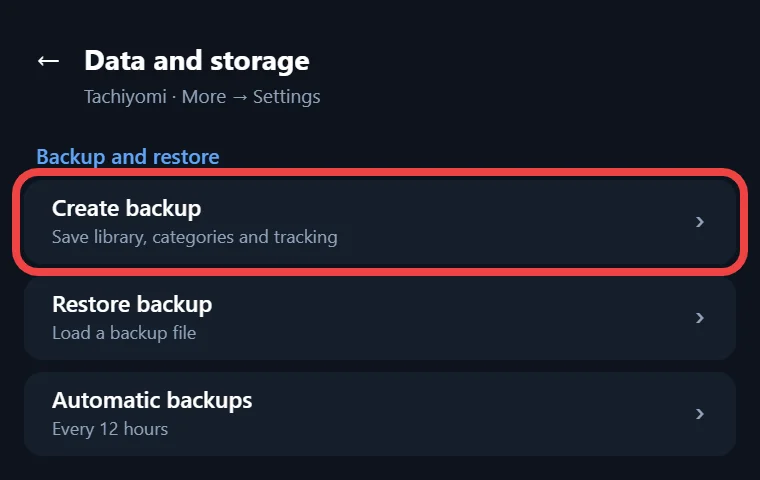
Copy the finished file off the phone right away, because a Tachiyomi backup stored only on the same device disappears if that device is lost or reset.
Create a Backup in Mihon
Mihon keeps all of its backup tools on one screen, so the create backup button is only two taps away from the main menu.
- Tap More in the bottom bar.
- Open Data and storage.
- Tap Create backup.
- Choose what to include, then pick where to save the file.
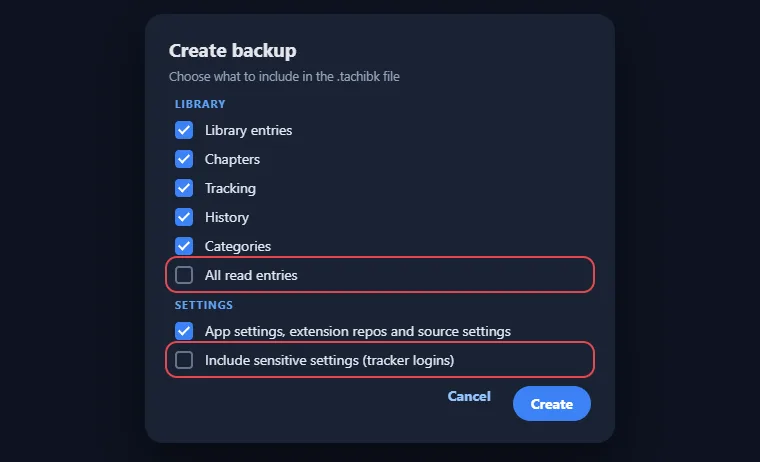
The default selection covers your library, chapters, trackers, history, categories and settings, which is enough for most readers. Tick “All read entries” if you also want progress for manga you read but never added to your library. Tick “Include sensitive settings” only when you want tracker login tokens inside the file, and keep that copy private, since it then holds your tracker logins.
Automatic
Enabling Automatic Backup
A manual copy only protects the day you made it, while an automatic Tachiyomi backup keeps saving fresh copies without you thinking about it. Turning it on takes less than a minute, and it protects you from a broken phone or a bad update that arrives before your next manual copy.
How to Turn On Automatic Backups
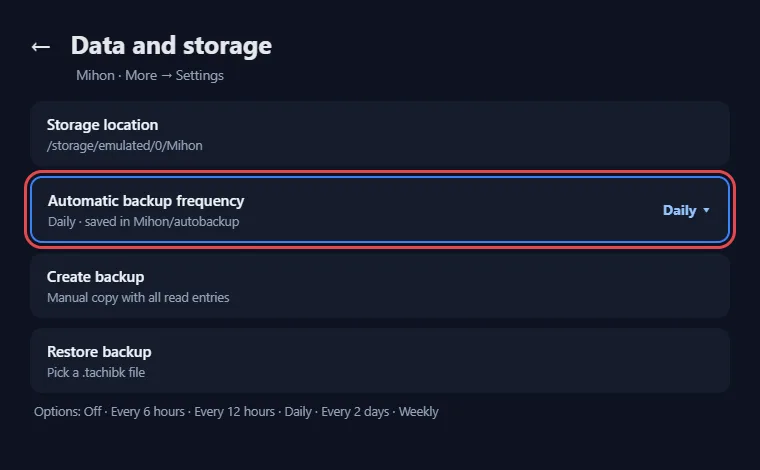
Open Data and storage in Mihon and find the backup frequency option. Pick an interval that matches how often you read, such as daily for heavy readers or weekly for lighter use. Mihon will then create a new backup file on that schedule in the background. Scheduled copies skip the optional “All read entries” data, so make a manual one now and then if you follow a lot of manga outside your library.
Where Automatic Backups Are Saved
Every automatic Tachiyomi backup lands in a folder named autobackup inside the storage location you picked during setup. You can check or change that storage location from the same settings page whenever you like. Open the autobackup folder with any file manager and you will find the saved files there, ready to copy to another device.
Sync Backups to Google Drive Automatically
Mihon has no built-in sync between devices, but its own documentation points to a simple workaround using the FolderSync app.
- Turn on automatic backups and set the frequency.
- Install FolderSync from the Play Store.
- Pair the autobackup folder with a folder in Google Drive.
- On your second device, download the newest Tachiyomi backup from Google Drive and restore it.
Autosync for Google Drive and Tasker can do the same job if you already use either of them. This setup is not live sync, because the second device only gets your progress when you restore the latest file. It still means a lost phone costs you only the reading you did since the last scheduled copy.
Contents
Understanding Tachiyomi Backup Contents
Missing extensions and missing downloads are the first things people notice after a restore, and neither was ever inside the Tachiyomi backup to begin with. The two lists below follow the official Mihon documentation, so you know exactly what to expect before you switch phones or apps.
What a Backup Includes
Every Tachiyomi backup is split into library data and settings data, and the main items are ticked by default.
- Library entries, meaning every series you added
- Chapter data and read progress for those entries
- Tracker links for each entry
- Reading history and categories
- All read entries, which is optional and skipped by scheduled copies
- App settings, extension repos and source settings
- Tracker login tokens, only when Include sensitive settings is ticked
What a Backup Does Not Include
Three things never go into a Tachiyomi backup, and knowing them in advance saves a confused hour after your first restore.
- Extensions, so every source has to be installed again
- Downloaded chapters, including anything added through the local source
- Custom covers you set on any entry
Because extension repos travel with the file, you will not need to hunt for repo links again after a restore. Tracker links cover services such as MyAnimeList, AniList, Kitsu and MangaUpdates, so your scores and reading status reconnect as soon as you log back in.
Downloaded chapters live as normal files in your storage location, which is why you move them by hand instead of through the restore screen. Custom covers have no fix at all, so you will need to set them again on the new device.
Restore
Restoring a Tachiyomi Backup
Restoring is the second half of any backup and restore Tachiyomi routine, and a little preparation decides whether your library comes back complete. The same steps work for a fresh Mihon file and for an older Tachiyomi backup, as long as Mihon 0.21 handles the older one.
Before You Restore: Quick Checklist
Run through this short list before you restore a Tachiyomi backup, because the app can only reconnect what is already set up.
- Install the latest Mihon from mihon.app or the official GitHub page.
- Add the extension repos you used before and install every extension your library needs.
- Log into each tracker you used, such as MyAnimeList or AniList.
- Set your storage location in Data and storage.
Mihon lists any missing trackers or extensions on the restore screen, which gives you one last chance to fill gaps before the import starts.
Step-by-Step Restore
With the checklist done, the restore itself takes only a few taps.
- Go to More and open Data and storage.
- Tap Restore backup.
- Pick your file in the system file picker, which Mihon has used since version 0.21.0.
- Read the list of missing trackers or extensions and fix anything it shows.
- Start the restore and wait for the notification that says it finished.
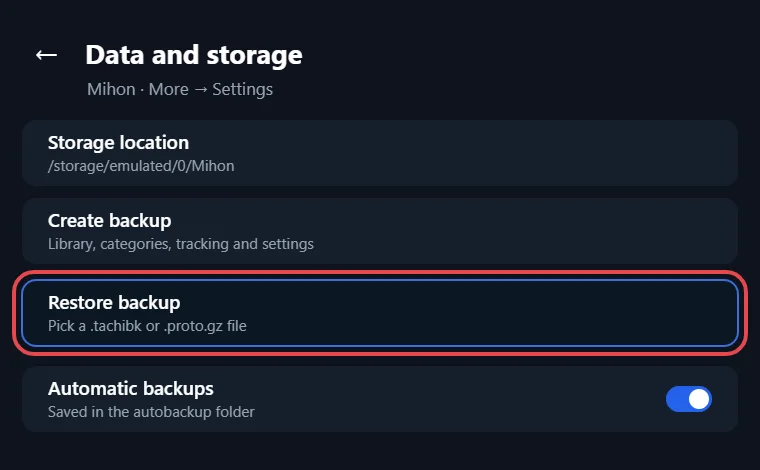
If you restore into a library that already has entries, Mihon 0.21 keeps the furthest read progress and the earliest date added for each series. Reading you did on either device stays safe, so you never have to choose one phone over the other.
Restore Your Downloaded Chapters
Downloaded chapters are separate files, so they need their own small transfer once the Tachiyomi backup is restored.
- On the Data and storage screen, check which storage location Mihon is using.
- Copy or move your old chapters into the downloads folder inside that location.
- Open Settings, then Advanced, and tap Reindex downloads.
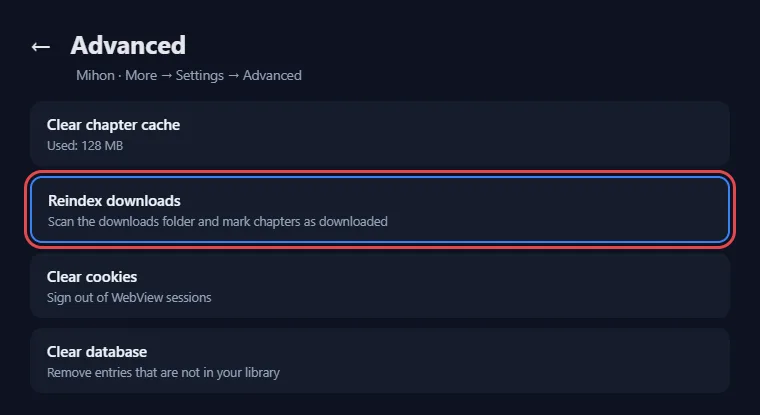
Mihon then scans that folder and marks every matching chapter as downloaded again. If chapters still show as missing, users on the Mihon GitHub page report that closing the app and clearing its cache in Android settings fixed it. The folder path has to match the one Mihon expects, so a wrong folder name is the first thing to check when the reindex finds nothing.
Migrate
How to Migrate from Tachiyomi to Mihon
Moving from Tachiyomi to Mihon is usually the first migration readers need, and it works smoothly because Mihon grew out of the same code. Tachiyomi stopped development after Kakao Entertainment sent the team a cease and desist, and the goodbye notice went up on 13 January 2024. The extension list was purged and the GitHub repository was set to read-only, so the old app will never get another fix. A longtime Tachiyomi contributor then started Mihon, which needs Android 8.0 or newer to install.
- Open Tachiyomi and create a fresh Tachiyomi backup.
- Rename your old Tachiyomi folder to Mihon with a file manager, so your downloads stay in place.
- Download Mihon from mihon.app or its official GitHub page and install it.
- During first setup, choose the restore option and point it to your file.
- Set the renamed folder as your storage location, then reindex downloads.
- Check your extension repos and install the extensions your library uses.
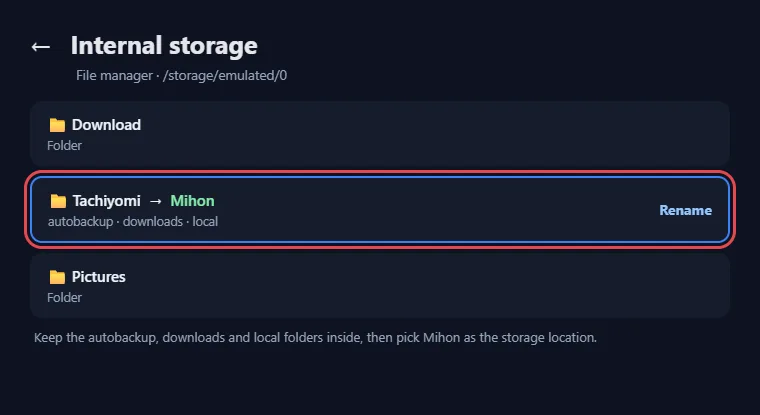
Do this on Mihon 0.21: it is the version still able to read the old format. New apps that use the Tachiyomi name have no link to the original developers, and Mihon has publicly warned about a group copying its name and branding. Download Mihon only from its official site or GitHub page, so you know the app has not been changed by someone else.
If the restore stops halfway, keep the old Tachiyomi app installed until you fix the cause, because it still opens your library while you sort out missing extensions or trackers. Our guide on how to update Tachiyomi covers the full switch in more detail.
Transfer
Transfer Tachiyomi Between Phones, PC and SD Card
Moving to a new phone or keeping a copy on a computer uses the same file, so the only real question is how you carry it from one place to another. These three routes cover almost every setup readers ask about, and each one starts with a fresh copy made on the day you move.
Move Your Backup to a New Phone
Create a fresh Tachiyomi backup on the old phone right before you switch, so the file includes your latest chapters. Send it to the new phone through Google Drive, a USB cable and a computer, or any file-sharing app you trust. Install Mihon on the new phone, finish the checklist from the restore section, then load the file from Data and storage. Copy the downloads folder across as well if you want offline chapters, and run Reindex downloads once it arrives. Keep the old phone untouched until the new one shows your full library and tracker links.
Back Up Tachiyomi on PC
A PC backup is simply a second copy of your files on a computer, which protects you if the phone is lost or stolen. Connect the phone with a USB cable, open its storage on the computer and copy the downloads folder plus the autobackup folder with your latest Tachiyomi backup. Put them inside a dated folder on your drive so you can tell old copies from new ones. If you want to read on the computer too, Suwayomi is a free and open source server that restores Mihon-compatible backups. Suwayomi can also stay in sync with Mihon through its own extension and tracker, so reading progress moves between phone and PC. Our Tachiyomi on PC guide walks through the full setup.
Save Backups and Downloads on an SD Card
If your phone has an SD card slot, you can point Mihon at the card to keep large downloads off your internal storage. Open Data and storage, change the storage location to a folder on the SD card and let Mihon create its folders there. Your autobackup folder moves along with it, which is handy but risky, because a failed card takes your downloads and every saved backup copy together. Copy the latest file to Google Drive or a computer as well, so one broken card never wipes out everything.
iOS
Transferring Tachiyomi Data from Android to iOS
Mihon and the original Tachiyomi only run on Android, so there is no way to install the same app on an iPhone or iPad. The workable route is an iOS reader that can open the backup file, and Tachimanga is the app several guides point to for this. Those guides describe an Import Tachiyomi Backup option inside its backup settings, so verify on your device that your version of Tachimanga still offers it before you rely on these steps.
- Create a fresh Tachiyomi backup on your Android phone.
- Move the file to your iPhone through Google Drive, email or any cloud app.
- Install Tachimanga, open its backup settings and choose the import option.
- Pick the file from the Files app and restart Tachimanga when the import finishes.
Moving from Android to iOS still loses some things, because extensions and downloaded chapters never travel inside the file. Plan to download your offline chapters again and to check each source after the import, since some may need a manual refresh before they load. Our Tachiyomi iOS guide lists the other options iPhone readers have.
Sources
Migrating Manga Between Sources (Source Migration)
Source migration moves a series from one source to another without losing your read progress, which is a different job from moving your Tachiyomi backup between devices. You need it when a source shuts down, stops updating or another source simply has newer chapters. Mihon lets you migrate one series at a time or a whole source in one batch.
Migrate a Single Series
Moving one series first is the safest way to learn how migration behaves before you touch your whole library.
- Open the series you want to move.
- Tap the overflow menu and choose Migrate.
- Wait while Mihon searches every installed and enabled source.
- Tap the matching series in the source you want.
- Choose which data you want to transfer and confirm.
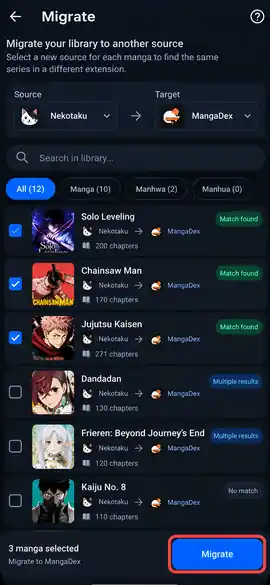
Downloaded chapters from the old source are not moved, and they can stay behind as leftover files on your storage. Delete those folders with a file manager afterwards so they do not quietly fill your phone.
Mass Migrate Your Whole Library
Mihon added mass migration in version 0.19.0 in August 2025, so you can move many series in one batch instead of one by one. Open Browse, switch to the Migrate tab and pick the source you want to leave behind. Select the series to move, set your target sources in order of preference and let Mihon match each title.
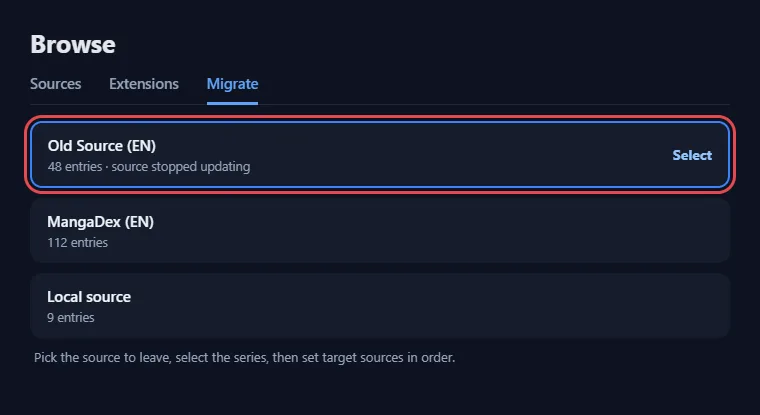
Version 0.19.4 fixed mass migration so it uses the same search terms as single migration, which makes matches more reliable on current builds. Check the results before you confirm, because similar titles can sometimes match the wrong series.
Other apps
Migrating to Another Manga Reading App
Your backup file works best inside the Mihon family, and support drops quickly once you step outside it. Before you switch apps, check which group the new app falls into, because some keep almost everything while others need a converter or a manual rebuild. The three parts below go from the easiest switch to the hardest one, and our list of best Tachiyomi alternatives compares each app in more depth.
Mihon Forks That Accept Your Backup
Mihon officially endorses five forks, and all of them read the same Tachiyomi backup format: TachiyomiSY, TachiyomiJ2K, TachiyomiAZ, Yokai and Komikku. Your library, chapters, history and trackers move between them without trouble. The catch is fork-only settings, such as saved searches in TachiyomiSY, which are lost when you restore that file into Mihon. Forks built on other forks, like TachiyomiJ2K and Yokai, may bring some of those extra settings back, but the Mihon docs say this is not guaranteed. TachiyomiAZ is also the only fork that still reads the very old .json backup format, which makes it useful for rescuing ancient files. Make a fresh copy in your current app before trying any fork, so you can always go back.
Apps That Can’t Read Tachiyomi Backups
Apps outside the Mihon family use their own data formats, so check this table before you switch.
| App | Reads a Tachiyomi backup? | What to do |
|---|---|---|
| Kotatsu | No | Convert it with the nekotatsu tool |
| Neko | Partly | Only MangaDex titles come across |
| Suwayomi | Yes | Restore it directly on the server |
| Tachimanga (iOS) | Reported | Verify on your device |
Kotatsu uses a different data structure, but the community tool nekotatsu on GitHub converts the file into a zip that Kotatsu can restore. Expect some gaps after converting, because not every source exists in both apps. Neko is built around MangaDex, so titles from any other source are simply skipped when you restore there.
Export Your Library as a CSV List
When an app cannot read a Tachiyomi backup at all, Mihon still gives you an escape route. Version 0.18.0 added an option to export basic library information to a CSV file, which opens in any spreadsheet app. That list will not restore anything automatically, but it puts every title in one place, so rebuilding your library elsewhere becomes a checklist instead of guesswork.
Manga Rock
How to Transfer Your Manga Rock Library to Tachiyomi
Many readers still look for a way to transfer Manga Rock to Tachiyomi, so it helps to be honest about what is possible today. A full transfer only works if you saved your Manga Rock data before the app disappeared, and everyone else will need to rebuild by hand from memory, a tracker list or an old screenshot.
What Happened to Manga Rock?
Manga Rock was run by Not A Basement Studio, and in September 2019 the team pulled the app from the App Store and Play Store. That removal was the first step of a plan to rebrand as a licensed service called MR Comics. In April 2020 Manga Rock shut down completely, and the same team launched INKR Comics, a platform built on licensed manga and comics. Since then, the only way to rescue an old Manga Rock library has been through community tools made by fans.
Can INKR Restore Your Manga Rock Favorites?
INKR cannot bring back your old library, and signing in with your old Manga Rock account does not change that. INKR states that Manga Rock reading history and Favorites cannot be transferred, because it is a separate licensed service and not a restored copy of the old app. Many titles in the old Manga Rock catalog were unofficial scans, so they could never appear in a licensed catalog anyway.
The Old Method: mr2tachiyomi (Legacy)
If you still have a Manga Rock backup from before 2020, the community tool mr2tachiyomi by waicool20 on GitHub can turn it into a file the Tachiyomi family can read. It needs Java on a computer, and the steps are technical, so set aside some time for it.
- Find your old mangarock.db file, or the Helium backup of the Manga Rock app.
- Run mr2tachiyomi on your computer and open that file.
- Save the output, which is a .json file.
- Install TachiyomiAZ, the only fork that still reads .json files, and restore it there.
- Create a new Tachiyomi backup in TachiyomiAZ, which uses the modern format.
- Restore that new file in Mihon 0.21 and use source migration to move each series to a working source.
The tool’s own notes say the import fails unless the matching source extensions are installed. Since the Manga Rock source no longer exists, treat this route as a last-chance rescue and verify on your device that it still works.
Fixes
Fixing Common Backup and Restore Problems
Problems with a Tachiyomi backup usually come from a handful of causes, and each one has a quick check. Start with the issue that matches what you see on screen, then restore again only after you fix the cause. Keep your original file untouched while you test, so a failed attempt never costs you the only copy. For errors outside backups, see our Tachiyomi troubleshooting guide.
Restore Failed or Some Titles Are Missing
Missing titles usually point to extensions that were not installed before the restore started. Open the restore screen again, read the list of missing sources, install those extensions and run the restore once more. Mihon 0.21.0 also fixed several restore bugs involving categories, trackers and uninstalled sources, so update first if you are on an older build.
Downloaded Chapters Not Showing
Make sure the chapters sit inside the downloads folder of the storage location Mihon is using, not in an old Tachiyomi path. Run Reindex downloads from the Advanced settings, and if nothing changes, close the app and clear its cache. Mihon 0.21.2 also fixed some chapters downloaded before 0.21.0 no longer showing as downloaded, so update if you are on an earlier 0.21 build.
Tracker Progress Not Syncing
Tracker links come back with the restore, but login tokens only return if you ticked Include sensitive settings when making the Tachiyomi backup. Log into each tracker again in the tracking settings, then open a series and check that its tracker entry is still linked. Mihon 0.21.0 added refresh buttons in tracker settings that update your username and rating system.
App Crashes on Large Backups
Very large libraries could run out of memory during a Tachiyomi backup or restore on older builds. Mihon 0.21.3 made that process faster and much lighter on memory, which should stop the crash for big files. Update to that version before you try again, and close other heavy apps while the restore runs.
FAQ
FAQs
1. Can I restore a Tachiyomi backup in Mihon?
Yes, community users have confirmed that files from both Tachiyomi and TachiyomiJ2K restore in Mihon without any changes. If the restore shows an error, install the missing extensions it lists and make sure you are on Mihon 0.21.3 before you try again.
2. Do I need to download the extensions again after switching to Mihon?
Yes, because extensions are never stored in the backup file itself. Mihon files do save your extension repos, so after a restore you only need to open the Extensions tab and install each source again. Since version 0.21.0, Mihon only installs and updates an extension from the repo it came from, which protects you from tampered copies.
3. Why are some of my entries missing after moving to Mihon?
Missing entries usually come from sources whose extensions were not installed during the restore. One reader who moved a library of more than 4,000 entries found the gaps by converting the file to JSON and comparing it with the new app. Mihon Backup Viewer on GitHub does the same job, so you can open the file and check what should be there.
4. Does Mihon update MyAnimeList or AniList automatically?
Yes, once each series is linked to its tracker entry and you stay logged in. Mihon updates trackers as you read, and since version 0.17.0 it can also update them when you mark a chapter as read by hand. The step people often miss is linking each series to its tracker from the series page.
5. Can I import my Tachiyomi backup into Kotatsu?
Not directly, because Kotatsu stores its library in a different structure from Mihon. The community tool nekotatsu converts a Tachiyomi backup into a zip file that Kotatsu restores from its Data and privacy settings. It was built mainly for Neko files, so backups from other forks may not convert perfectly.
6. Do I need to rename my .tachibk file?
Only if you use TachiyomiAZ, which community users report needs the file renamed to .proto.gz before it shows up. Mihon and its other endorsed forks read .tachibk files exactly as they are. Renaming does not change the data inside, because both extensions describe the same compressed backup format.
Final Thoughts
Final Thoughts
The safest habit is simple: turn on automatic backups, copy the latest file off your phone, and restore old files while Mihon 0.21 can still read them. Once that is done, a lost phone, a dead source or a switch to another app becomes a small chore instead of a disaster. Install your extensions and log into your trackers before every restore, and move your downloads folder by hand afterwards. If an old Tachiyomi backup is still sitting in a folder somewhere, restore it today and then create a fresh Mihon backup so your library is ready for every update that comes next.
For your next steps, these related guides on our site go deeper into each topic: