
iOS move guide · Checked on Mihon v0.21.3
Move Tachiyomi or Mihon Backup to iPhone: 2026 Guide
Mihon has no iPhone version, so you cannot install it on iOS and carry on reading from the same app. What you can do is export your library as a .tachibk file on Android and import it into an iOS manga reader such as Tachimanga, which brings back your titles, categories and reading progress. This guide walks through every part of that move, starting with a fresh Tachiyomi backup on your Android phone and ending with a working library on your iPhone. You will also see which iOS apps can read the file, what stays behind on Android, and how to fix the problems people keep asking about on Reddit, so your Tachiyomi backup arrives in one piece.
- 5 simple steps
- 6 iOS apps compared
- 6 fixes + FAQs
Quick answer
Move a Mihon library to iPhone in 4 moves
- Create a backup in Mihon v0.21.3
- Send the .tachibk file to Files on iPhone
- Tachimanga → Backup & Restore → Import Tachiyomi Backup
- Add your index.pb repo and sources again
- Backup files
- .tachibk and .proto.gz
- Best iOS app
- Tachimanga (iOS 15 or later)
- Stays on Android
- Extensions, downloads, custom covers
The basics
What Is a Tachiyomi or Mihon Backup and Why You Need It
A Tachiyomi or Mihon backup is a single file that stores your manga library and app data, and it is the only way to carry that library from Android to an iPhone. Without it, you would have to search for every series again and guess where you stopped reading.
According to the Mihon backup guide, the file holds your library entries, chapters, tracking data, history, categories, app settings, extension repos and source settings. That covers almost everything you built up over years of reading, from your categories to the last chapter you opened in each series.
The same guide also says that automatic sync between devices “is not currently available,” so Mihon will not push your library to another phone. You have to create the file, move it and restore it by hand, which is why a recent Tachiyomi backup matters. If your newest file is two months old, the iPhone will show the library as it looked back then, and any series added since will be missing.
.tachibk vs .proto.gz: Which Backup File Do You Have?
Mihon’s documentation says that “all Mihon (and Tachiyomi) forks support the .tachibk/.proto.gz format,” so both file types hold the same kind of data. Newer apps create .tachibk files, while older Tachiyomi builds saved backups as .proto.gz, so either one counts as a valid Tachiyomi backup. Check the ending of your file name before you move it, and never rename the extension, because a file with a changed extension can fail to import on the new iPhone.
Platform check
Can You Use Tachiyomi or Mihon on iOS?
No, you cannot run Tachiyomi on iOS, and you cannot run Mihon there either. The Mihon FAQ states, “There is no iOS or iPadOS version and neither are there plans for one,” so the app stays Android-only with no iPhone release planned.
That same FAQ adds that any app calling itself Mihon for iOS “should be treated as a scam,” which matters because some websites still promote fake iOS builds that put your data at risk.
Tachiyomi shut down on January 13, 2024, and Mihon took its place on Android, but your library can still live on an iPhone through a separate iOS reader that understands a Tachiyomi backup. You export the file from Mihon once and let the iOS app rebuild your library from it.
Prep on Android
Before You Start: Create a Fresh Backup on Android
Before you touch your iPhone, open Mihon on Android and create a new Tachiyomi backup, because a fresh file carries your latest chapters and categories. Mihon saves everything into one file that you can move to any device.
- Open Mihon and tap More.
- Go to Settings, then Data and storage.
- Tap Create backup and choose what to include.
- Pick a folder you can find later, such as Downloads.
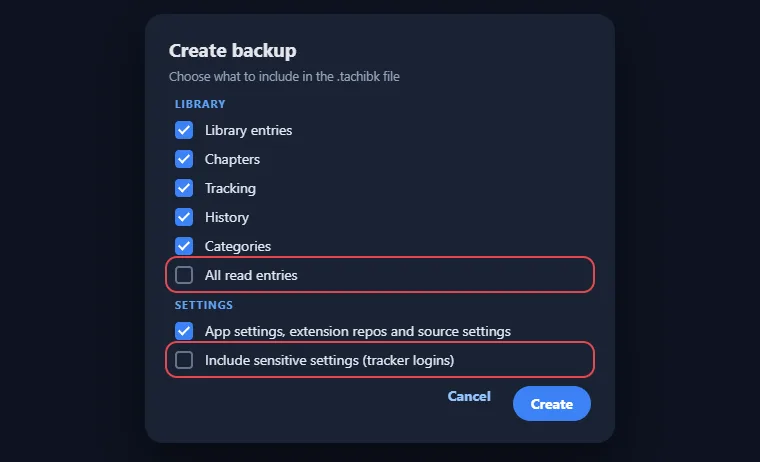
On the options screen, turn on “Include sensitive settings” if you want your tracker logins to travel with the file, since Mihon leaves those tokens out by default. Save the file somewhere you can reach quickly, and give it a clear name so you do not confuse it with older copies when you move it to the iPhone.
Why Mihon v0.21.3 Matters for Your Backup
Mihon v0.21.3, released on October 25, 2026, is the version to use for this backup. Its release notes say, “This is the last major version to support Tachiyomi’s backup format (.tachibk) and extensions made for it.” After this release, Mihon will no longer restore .tachibk files, and the next version also drops older Tachiyomi 1.4 extensions. The same update made creating and restoring backups faster and lighter on memory, so big libraries no longer run out of memory halfway through. Make your Tachiyomi backup on v0.21.3 now, before any later update changes how the file works.
Step by step
Step 1: Install a Tachiyomi-Compatible Manga Reader on iPhone
The easiest app for this move is Tachimanga, a free App Store reader with a built-in option for importing a Tachiyomi backup. Its GitHub organization calls it “an unofficial port of Tachiyomi for iOS,” and Tekbrio LLC makes it.
Tachimanga needs iOS 15 or later, and the core app costs nothing. If you want extra features, Premium is sold as an in-app purchase at $1.99 a month or $9.99 a year, while the lifetime option is listed at both $24.99 and $29.99 on the App Store. Install the app and open it once before you move the file, so you know it runs.
Which iOS Apps Can Import a Tachiyomi or Mihon Backup?
Tachimanga is not the only option, although it is the one with an official, documented import path. The table below compares the main iOS manga readers by how they handle a Mihon backup to iPhone.
| App | Imports Tachiyomi/Mihon backup? | How to install | Price | Notes |
|---|---|---|---|---|
| Tachimanga | Yes, built-in | App Store | Free, Premium optional | iOS 15+, official import guide |
| Madomi | Yes, claimed by the developer | App Store | Free with in-app purchase | iOS 15.5+, also reads Tachimanga .tmb files |
| Eclipse | Yes, claimed by the developer | App Store | Free with ads, Pro removes them | Works on iPhone and iPad |
| Aidoku | No, needs a converter | TestFlight, AltStore or .ipa | Free, open source | Still in beta |
| Paperback | No | App Store or TestFlight | Not listed | Restores only its own backups |
| Suwatte | No | App Store or TestFlight | Free | iOS 17+, own JSON backups only |
Madomi comes from Pawaka Empire, and its import claims come only from the developer’s own pages, so test it with a copy of your file first. Eclipse is in the same position, which is why Tachimanga stays the safest pick for a Tachiyomi backup restore, while Aidoku suits readers who prefer open-source apps.
Step 2: Transfer Your Tachiyomi Backup from Android to iPhone
To move Tachiyomi backup to iPhone, you need to get the file from your Android storage into the Files app on iOS. AirDrop does not work between Android and iPhone, so use a method that both phones support.
These options all work well:
- Google Drive or another cloud service: upload the file on Android, then open the Drive app on your iPhone and save it to Files.
- Email: send the file to yourself as an attachment, then open the email on your iPhone and save the attachment.
- Send Anywhere or a similar app: share the file from Android and receive it on the iPhone in the same app.
- Direct share: use any sharing method that lands the file on your iPhone.
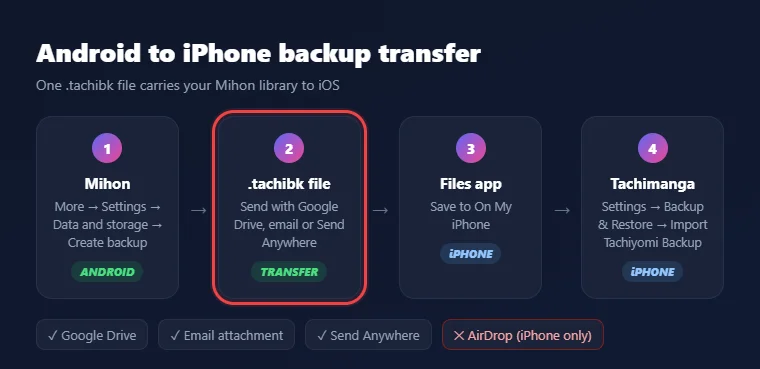
Save the file into Files under On My iPhone, because some apps cannot see a file that still sits inside Google Drive or an email. Keep the original on Android until the restore works.
Step 3: Import Tachiyomi Backup into the iOS App
With the file saved on your iPhone, you can import Tachiyomi backup data into Tachimanga in a few taps. The option sits in the app’s settings, and it reads the file you saved to the Files app in the last step.
- Open Tachimanga and go to Settings.
- Tap Backup & Restore.
- Tap Import Tachiyomi Backup.
- Browse to the .tachibk file in the Files app and select it.
- Confirm the restore when the app asks.
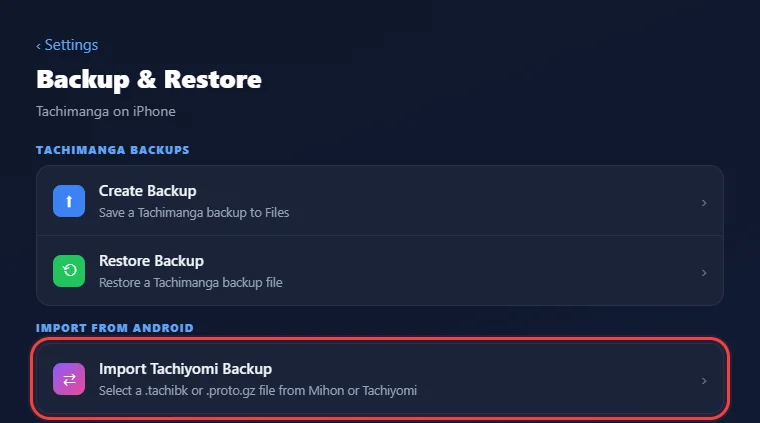
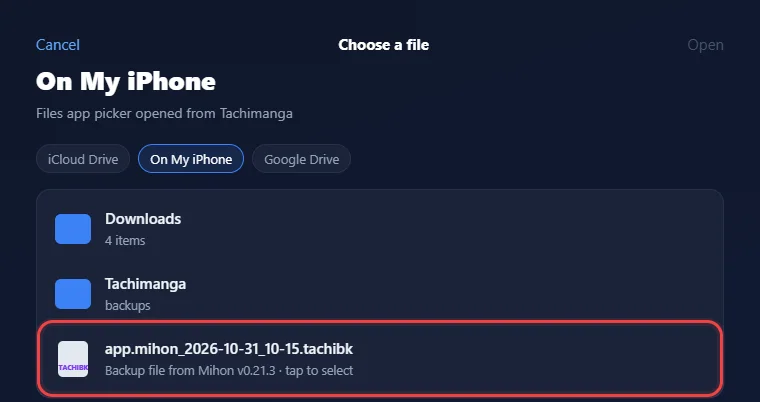
The import can take a while if your library holds hundreds of titles, so keep the app open and the screen awake until it finishes. If the restore stops halfway, run the import again from the start with the same file. When the import ends, Tachimanga is ready for the restart in Step 4, and your library is close to the way it looked on Android.
How to Import into Aidoku with a Converter
Aidoku cannot restore Tachiyomi backup files on its own, since it only imports its own backups through the share sheet. You can still get your library into it by converting the file first. The Tachiyomi to Aidoku converter on GitHub, made by beer-psi, turns a Tachiyomi file into Aidoku’s format. Another option is chococornet.moe, which converts between Mihon, Tachimanga and Aidoku. Keep in mind that chococornet.moe uploads your file to its site, and it maps only 11 sources, so series from other sources will not carry over. If your library uses many sources, Tachimanga is the better choice, because it reads the file directly.
Step 4: Restart the App to Complete Restoration
After the import finishes, close Tachimanga completely from the app switcher and open it again so the app loads the restored Tachiyomi backup data. Once it reopens, check that your categories appear in the right order, that read chapters show as read, and that your reading progress matches the last chapter you opened on Android. If something looks wrong, the fixes further down in this guide cover the most common causes.
Step 5: Re-add Extension Repos and Log Into Trackers
Your restored library will not load new chapters until you add sources, because a Tachiyomi backup stores your extension repo list but not the extensions themselves. Tachimanga’s guide says a repository URL “usually ends with index.pb,” which is the same kind of link Mihon users already know from Keiyoushi.
- Add the repo URL that ends in index.pb inside Tachimanga’s extension settings.
- Install the sources that your series came from.
- Refresh your library so new chapters appear.
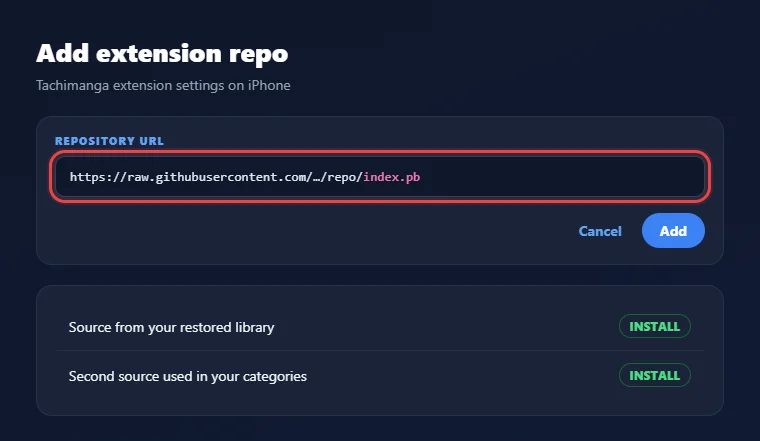
You can find working links in our Mihon extension repo list, and our guide on adding extensions explains each screen in more detail. After the sources are in place, log in to AniList or MyAnimeList again if you did not include sensitive settings in your backup, because your trackers will not sync until you sign in.
What moves
What Gets Restored from a Tachiyomi Backup
A Tachiyomi backup brings back your library, categories, chapters, history and tracking data, but it leaves out the extensions, downloaded chapters and custom covers. The table below shows what to expect so you can plan the rest of the setup.
| ✓ Restored | ✕ Not restored |
|---|---|
| Library entries | Extensions themselves |
| Categories | Downloaded chapter files |
| Chapters and read status | Custom covers |
| Reading history | Tracker logins, unless sensitive settings were included |
| Tracking data | Tachimanga Premium purchase |
| App and source settings | Local source chapters |
| Extension repo list |
Downloaded chapters are the biggest gap, since you will need to download your offline chapters again on the iPhone. Tachimanga keeps its own backups in Files, On My iPhone, Tachimanga, backups, so make a Tachimanga backup once the restore looks right. That way you have a copy for your iPhone that does not depend on Android at all, and you will never need to transfer your manga library from Android to iPhone a second time.
Troubleshooting
Common Issues and Fixes
Most failed restores come from a few small mistakes with the file or the app itself. The fixes below cover the problems that Reddit users report most often.
Backup File Not Showing in the File Picker
If the file does not appear when you browse, it is probably still inside Google Drive, an email or another app. Open that app, save the file to Files under On My iPhone, and then run the import again so Tachimanga can find it in the picker.
Selected the Wrong File or Folder
Tachimanga needs the Tachiyomi backup file itself, not the folder that holds it. Open the folder in Files and tap the file ending in .tachibk. If you renamed the extension earlier, create a new backup on Android instead of fixing the name by hand.
Library Looks Empty After Restore
An empty library usually means the app has not reloaded the restored data yet. Close Tachimanga fully, open it again, and check your category tabs and library filters, since a filter for unread or downloaded titles can hide series that were restored correctly.
Covers or Chapters Not Loading
Missing covers and blank chapter lists happen when the source extension for a series is not installed. Add the index.pb repo, install that source, and refresh the series. If the old source no longer works, use source migration to move the series to a source that does.
Backup Won’t Import or Shows an Error
An error during import often points to a damaged file. Open backup.mihon.tools, the Mihon Backup Viewer by Animeboynz, and load your file there, since it checks the file inside your browser without uploading it. If the viewer cannot read it, make a fresh backup on Android.
Premium Features Missing on New iPhone
Tachimanga Premium is an App Store purchase, so it does not travel inside any backup file. Open Tachimanga on the new iPhone, use the same Apple ID you used to buy Premium, and tap Restore Purchase so the App Store can turn the features back on.
Reddit questions
FAQs
Is There a Mihon App for iPhone?
There is no official app, since Mihon’s FAQ says no iOS or iPadOS version is planned, and it calls any “Mihon for iOS” app a scam. The safe route is to export your library from Mihon and import it into an iOS reader such as Tachimanga.
Can I Transfer Tachiyomi Data to Aidoku?
Yes, but not directly, because Aidoku only restores its own backup files. Convert the Tachiyomi file first with the Tachiyomi to Aidoku converter on GitHub or with chococornet.moe, then open the converted file in Aidoku through the share sheet to finish the import.
Will My Downloaded Chapters Move to iPhone?
Your downloads stay behind, because backup files never include downloaded chapter files, and that is true for both Mihon and Tachimanga. After the restore, open the series you read offline and download those chapters again inside the iOS app, ideally over a Wi-Fi connection.
Do My Extensions Come with the Backup?
They do not, because a Tachiyomi backup saves your extension repo list and source settings, but the extensions themselves stay on Android. On your iPhone, add the repo URL that ends in index.pb, install the sources you need, and your restored series will start loading chapters again.
Can I Move My Tachimanga Backup Back to Mihon?
Not directly, because Tachimanga’s own backups use a different file that Mihon cannot restore. Reddit users who moved back to Android hit this exact problem. A converter such as chococornet.moe can turn a Tachimanga backup into a file that Mihon understands, although only mapped sources carry over.
Can I Restore an Old Tachiyomi Backup in Mihon After v0.21.3?
You can, but only with a workaround, since the Mihon v0.21.3 notes say the only way to restore a .tachibk backup after this release is to restore it on v0.21.3 first and then update to the latest version. Keep that installer until your Tachiyomi backup is restored.
Final word
Final Thoughts
Moving to an iPhone does not mean starting your library from zero, because a single file carries almost everything across. Create a fresh Tachiyomi backup in Mihon v0.21.3 today, move it into the Files app, and import it through Tachimanga’s Backup & Restore screen. After that, add your index.pb repo, install your sources, and sign in to your trackers so new chapters and progress keep flowing. If anything breaks along the way, our Tachiyomi troubleshooting guide covers more fixes, and you can come back to the issues section above whenever a restore does not look right.