
Storage guide · Checked on Mihon v0.21.2
How to Delete Downloaded Chapters in Tachiyomi (Mihon 2026 Guide)
Open a manga, tap the filled download icon next to a chapter, and press Delete, because that is the quickest way to delete downloaded chapters in Tachiyomi. To clear many chapters at once, long-press one chapter, select the rest, and tap Delete in the bottom bar. Offline manga eats phone storage fast, so knowing how to delete downloaded chapters in Tachiyomi keeps your device light without touching your reading progress. Every step here was checked against Mihon v0.21.2, the app that took over from Tachiyomi, so the button names match your screen. You will also learn how to set up auto-delete, where the files live, and what to do when a chapter refuses to go away.
- 5 simple steps
- 3 bulk cleanup methods
- 5 FAQs
Quick answer
The fastest way to delete one downloaded chapter
- Open the manga from your Library
- Tap the filled download icon on a chapter
- Press Delete in the small menu
- Whole series
- Long-press a chapter → Select all → Delete
- Auto-delete
- More → Settings → Downloads
- Chapter will not go away
- More → Settings → Advanced → Reindex downloads
Compatibility
Tachiyomi or Mihon: Which App Do These Steps Work On?
The original Tachiyomi app shut down on January 13, 2024, which is why most readers now use Mihon, the official successor that runs on Android 8.0 and newer. Since Mihon grew from the same code, the menus feel almost the same, so you can delete downloaded chapters in Tachiyomi forks and in Mihon with the steps below. Popular forks such as TachiyomiSY and Komikku are built on Mihon and work in a similar way, although we only checked the labels in Mihon, so a fork may place a button differently. If you still run an old Tachiyomi build, the ideas carry over, but Mihon gives you the newest download tools.
| Tachiyomi | Shut down on January 13, 2024 |
| Mihon | Official successor, Android 8.0+ |
| Forks | TachiyomiSY and Komikku (built on Mihon) |
| Steps checked on | Mihon v0.21.2 |
Step by step
How to Delete Downloaded Chapters in Tachiyomi: Step by Step
The five steps below cover everything from removing one chapter to clearing a full series, and they take less than a minute once you know where each button sits. Deleting a download only removes the saved file from your phone, so your read status, history and library entry stay exactly where they were, and you can download the chapter again whenever you like.
Step 1: Open Your Library
Your Library is the starting point, because every manga you follow and its saved chapters live there.
- Open Mihon and tap the Library tab at the bottom of the screen.
- Scroll through your shelves or switch categories until you find the series that holds the downloads.
- Tap the manga cover, and Mihon opens its details page, which is where you delete downloaded chapters in Tachiyomi one series at a time.
Step 2: Go to Chapters List
You do not need to look for a separate menu here, because the chapter list sits right on the manga page itself.
- Look at the top of the page, where the cover, the description and the tracking buttons appear.
- Scroll down past the description, and the full list of chapters starts right below it.
- Keep this list open, since it is the one clear place to delete downloaded chapters in Tachiyomi instead of hunting through settings.
Step 3: Identify Downloaded Chapters
Downloaded chapters are easy to spot once you know which mark to look for on each row.
- Check the right side of each chapter row, where saved chapters show a filled download indicator and online-only chapters show an empty download arrow.
- Tap the filter button at the top of the manga page if the series is long and scrolling takes too much time.
- Turn on the Downloaded filter, and Mihon hides everything else, so you can delete downloaded chapters in Tachiyomi without scrolling past dozens of online ones.
Step 4: Delete a Specific Downloaded Chapter
There are two simple ways to remove a chapter, and both delete downloaded chapters in Tachiyomi the same way.
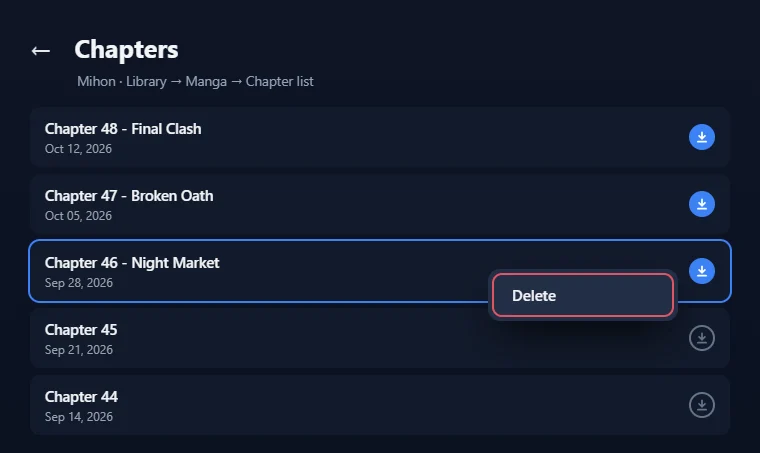
Way 1: The download indicator (fastest)
- Tap the filled download indicator next to the chapter you want to remove.
- Tap Delete in the small menu that appears, and the file is removed from your phone right away without any confirmation step.
Way 2: Selection mode (to delete multiple chapters)
- Long-press the chapter to start selection mode, and the row gets highlighted.
- Tap any other chapters you want to clear, such as a short arc you have already finished.
- Press Delete in the bottom action bar.
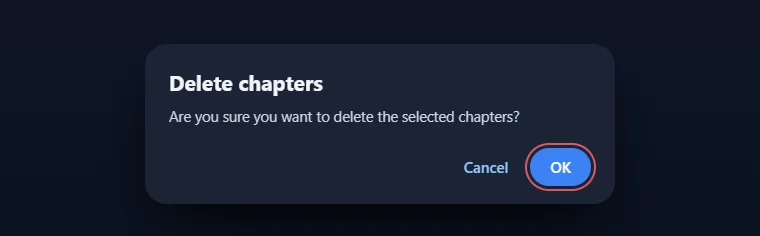
- Tap OK when Mihon asks, “Are you sure you want to delete the selected chapters?”, and the chapters leave your storage at once.
Step 5: Delete All Downloads for a Manga
When you are done with a whole series, you can delete all downloaded chapters of that manga in a few quick taps from the same screen.
- Long-press any chapter in the list to enter selection mode.
- Tap Select all in the top bar so every chapter in the list is picked.
- Tap Delete in the bottom action bar, which now covers the whole series.
- Confirm with OK, and Mihon removes every saved file for that series, along with the empty source folder if nothing else is left inside it.
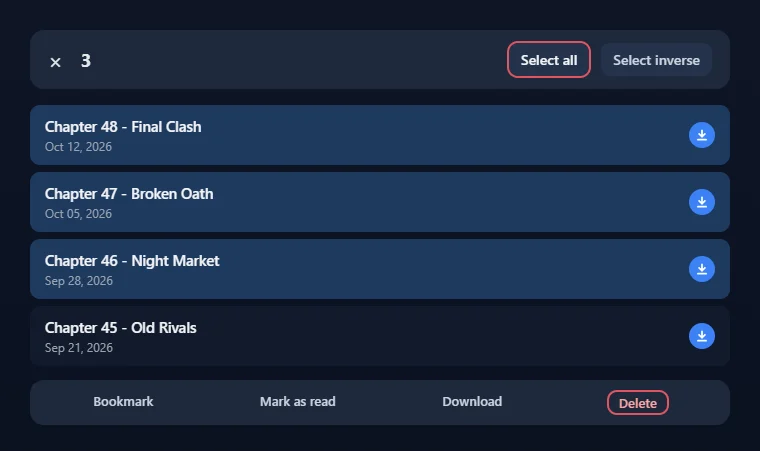
To keep a few chapters for a trip, select those chapters first and then tap Select inverse, which flips your choice so only the other chapters get picked. This trick lets you delete downloaded chapters in Tachiyomi that you have already read while the next few stay saved on your phone for offline reading.
Bulk cleanup
How to Delete Downloads for Several Manga at Once
Going into each manga one by one gets slow when your library is large, so Mihon lets you clear many series from the Library screen itself. Before you start, it is smart to make a Tachiyomi backup so your library and categories stay safe whatever happens. To delete downloaded chapters in Tachiyomi for several titles, long-press one manga in your Library, and then tap the other covers you want to add to the selection. Tap Delete in the bottom bar, and a Remove dialog will open with two checkboxes, From library and Downloaded chapters.
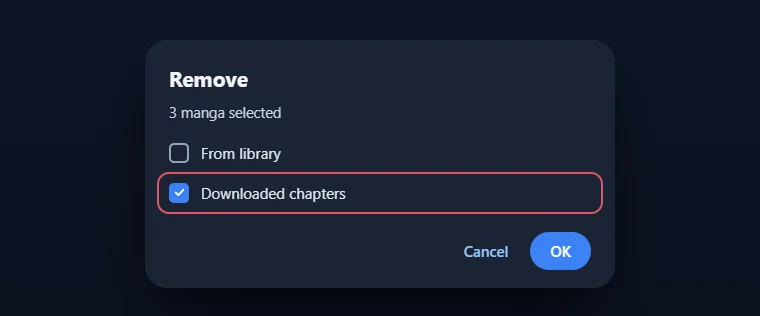
Tick only Downloaded chapters and leave From library empty, because that keeps every series on your shelf while it removes the saved files. Press OK, and Mihon will clear the downloads for every manga you picked in one go, which is the closest thing to a bulk cleanup button the app offers.
Library
Delete Downloads When You Remove a Manga From Your Library
When you finish a series or lose interest, you can remove the manga and delete downloaded chapters in Tachiyomi together. Open the manga page and tap the In library button to take the title off your shelf. Right after that, a snackbar pops up at the bottom of the screen asking, “Delete downloaded chapters?”, and tapping Delete there clears every saved chapter of that series. The prompt only shows up when the manga actually has downloads, and if you dismiss it by mistake, the Library method above still clears the files.
Updates tab
Delete New Chapters From the Updates Tab
If you have auto-download turned on, new chapters land in the Updates tab, and you can delete them from there without opening each manga. Tap the download indicator on any item and choose Delete to remove that single file. To clear several at once, long-press one update, tap the others you want to remove, press Delete, and confirm the dialog. Clearing chapters here right after an update lands is a quick way to remove downloaded manga you know you will never read, and to delete downloaded chapters in Tachiyomi before they pile up.
Auto-delete
How to Auto-Delete Chapters After Reading
Manual cleanup works well, but Mihon can also handle it for you, so you never have to delete downloaded chapters in Tachiyomi by hand again. Every auto-delete option sits under More → Settings → Downloads, inside a group called Delete chapters, and each one only takes a tap to change.
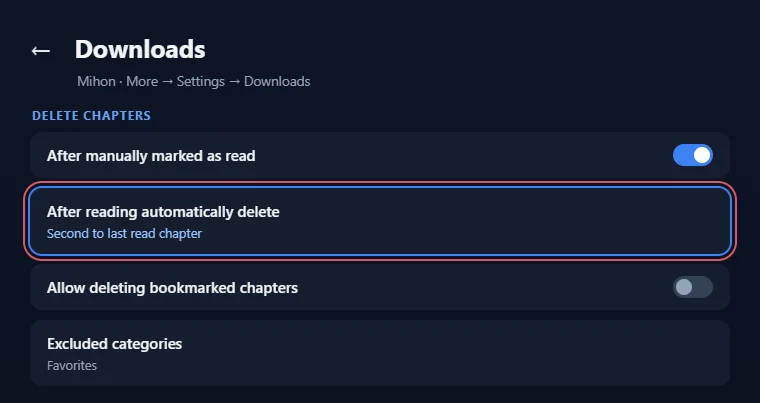
Good to know: All of these settings are turned off by default, which is why many people think the Tachiyomi delete after read feature does not exist.
After Reading Automatically Delete
The After reading automatically delete setting decides which read chapter gets removed as you move forward in a series. Choose Disabled, Last read chapter, Second to last read chapter, Third to last read chapter, Fourth to last read chapter or Fifth to last read chapter. Last read chapter removes the one you just finished, while the others keep a few recent chapters for rereading. Mihon queues the chapter and removes it when you press back to leave the reader, not the moment you reach the last page. For most readers, Second to last read chapter is a good way to delete downloaded chapters in Tachiyomi while keeping a little history on hand.
After Manually Marked as Read
The After manually marked as read switch covers chapters you never open in the reader. When it is on, any downloaded chapter you mark as read from the chapter list, the Updates tab or a notification is deleted right away. This setting is useful when you catch up on a series somewhere else and simply mark old chapters as read in bulk.
Keep Bookmarked Chapters and Excluded Categories Safe
Auto-delete is careful by design, so it skips some chapters unless you tell it otherwise. Allow deleting bookmarked chapters stays off by default, which means any chapter you bookmarked is protected from Tachiyomi auto delete chapters rules and stays on your phone. The Excluded categories option lets you pick library categories, such as a “Favorites” shelf, where read chapters are always kept. Together, these two settings let you clean up most of your library while your best manga and manhwa stay saved for rereading on a long trip or a weak connection.
Download folder
Where Tachiyomi Stores Downloaded Chapters
Every download lives inside your storage location, shown under More → Settings → Data and storage → Storage location. Mihon uses this same folder for automatic backups, chapter downloads and the local source, so check it before you delete downloaded chapters in Tachiyomi by hand.
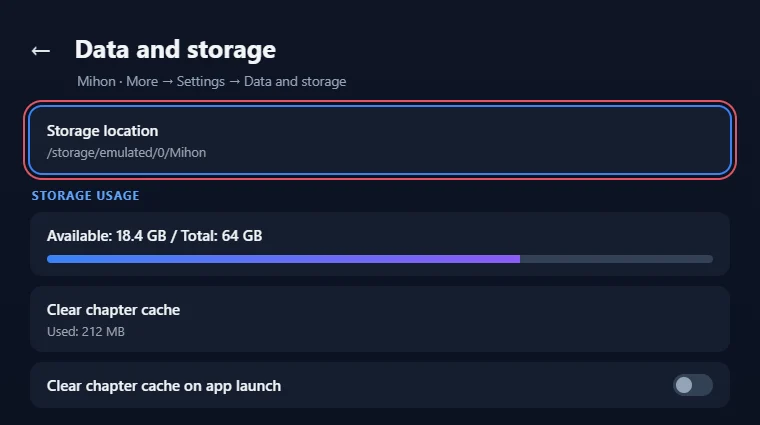
Inside it, the Tachiyomi download folder follows a clear path: downloads/Source Name (LANG)/Manga Name/Chapter Name (abcdef).cbz. The six characters at the end come from an MD5 hash of the chapter’s web address. Because Save as CBZ archive is on by default, each chapter is saved as a single CBZ file instead of a folder full of images. Mihon also adds a .nomedia file, so your manga pages never show up in the phone gallery.
File manager
Delete Chapters With a File Manager (Then Reindex Downloads)
You can also delete downloaded chapters in Tachiyomi from outside the app by opening your storage location in any file manager. Go into the downloads folder, open the source and manga folders, and delete the CBZ files you no longer need, or remove a whole manga folder. This helps when your downloads sit on an SD card and you want to free up storage in Tachiyomi from a computer.
After deleting files this way, Mihon may still think the chapters are on your phone, because it keeps its own index of downloads. To fix that, open More → Settings → Advanced and tap Reindex downloads, which forces the app to recheck downloaded chapters.
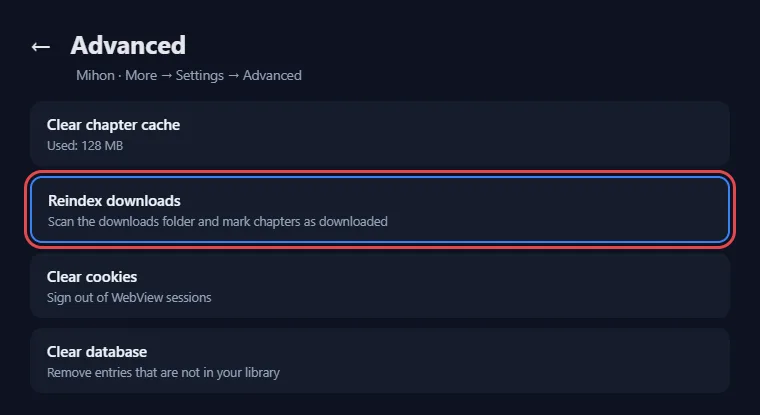
Mihon’s storage FAQ explains that an outdated index can affect deleting chapters and slow down library loading, so run it after any manual cleanup.
Cache vs downloads
Clear Chapter Cache vs Delete Downloads
Many readers tap Clear chapter cache and expect their downloads to vanish, but if you want to delete downloads in Mihon, these two features do different jobs. The chapter cache only holds pages Mihon saved while you read online, so clearing it under More → Settings → Data and storage frees some space without touching any downloaded chapter. You can also turn on Clear chapter cache on app launch to keep that cache small. The Storage usage section on the same screen shows your available and total space.
| Clear chapter cache | Delete downloads | |
|---|---|---|
| What it removes | Pages saved while reading online | Downloaded chapter files (CBZ) |
| Where | More → Settings → Data and storage | Manga page, Library, Updates tab or a file manager |
| Touches downloads? | No | Yes |
Reading on a computer through an emulator? Our guide to fix lag and crashes in Tachiyomi on PC shows how to clear the chapter cache and tune BlueStacks so the reader stays smooth.
Troubleshooting
Downloaded Chapters Not Deleting? Quick Fixes
When downloaded chapters are not deleting, the cause is usually a setting rather than a bug, so a few checks help you delete downloaded chapters in Tachiyomi as expected. First, check that After reading automatically delete is not set to Disabled, because auto-delete stays off until you choose an option. Mihon also removes the queued chapter only when you leave the reader, so leave the reader with the back button instead of swiping the app away. If a chapter still stays, see whether it has a bookmark, since bookmarked chapters are kept unless Allow deleting bookmarked chapters is on. Also check whether the manga belongs to one of your Excluded categories, because those series always keep their read chapters. Finally, if you moved or deleted files with a file manager, run Reindex downloads so the app sees the real state of your folder. Our Tachiyomi troubleshooting guide covers other storage and download problems in more detail.
FAQ
FAQs
Will deleting downloads remove the manga or my reading progress?
No, deleting a download only removes the chapter file from your phone. Your read status, history and library entry stay the same, and the manga only leaves your shelf if you also tick From library in the Remove dialog.
Can I delete all downloaded chapters at once?
Mihon has no single button that wipes every download, but you can get close. Select several manga in your Library, tap Delete, and tick only Downloaded chapters, or use Select all inside one manga.
Why does a deleted chapter still show as downloaded?
This usually happens after you remove files with a file manager, because Mihon still trusts its old index. Open More → Settings → Advanced and tap Reindex downloads so the app rechecks your folder.
Does Clear chapter cache delete my downloads?
No, Clear chapter cache only removes pages saved while reading online. Your downloaded chapters stay in your storage location until you delete them from the manga page, the Library, the Updates tab or a file manager.
Can I auto-delete bookmarked chapters?
Yes, but only after you turn on Allow deleting bookmarked chapters under More → Settings → Downloads. With it off, every bookmarked chapter is kept, even when it matches your auto-delete setting.
Final word
Conclusion
The fastest way to delete downloaded chapters in Tachiyomi is to tap the download indicator and press Delete, while Select all and the Library Remove dialog handle bigger cleanups. Turning on After reading automatically delete means you rarely need to clean up by hand, and if you ever want a chapter back, you can download it again, or add a new source when the old one stops working.