
PC fix guide · Checked on Mihon v0.21.3
Fix Lag & Crashes When Using Tachiyomi on PC (2026 Guide)
Running Tachiyomi on PC gives you a bigger screen for manga and manhwa, but the app was built for Android phones, so on Windows it has to live inside an Android emulator such as BlueStacks, and that extra layer is where most lag and crashes start. Tachiyomi itself shut down on January 13, 2024, and Mihon took its place with the same library, reader, and extension system, so every fix in this guide uses Mihon menu names. The methods are grouped into three parts: connection and extension errors first, then emulator settings, and then settings inside the app. Each fix comes from the official Mihon docs, the Mihon release notes, and the BlueStacks performance guide, so you can fix Tachiyomi on PC without guessing or wiping your library.
- 19 tested fixes
- 4 emulator settings
- 6 FAQs
Quick answer
The three fixes that solve most PC lag
- Update to Mihon v0.21.3 (x86_64 APK)
- Turn on Intel VT-x or AMD-V in BIOS
- Give BlueStacks 2 CPU cores and 2 GB RAM
- Black or blank pages
- Change the graphics renderer or resolution
- Cloudflare loop
- More → Settings → Advanced → Clear WebView data
- No extensions
- Add the Keiyoushi extension store
At a glance
Quick Fixes at a Glance
Most problems with Tachiyomi on PC have one fast fix, and this table points you to it before you read the full method.
| Problem | Fastest fix |
|---|---|
| Laggy or choppy scrolling | Update to Mihon v0.21.3 and add more RAM |
| Crash on launch after an update | Install Mihon v0.21.2 or newer |
| Black or blank pages | Change the emulator resolution or graphics renderer |
| Mihon will not install | Use an Android 9 or newer instance |
| Cloudflare page keeps reloading | Clear WebView data and change the user agent |
| Extensions not showing | Add the Keiyoushi extension store |
Root cause
Why Tachiyomi Lags or Crashes on PC
Tachiyomi lags or crashes on a computer because no official PC version exists, so the app runs inside an Android emulator that shares your RAM, CPU, and graphics card with Windows. When you run Tachiyomi on PC this way and the emulator gets too few resources, every page load and every scroll has to wait for its turn. The Mihon docs name oversized images in chapters as the main reason reading feels laggy, and webtoon chapters make this worse because a single page can be thousands of pixels tall. Other common causes are an emulator with virtualization turned off, an old Android instance, an outdated app with bugs that are already fixed, and Cloudflare-protected sources that keep failing in the background. Windows Subsystem for Android is no longer a choice either, because Microsoft removed it from the Microsoft Store on March 5, 2025, and a Mihon maintainer has said on GitHub that it is not supported.
Connection, extension and app fixes
Solutions to Fix Tachiyomi Crashes and Lag Issues
The ten methods in this section fix the most common connection, extension, and app problems with Tachiyomi PC, so start with Method 1 and test the app after each step.
Method 1: Update Tachiyomi to the Latest Mihon Version
The first fix is to replace any old Tachiyomi build with the latest Mihon release, because Tachiyomi no longer gets updates.
- Download Mihon from mihon.app or its GitHub releases page, because neither app was ever on the Google Play Store and the Mihon FAQ says APK-based extensions conflict with Google Play’s content policy.
- Install v0.21.3, released on October 25, 2026, since the v0.21 updates made the library, browse, and reader screens faster, fixed “database is locked” crashes, and reduced stutter and freezing.
- Pick the x86_64 APK from the six APK files in each release, because it is the best match for Tachiyomi on PC inside most emulators.
- Restore your .tachibk backup while you are on v0.21.x, because this is the last version that can read that format.
Our guide on how to update Tachiyomi walks through the full process.
Method 2: Refresh and Update Extensions
Outdated extensions are a common reason sources stop loading, so update them before you change anything else.
- Open Browse → Extensions and install every pending update.
- Pull down on the list to refresh it.
- Check the extension details screen, which shows the store each extension came from, because since Mihon v0.21.0 an extension can only install and update from that store.
- Read the error message on any extension that fails to load, because Mihon now explains why instead of hiding it.
- Test a few other series from the same source if one source keeps failing, to see whether the whole source is down.
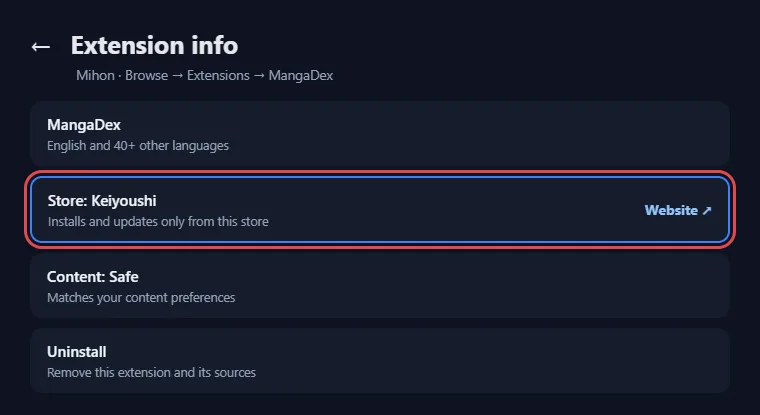
Method 3: Enable Unknown Sources
Mihon installs every extension as a separate app, so the emulator must allow it to install unknown apps before Tachiyomi on PC can add any source.
- Open the emulator’s Android settings, go to Special app access, and turn on Install unknown apps for Mihon.
- Use the Split APK Installer app if an install still fails, since it shows clearer errors.
- Back up, uninstall the old copy, and install the new one if you see
INSTALL_FAILED_UPDATE_INCOMPATIBLE, which means the same app is already installed with a different signature. - Download the APK again if you see “DISPLAY_NAME column is null”, which means the file is corrupted.
Method 4: Reset Internet Settings
A weak or filtered connection makes sources time out, and that delay looks like lag inside the app.
- Restart your PC and your router first to reset the connection on both ends.
- Try a different network or a VPN to see whether your internet provider is blocking the site.
- Open the same manga site in Google Chrome on Windows, because if it fails there as well, the problem is the connection or the site rather than Tachiyomi on PC or the emulator.
Method 5: Enable DNS over HTTPS
DNS over HTTPS can get around internet providers that block manga sites at the DNS level, which often stops sources from loading in Tachiyomi on PC.
- Open More → Settings → Advanced → DNS over HTTPS in Mihon.
- Pick a provider from the list, or choose a different one if this option was already on.
- Restart the app after every change so the new setting takes effect, as the Mihon docs advise.
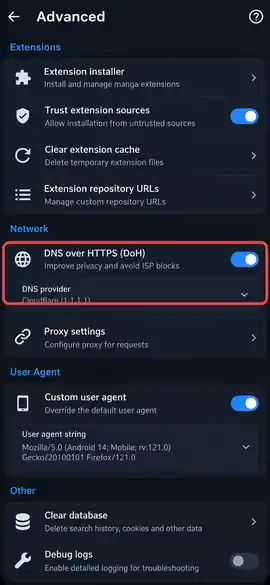
Method 6: IP Address Temporarily Blocked
A site can block your IP address for a while when the app sends too many requests in a short time, and this often appears as an HTTP 429 error.
- Download fewer chapters from that source at once.
- Spread your library across more than one source, so a single site does not get every request.
- Wait a while before trying again, because the block is usually temporary.
- Run large library updates and mass migrations less often, since they send many requests together and can trigger the same block.
Method 7: Use WebView to Load Sources
WebView lets you pass the Cloudflare check or CAPTCHA that a source shows to new visitors, and it works the same way in Tachiyomi on PC as it does on a phone.
- Open the source in Browse and tap the WebView icon in the top toolbar.
- Solve any checks the page shows, and then close it with the X button.
- Keep the app updated if you see these checks often, because Mihon v0.21.2 fixed a bug where many Cloudflare challenges at once made the app slow down or run out of memory.
Method 8: Clear WebView Data
Old cookies and stored WebView data can trap a source in a Cloudflare loop where the page keeps reloading.
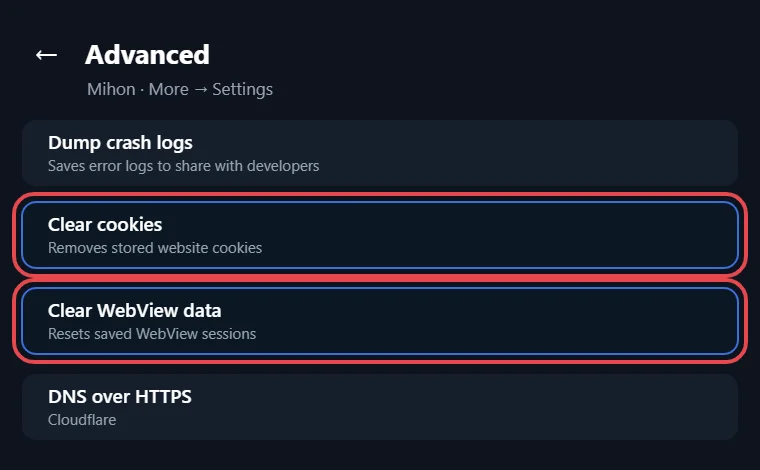
- Go to More → Settings → Advanced and tap Clear cookies.
- Tap Clear WebView data in the same menu.
- Replace the Default user agent string with one from another browser if the loop continues, and then restart the app and open the source in WebView again.
This resets WebView and any site logins, while your library in Tachiyomi on PC stays untouched.
Method 9: Force Close and Restart the App
A full restart clears stuck downloads and frozen screens that a quick reopen cannot fix.
- Force stop Mihon from the emulator’s app settings.
- Close heavy Windows programs in Task Manager so the emulator gets more RAM.
- Restart the emulator itself before you open Tachiyomi on PC again.
If the problem comes back, try the emulator fixes in the next section.
Method 10: Manga Site May Be Down
Sometimes the source itself is the problem, and no setting on your side can fix it.
- Open the manga site in a normal browser to see whether it loads.
- Check the open issues on the Keiyoushi GitHub page, where other readers report broken sources.
- Wait for the site to come back if it is down, because the extension depends on it.
BlueStacks, LDPlayer and MuMu Player
Emulator Fixes for Tachiyomi on PC
Most Tachiyomi lag on PC comes from how the emulator is set up, so these four methods focus on BlueStacks settings, and the same ideas apply to LDPlayer and MuMu Player.
Method 11: Turn On Virtualization (Intel VT-x / AMD-V)
Virtualization lets the emulator use your processor directly, and BlueStacks lists it as one of the first fixes for lag, because without it BlueStacks cannot use more than one CPU core for Tachiyomi on PC.
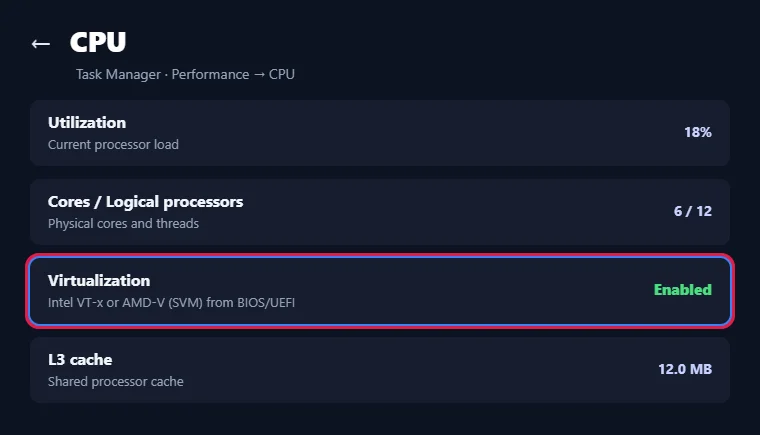
- Open Task Manager, select CPU in the Performance tab, and look at the Virtualization line to see whether it says Enabled.
- Restart your PC and open the BIOS or UEFI settings if the line says Disabled.
- Turn on Intel VT-x on Intel processors or AMD-V, which some boards call SVM, on AMD processors.
- Save and reboot, so your Tachiyomi emulator setup can use the extra CPU cores you give it in the next method.
Method 12: Set Performance Mode, CPU Cores and RAM
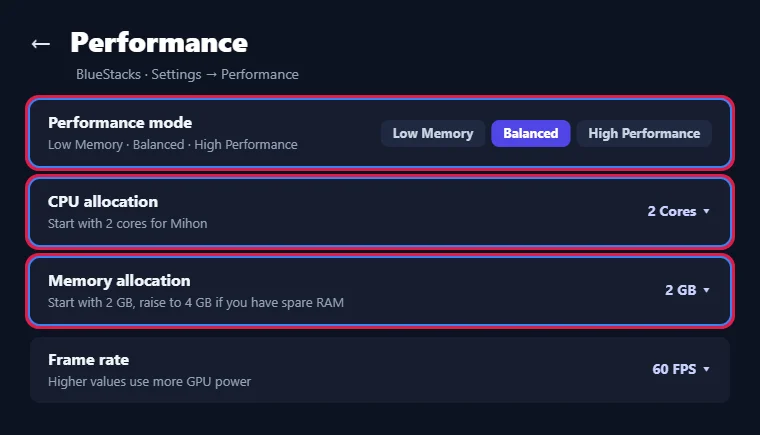
The right Performance Mode in BlueStacks, found in the Performance tab of its settings, depends on how much RAM your PC has, and the official BlueStacks guide gives this simple rule:
| PC RAM | Performance Mode |
|---|---|
| 8 GB or less | Low Memory |
| 8 GB to 16 GB | Balanced |
| More than 16 GB | High Performance |
- Start with 2 CPU cores and 2 GB of memory, which is enough for Tachiyomi on PC.
- Raise it to 4 cores and 4 GB only when your PC has spare power.
- Never give BlueStacks all of your cores or all of your RAM, because Windows still needs room to run.
- Restart the emulator after every change so the new settings apply.
Method 13: Use an Android 9 or Newer Instance
Mihon needs Android 8.0 or higher, so it will not install on an old emulator instance, and BlueStacks Nougat instances run Android 7, which is the usual reason behind Reddit posts about Mihon showing an install error.
- Open the BlueStacks Multi-instance Manager, where you can add a new Android instance.
- Create a new instance with Android Pie, Android 11, or Android 13.
- Install Mihon there for a working Tachiyomi BlueStacks setup.
- Delete the old Nougat instance afterwards to free disk space.
Method 14: Change Graphics Renderer and Resolution
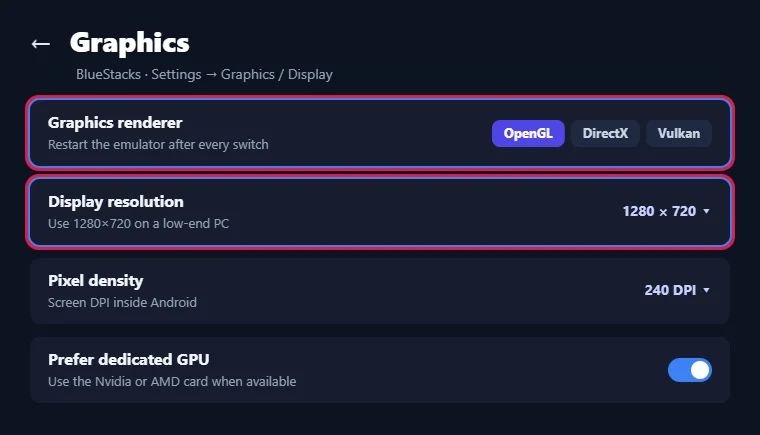
The graphics renderer controls how the emulator draws each page, and a poor match can cause stutter, crashes, or blank pages in Tachiyomi on PC.
- Open the BlueStacks Graphics settings and try OpenGL, DirectX, and Vulkan, which Android Pie, Android 11, and Android 13 instances all support.
- Restart BlueStacks after every renderer switch so you can test each one properly.
- Set the resolution to 1280×720 on a low-end PC to reduce the load on your graphics card.
- Change the resolution if chapters show black pages, because one Mihon user on GitHub fixed black content this way.
- Update your GPU driver from the Nvidia, AMD, or Intel website, since old drivers often cause emulator crashes.
Settings inside the app
Fixes Inside Mihon for Lag and Crashes
Once the emulator has enough power, a few app settings remove most of the lag left in Tachiyomi on PC, and the last method helps report crashes that keep coming back.
Method 15: Fix Long Strip Webtoon Lag
Long strip lag happens when a webtoon or manhwa chapter uses very tall images that need a lot of memory to draw.
- Update to Mihon v0.21.3, because v0.21.0 fixed the stutter between pages and the high memory use caused by very tall pages, which makes updating the main Mihon lag fix for Tachiyomi on PC.
- Ignore older guides that tell you to turn on “Split tall images”, because v0.21.3 removed that setting after the reader started handling tall images by itself.
- Switch the series to a paged reading mode if long strips still stutter, which a Mihon collaborator suggested on GitHub for emulators with limited resources.
- Free up RAM and switch to a source with smaller images, as the Mihon docs advise for laggy reading.
Method 16: Clear Chapter Cache
The chapter cache stores pages you have already opened, and a large cache can slow the reader down inside an emulator with limited storage for Tachiyomi on PC.
- Go to More → Settings → Data and storage → Clear chapter cache to delete it.
- Turn on Clear chapter cache on app launch so it never grows too large again.
- Clear it again whenever reading starts to feel slow, because it does not touch your downloads, library, or reading progress.
Downloads take far more space than the cache, so see our guide on how to delete downloaded chapters in Tachiyomi when the emulator storage is almost full.
Method 17: Turn Off Page Animations and Verbose Logging
Animations and extra logging use processing power that a slow emulator cannot spare.
- Turn off Animate page transitions under More → Settings → Reader so pages change instantly without the extra effect.
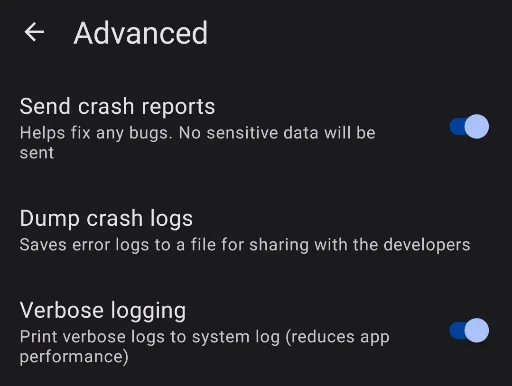
- Keep Verbose logging under More → Settings → Advanced off, because Mihon itself warns that it reduces app performance.
- Turn logging back on only when a Mihon developer asks for detailed logs to track down a bug in Tachiyomi on PC.
Method 18: Limit Library Updates and Downloads
Big library updates and long download queues run in the background and take resources away from the reader in Tachiyomi on PC.
- Open More → Settings → Library and review Automatic updates device restrictions to control when updates run.
- Turn on the skip options, such as Skip entries with unread chapter(s), Skip entries with “Completed” status, and Skip unstarted entries, so each update checks fewer series.
- Lower Concurrent source downloads and Concurrent page downloads under More → Settings → Downloads so fewer pages load at once while you are reading a chapter.
Method 19: Share Crash Logs
When Tachiyomi keeps crashing after every fix, a crash log shows the developers exactly what went wrong.
- Go to More → Settings → Advanced → Share crash logs to save the log as a file.
- Post the file in the Mihon Discord or in a GitHub issue.
- Share it without worry, because since v0.21.3, login tokens are hidden from logs by default.
Extension store
Why Is Tachiyomi Only Showing Installed Extensions?
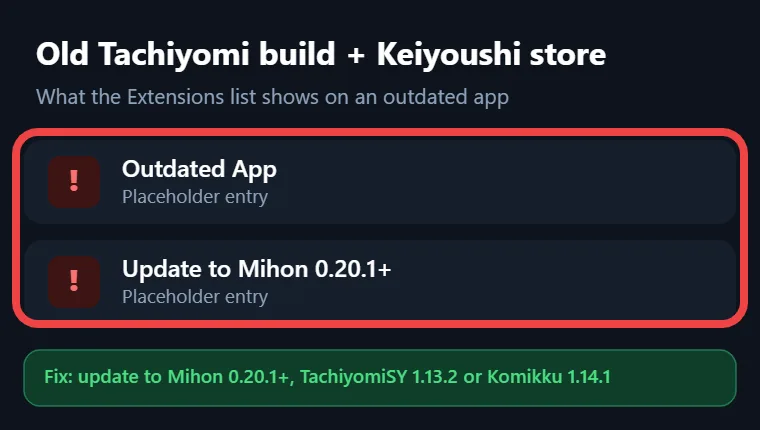
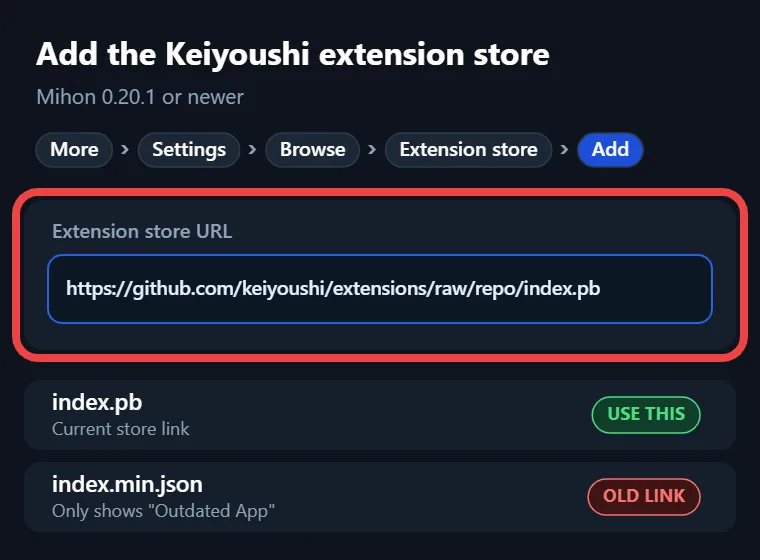
Tachiyomi extensions not showing is usually a store problem, because Mihon ships without any extensions and only lists what an extension store gives it. A fresh install of Mihon on an emulator therefore shows an empty extension list until you add a store. Old Tachiyomi builds have a different problem, because when they load the Keiyoushi store, they only see placeholder entries named “Outdated App” and “Update to Mihon 0.20.1+”, which means the app is too old for current extensions. The third cause is the content preference setting added in Mihon v0.21.0, which sorts extensions into Safe, Mixed, and 18+ groups and hides any group you have not allowed.
How to Fix This
The fix is to add the Keiyoushi extension store to a supported app, since Keiyoushi supports Mihon 0.20.1+, TachiyomiSY 1.13.2+, and Komikku 1.14.1+. On Mihon 0.21.2 or newer you can use the one-tap Add store button, and on any supported version you can add it by hand:
- Open More → Settings → Browse → Extension store.
- Tap Add and paste
https://github.com/keiyoushi/extensions/raw/repo/index.pb. - Uninstall old extensions that came from other stores, and then restart the app so Mihon reloads the list.
- Reinstall the extensions you need from Browse → Extensions.
- Open Browse → Migrate to find series whose source is still missing.
If an extension is still hidden after these steps, open your content preferences and allow the Safe, Mixed, or 18+ group it belongs to. Our Mihon extension repo list explains each store in more detail.
Before you reinstall
Back Up Your Library Before Reinstalling
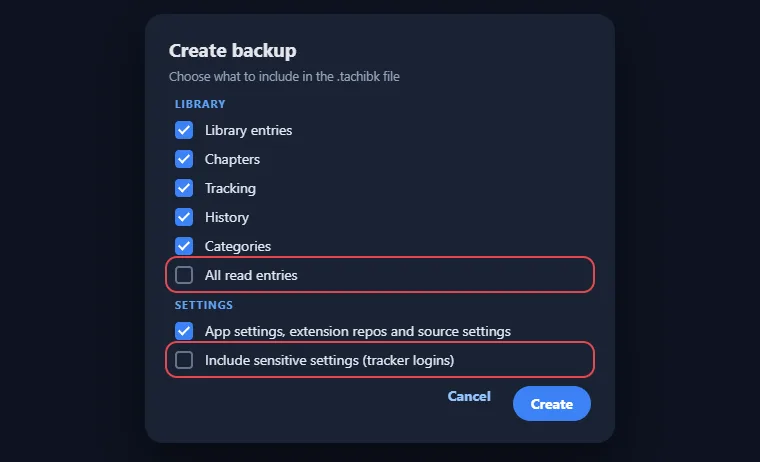
A backup protects your library, categories, and reading progress before you reinstall the app or reset the emulator. In Mihon, open More → Settings → Data and storage, create a backup, and copy the file out of the emulator to a folder on Windows so it stays safe even if the emulator breaks. Mihon v0.21.3 made backups faster and much lighter on memory, so large libraries no longer run out of memory while saving or restoring. After a clean install, restore the file from the same menu. Our Tachiyomi backup guide shows every step of creating and restoring a backup in Tachiyomi on PC.
No emulator needed
Skip the Emulator: Use Suwayomi on Windows
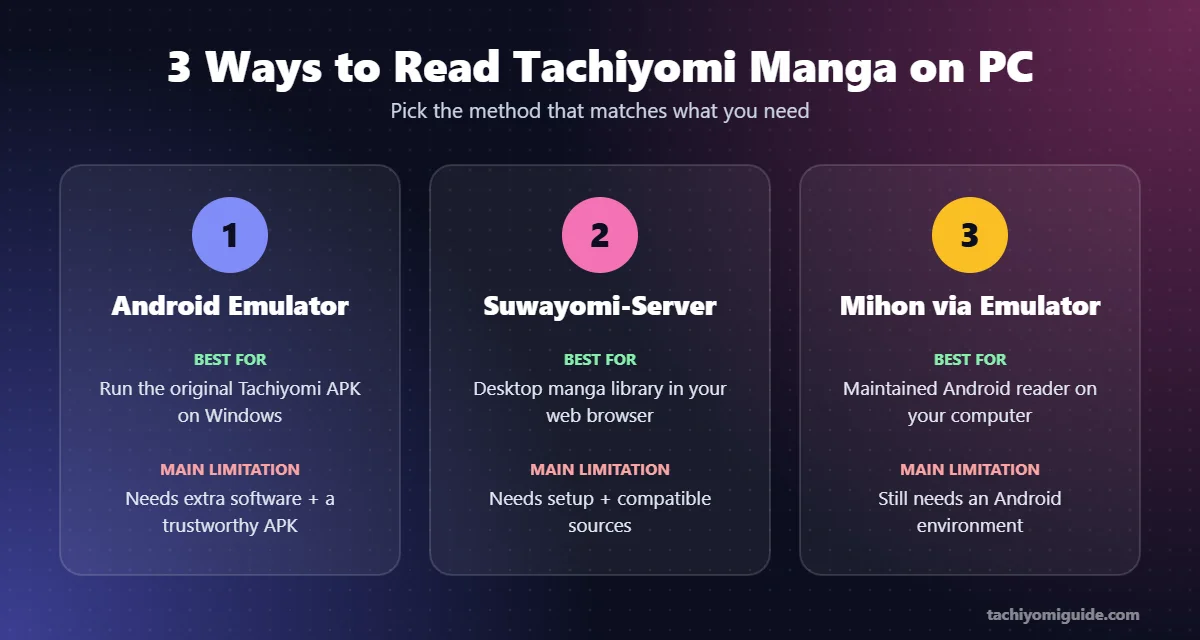
Suwayomi is the best way to skip the emulator, because it runs Mihon extensions natively on Windows instead of inside a virtual Android phone. It is a free, open-source manga reader server rather than a fork of Mihon, and its latest version, v2.4.2366, came out on September 30, 2026 with a Windows .msi installer and a .zip build. The Windows bundle includes the Java Runtime, ElectronJS, the Suwayomi launcher, and the Suwayomi-WebUI, so you do not need to install anything else. It covers the same daily tasks as Mihon on PC, including a library, automatic updates, offline downloads, Mihon-compatible backups, and tracking with MyAnimeList, AniList, and MangaUpdates. Sources protected by Cloudflare need FlareSolverr or Byparr running in the background, and an HTTP 429 error means you should download less and wait. Mihon can also connect to Suwayomi through its extension and tracker, so your phone and computer stay in sync.
Want more choices? See our list of the best Tachiyomi alternatives.
FAQ
FAQs
These questions come from real Reddit threads about running Tachiyomi and Mihon on a computer, with answers based on official sources.
Is there an official Tachiyomi or Mihon app for PC?
No, neither Tachiyomi nor Mihon has an official app for Windows or macOS, and Mihon is built for Android only. To use Tachiyomi on PC, run Mihon inside an Android emulator such as BlueStacks, or use the free Suwayomi server, which runs the same extensions natively on Windows, macOS, and Linux.
Why won’t Mihon install on BlueStacks?
Mihon needs Android 8.0 or higher, while BlueStacks Nougat instances run Android 7, so the install fails with an error. Create a new instance with Android Pie, Android 11, or Android 13 from the Multi-instance Manager, and install the x86_64 Mihon APK inside it, since that build suits Tachiyomi on PC best.
Why does webtoon scrolling feel like 5 fps?
Choppy scrolling in Tachiyomi on PC usually comes from oversized webtoon images that the emulator cannot draw fast enough. Update to Mihon v0.21.3, since v0.21.0 fixed long strip stutter, give the emulator more RAM in its settings, and switch to a paged reading mode if your PC is still too slow.
Why does it crash on high-quality manhwa scans?
High-quality manhwa scans use very large images that can fill the emulator’s memory and close the app. Clear the chapter cache, raise the RAM allocation in BlueStacks, and close heavy Windows programs such as games in Task Manager, or read that series from a source that uses smaller images.
Can I still use Windows Subsystem for Android?
No, Microsoft officially removed Windows Subsystem for Android and the Amazon Appstore from the Microsoft Store on March 5, 2025. A Mihon maintainer also confirmed on GitHub that WSA is not supported, so an emulator like BlueStacks or the Suwayomi server is the better choice for reading manga on Windows today.
Is Suwayomi safe to use?
Suwayomi is open source, so anyone can read its code on GitHub, and it is an independent project with its own developers rather than a copy of Mihon. Like Mihon, it lets you add outside extension stores, so the safe habit is to add only stores you know and trust.
Final word
Final Words
Most lag and crash problems come from three places: an old app, a weak emulator setup, and heavy settings inside the reader. Updating to Mihon v0.21.3, giving BlueStacks the right amount of RAM and CPU, and clearing the chapter cache will fix most of them, while the WebView and DNS fixes handle source errors. If you would rather drop the emulator completely, Suwayomi runs the same extensions natively, which makes it the most stable way to read Tachiyomi on PC today.