
Ad-free setup · Checked on Mihon v0.21.3
How to Use Tachiyomi Without Ads (Mihon 2026 Guide)
You open a chapter you have waited all week for, and instead of the first page you get a pop-up, a redirect or a full-screen ad that has nothing to do with manga. I have run into this more times than I can count, and the app itself was never the problem. Tachiyomi shut down on January 13, 2024, Mihon took over as its official successor, and neither app has ever shipped a single ad, which means getting Tachiyomi without ads is about blocking what comes from outside the app. Those ads sneak in through fake APK sites, manga websites that open inside WebView, and ad images that slip into chapters through extensions. This guide fixes each one in order, from installing the real app to setting up Private DNS and reading offline, so you can enjoy Tachiyomi without ads and land on page one every time.
- 5 easy steps
- 4 ad sources fixed
- 6 FAQs answered
Quick answer
Read Tachiyomi without ads in 4 moves
- Install Mihon only from mihon.app or GitHub
- Add the Keiyoushi store and pick cleaner sources
- Set Private DNS to dns.adguard-dns.com
- Download chapters and turn on Downloaded only
- Built-in ads
- None in Tachiyomi or Mihon
- Needs
- Android 8.0 or higher
- Ads come from
- Fake APKs, WebView, extensions
The short answer
Does Tachiyomi Have Built-in Ads?
No, neither Tachiyomi nor Mihon has built-in ads. Both apps are open source under the Apache license, which means anyone can read the code on GitHub and check that no ad network is hiding inside it. You will not find in-app purchases, a paid tier or a subscription either, because Mihon is funded by users who choose to support the developers on Patreon or OpenCollective, so you can use Mihon without ads straight after you install it.
This also answers the common question “is Mihon safe”. The official build is clean, and since the code is public, any problem would be easy for the community to spot. The app does use anonymized Google Analytics and Firebase Crashlytics to report usage and crashes, but you can switch both off, as I show later. So if a banner, pop-up or strange redirect appears while you read, the app did not put it there, and reading Tachiyomi without ads is about blocking what comes from outside.
Good to know: Mihon has no ads, no in-app purchases and no subscription. Every ad you see comes from a fake copy, a source website or an extension.
Find the cause
Where Do the Ads Actually Come From?
Every ad I have hit while reading on Mihon over the past year traces back to one of four places, and each one needs its own fix, so knowing which one you face is the first step toward Tachiyomi without ads.
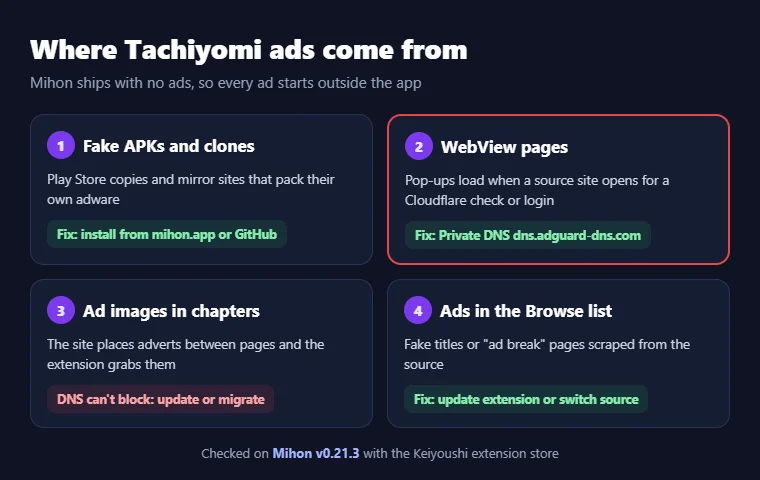
Fake APKs and Play Store Clones
Mihon is not on the Google Play Store, and its FAQ says it never will be, so any “Tachiyomi” or “Mihon” app you find there is not official. The same goes for “Mihon for iOS”, which the developers call a scam (see what really works for Tachiyomi on iOS). These clones often pack their own adware into the app.
Source Websites Opened in WebView
Extensions read manga sites in the background, so no ad scripts run while you read. WebView only opens when you tap its icon or a site needs a Cloudflare check or login, and then the site’s pop-ups load too. One Comix user reported WebView getting stuck in ads in June 2026.
Ad Images Inside Chapters
Sometimes a site places ad images between the real pages, and the extension picks them up as part of the chapter. Doujindesu readers saw this in May 2026, when chapters showed adverts instead of panels until the extension got fixed. A DNS blocker cannot remove these, because the ads are the images.
Ads Scraped Into the Browse List
Ads can also land in the Browse list as fake manga titles. In 2025 an ad showed up as a series in the Manga Demon source, and Nihonkuni added “ad break” pages that Mihon had no way to click past, so both sources needed extension fixes before they worked properly again.
Follow in order
Step-by-Step Guide to Using Tachiyomi Without Ads
The old Tachiyomi app cannot be fixed anymore, because adding the Keiyoushi store to it now shows only two placeholders called “Outdated App” and “Update to Mihon 0.20.1+”. That is why every step below uses Mihon, and following the five steps in the same order I use on my own phone gives you Tachiyomi without ads from the very first install.
Step 1: Download Tachiyomi (Mihon) From the Official Source
A clean download is the first part of using Tachiyomi without ads, because a fake Tachiyomi APK from a mirror site is where real adware lives.
- Where to download: Get Mihon only from mihon.app/download or the mihonapp/mihon releases page on GitHub.
- Latest version: Mihon v0.21.3 came out on October 25, 2026, and it needs Android 8.0 or higher.
- Which APK to pick: Most modern phones need arm64-v8a (26.5 MB), older 32-bit phones need armeabi-v7a, and the 65 MB universal APK works on any device.
- FOSS build: This separate file installs as its own app next to the normal one.
- How to install: Open the APK, allow your browser to install unknown apps when Android asks, and tap Install (if it fails, see these install fixes).
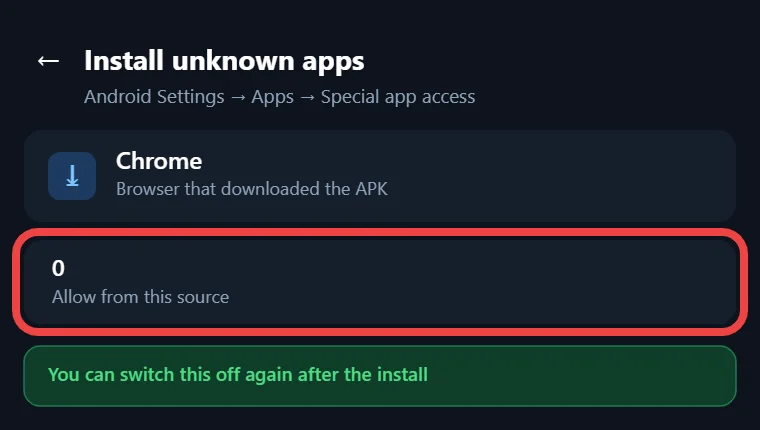
Stay away from sites that borrow the Mihon name. In November 2025 the developers warned that iiTachiyomi, also known as Miyomi, reposts their releases and sells fake merchandise, and they linked this kind of copying to the Kakao legal pressure that ended Tachiyomi.
Step 2: Choose Ad-Free or Low-Ad Extensions
Mihon ships with no extensions, so you add them from Keiyoushi, a volunteer-run store with 1,449 extensions and 2,362 sources (our Mihon extension repo list covers other repos too).
- Uninstall any old extensions first, or they will not get updates.
- Go to More → Settings → Browse → Extension store and tap Add.
- Paste this URL into the box:
https://github.com/keiyoushi/extensions/raw/repo/index.pb - Restart Mihon so it reloads the list, then reinstall your extensions.
- Open Browse → Migrate to see which extensions you are still missing.
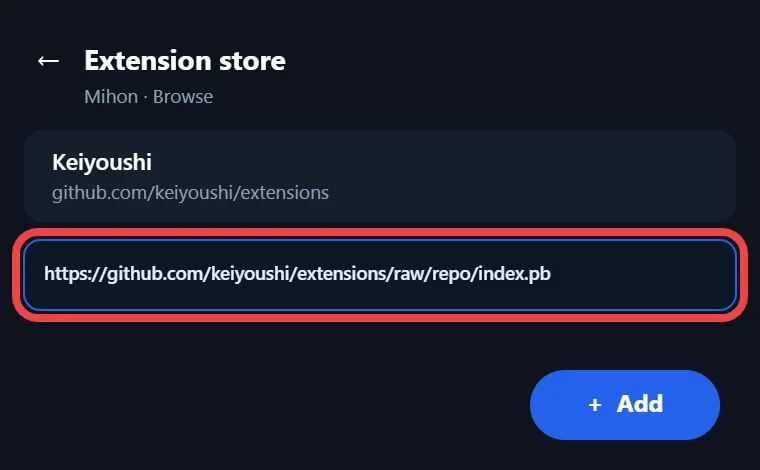
The one-tap Add store button on the Keiyoushi website does the same job, but it needs Mihon 0.21.3 or newer. Since v0.21.0 you can also choose which content warnings to allow (Safe, Mixed or 18+), and picking MangaDex or Webtoons.com over random aggregator sites means far fewer ads ever reach your screen. For a full walkthrough, read how to install extensions in Tachiyomi.
Step 3: Disable WebView When Not Required
Mihon has no switch to turn WebView off, because the app needs this small browser for Cloudflare checks and logins, so the goal is to use it as little as you can.
- Open it only when asked: Use WebView when a source needs a check, then close it with the X at the top-left.
- Use your own browser: Tap the ⋮ menu and choose Open in browser, so your browser’s ad blocker can do its job.
- Reset it when needed: Go to More → Settings → Advanced, then tap Clear cookies and Clear WebView data.
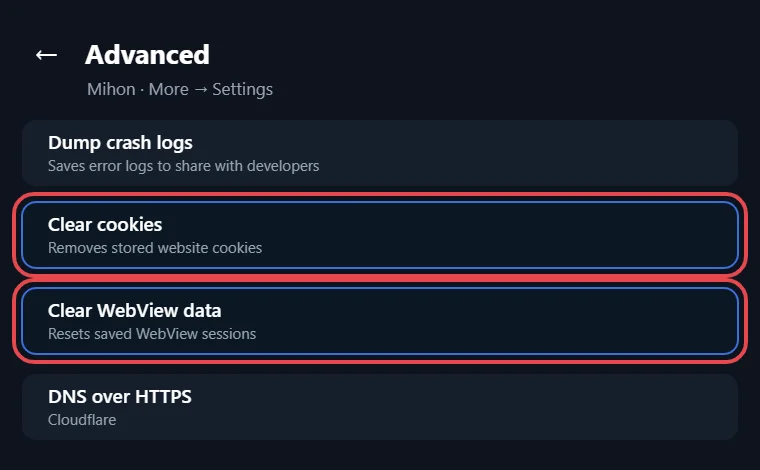
WebView runs on Android System WebView or Google Chrome, and every extra page you open in it can load more pop-ups, so short visits are the simplest habit for Tachiyomi without ads.
Step 4: Use a System-Wide Ad Blocker
A system-wide ad blocker stops WebView ads before they load, and on Android 9 or newer you can set one up without installing anything.
- Open Settings → Network & internet → Private DNS (on Samsung and Xiaomi phones, search “Private DNS” in Settings).
- Tap Private DNS provider hostname so you can enter your own server.
- Type
dns.adguard-dns.comin the box and tap Save to turn it on.
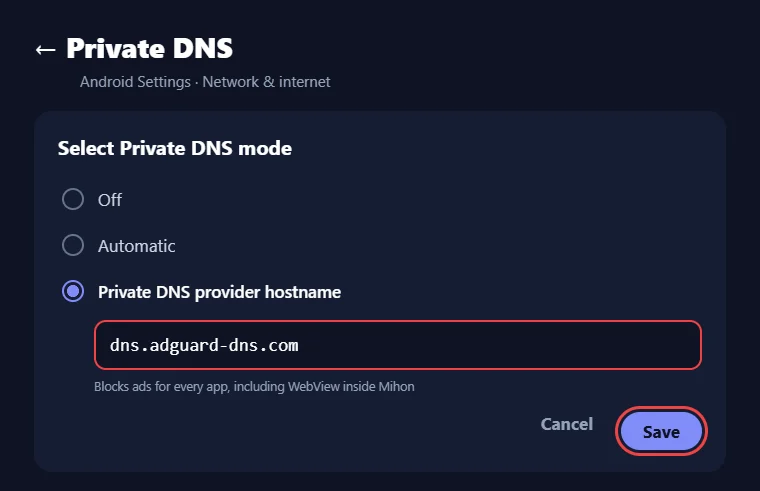
This points your phone at AdGuard DNS, which blocks ads for every app, including the WebView inside Mihon.
Watch out for this: Mihon’s own DNS over HTTPS list (Cloudflare, Quad9, Mullvad, Control D and others) has an AdGuard option, but it uses AdGuard’s Unfiltered server, so it blocks nothing. Use Private DNS for Tachiyomi without ads instead.
Prefer an app? AdGuard for Android and Blokada work without root, while AdAway needs root, and any of them works as a Tachiyomi ad blocker.
The one limit: No blocker can remove ad images that are part of a chapter’s pages.
Step 5: Download Chapters for Offline Reading
Downloaded chapters open from your phone’s storage (and you can delete them later to free space) instead of the internet, which makes offline reading the cleanest way to use Mihon.
- Open a series and tap the download arrow next to a chapter, long-press to pick several, or use the download menu at the top to grab many at once.
- Open the More tab and turn on Downloaded only mode.
- Read from your library, which now shows only downloaded entries and makes no network requests.
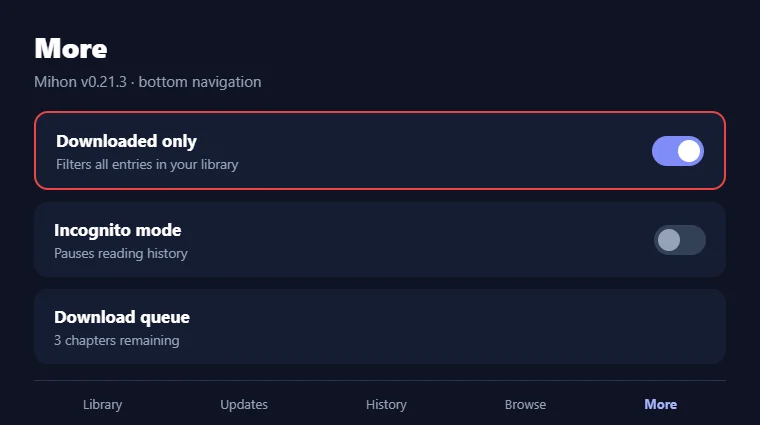
Downloading on home Wi-Fi and reading later keeps WebView and source websites out of the picture, and it alone keeps most of my reading on Tachiyomi without ads.
Extension fixes
How to Remove Ads Showing Inside Chapters or Browse
Ads inside chapters or the Browse list come from the extension, so the fix happens there rather than in your phone settings.
- Update the extension in Browse → Extensions, because Keiyoushi volunteers often fix sources quickly, as they did for Doujindesu and Manga Demon.
- Migrate the series by opening it, choosing Migrate from the menu, and picking another source, so your reading progress moves with it.
- Report new problems on the keiyoushi/extensions-source page on GitHub with the extension name and version, your Mihon version, and the steps that show the ad.
A clear report, like the ones users filed for Comix and Nihonkuni, gets a source back to Tachiyomi without ads much faster than a vague one. If a source keeps failing for other reasons, our Tachiyomi troubleshooting guide covers more fixes.
Other apps
Tachiyomi Forks Worth Considering
Mihon is not the only app built on Tachiyomi’s code, and you can compare more options in our list of Tachiyomi alternatives. The Mihon website endorses five Tachiyomi forks, and none of them has built-in ads either, so choosing one comes down to features.
| Fork | What it offers |
|---|---|
| TachiyomiJ2K | A new design approach with other improvements |
| TachiyomiSY | Stays close to Mihon and adds extra features |
| TachiyomiAZ | Keeps the old Tachiyomi design with the hamburger menu |
| Yōkai | Takes the best parts of J2K and builds on them |
| Komikku | Mixes features from SY and Mihon with its own touches |
Check extension support before you switch. Keiyoushi officially supports TachiyomiSY 1.13.2 and newer and Komikku 1.14.1 and newer, so those two use the same store as Mihon. The other forks may still load extensions, but Keiyoushi does not help when something breaks there. The Private DNS and offline tips in this guide work on every fork, because they do not depend on the app you pick for Tachiyomi without ads.
Pick smart
Best Ad-Free Sources to Use Inside Tachiyomi
I will not give you made-up ad scores for each site, because sites change their ads all the time, and a source that looks clean this month can fill up with redirects next month. A better way to pick sources is to look at who runs them and how they make money.
| Source type | Example | What to expect |
|---|---|---|
| Community sources | MangaDex Low ads | Community-run site, not a mirror copying other sites |
| Official platforms | Webtoons.com Low ads | Chapters come straight from the official publisher |
| Aggregator sites | Many other store sources High risk | Higher ad risk, and most in-chapter and Browse ads start here |
Start with community and official sources, and keep aggregators on your list only as a backup for series you cannot find anywhere else. Both MangaDex and Webtoons.com have extensions in the Keiyoushi store, so adding them takes a few taps (see our English manga extensions guide), and they make a strong base for Tachiyomi without ads.
Fast answers
Quick Fix Table for Tachiyomi Without Ads
Use this table when an ad shows up and you want the fix fast. Find the row that matches what you see, apply the fix, and you are back to reading Tachiyomi without ads in a few minutes.
| Where the ad comes from | How to fix it |
|---|---|
| Fake APK or Play Store clone | Uninstall it and get Mihon from mihon.app or GitHub |
| WebView ads | Set Private DNS to dns.adguard-dns.com and close WebView after checks |
| Ad images inside chapters | Update the extension, migrate the series, or report it on GitHub |
| Ads in the Browse list | Update the extension or switch to a cleaner source |
Stay clean
Additional Tips to Keep Your Experience Ad-Free
Keep Everything Updated
Keep Mihon and your Keiyoushi extensions updated, since most ad problems inside sources get fixed through extension updates. Remove extensions you no longer use, so fewer ad-heavy sites can undo your Tachiyomi without ads setup.
Trust Only Known Extensions
Be careful with extensions from outside the store. When you install one, Mihon warns that untrusted extensions can read stored login details or run their own code, so tap Trust only for files you know.
Turn Off Analytics
For extra privacy, open More → Settings → Security and privacy and turn off the Send crash logs and Allow analytics switches under Analytics and Crash logs. Incognito mode on the More tab also pauses reading history when you want it. These steps do not block ads, but they keep the app quiet, which suits anyone who wants Mihon ad free and private.
Reddit and Quora questions
FAQs About Using Tachiyomi Without Ads
Does Mihon have ads?
No, Mihon is free and open source under the Apache license, with no ads, in-app purchases or subscriptions, and the developers rely on donations through Patreon and OpenCollective. If you see ads, they come from a source website, WebView or a fake copy, and the steps above get you Tachiyomi without ads again.
Why do I see ads inside manga chapters in Mihon?
The extension picked up ad images that the website placed between the real pages. A DNS blocker cannot remove them because they are part of the chapter itself, so update the extension, migrate the series to another source, or report it on the Keiyoushi GitHub page.
Is the Tachiyomi app on the Google Play Store real?
No, because the developers keep Mihon off the Google Play Store on purpose, since APK-based extensions clash with Google’s content policy. That means any Play Store app using the Tachiyomi or Mihon name is a clone, and many of these clones carry their own ads.
Does Mihon’s DNS over HTTPS setting block ads?
No, because the AdGuard option in More → Settings → Advanced uses AdGuard’s Unfiltered server, which does not filter anything. To block ads in Mihon, set Android’s Private DNS to dns.adguard-dns.com, or install an ad blocker app such as AdGuard for Android or Blokada.
Will an ad blocker break Cloudflare checks in Mihon?
If a Cloudflare check keeps looping while your blocker is on, pause the blocker for a moment, pass the check in WebView, and turn it back on afterwards. Clearing cookies and WebView data in the Advanced settings also helps when a check refuses to finish.
Can I still use the old Tachiyomi app without ads?
Not really, because the old app can no longer read new content. Adding Keiyoushi to it shows only “Outdated App” and “Update to Mihon 0.20.1+”, so move to Mihon and restore your .tachibk backup on v0.21.x, the last major version that supports it.
Final word
Final Thoughts
Clean, ad-free Tachiyomi setup comes down to three things: a real copy of the app, sources you trust, and a blocker that works outside the app. Install Mihon from mihon.app, add Keiyoushi, keep WebView visits short, and set Private DNS once, and most ads disappear for good. For the few that still slip into chapters, an extension update or a quick migration usually sorts it out. Your next step is simple: download Mihon v0.21.3 from the official site today, follow the steps above in order, and start reading Tachiyomi without ads on your Android phone.